
App Tour
X-Stitch Tracker is built around four areas, and you’ll find all of them on the bar at the bottom of the screen: Stash, Projects, Shopping, and Plans. Tap one to switch to it.
Here’s a full walkthrough of the app from Catkin & Lillie:
Your inventory of everything you own. Switch between Fibers, Patterns, and Fabrics with the tabs at the top. Tap Add to Stash to log something new.
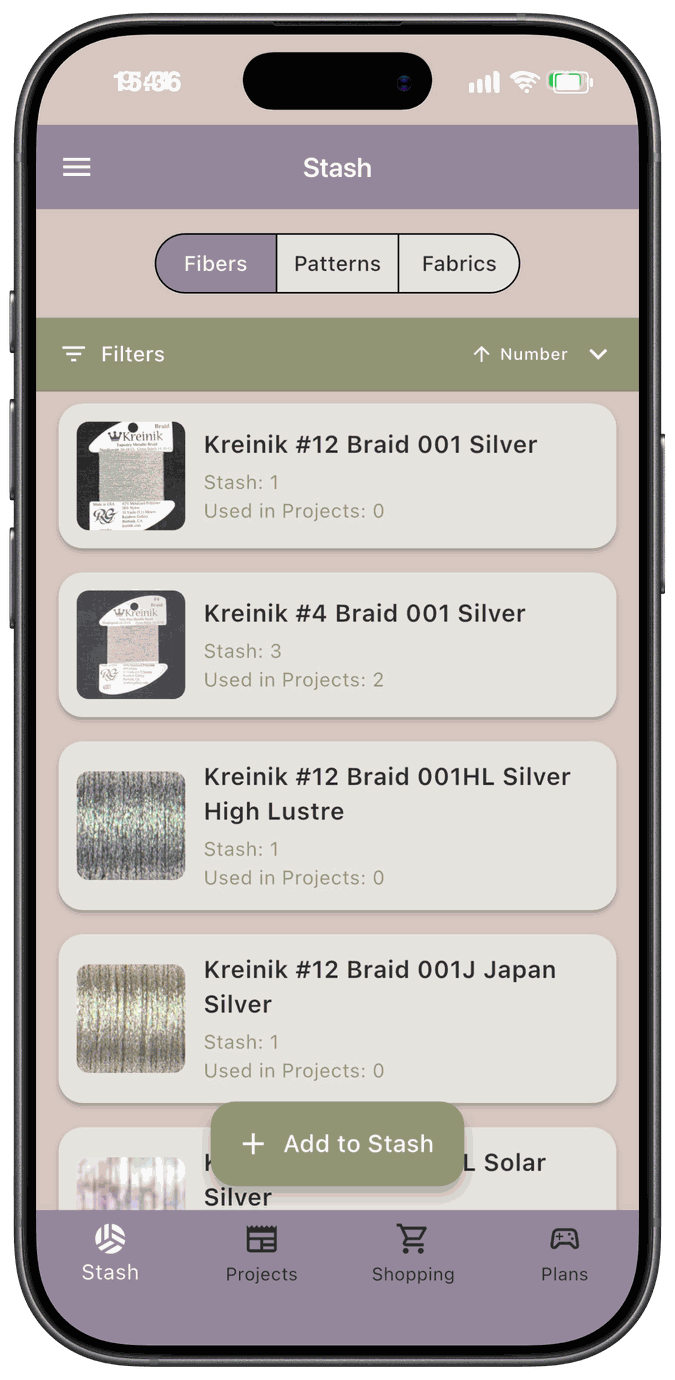
Learn more in Stash.
Projects
Section titled “Projects”Every project you’ve started, with its pattern, fabric, and status. Each card shows the project’s designer, the fabric you’re using, and either its start date or your latest progress. Tap the + on a card to log an update, or tap New Start to begin a new project.
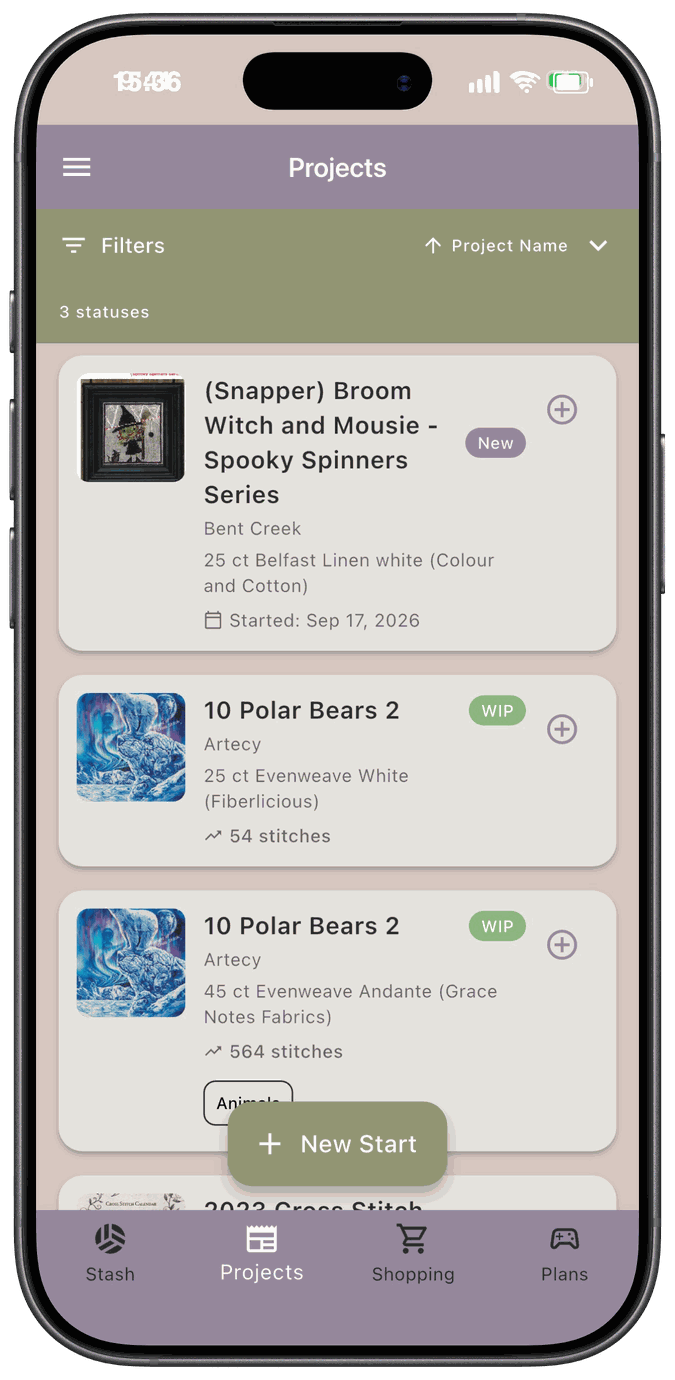
Use Filters to narrow the list by status and other details. Learn more in Projects.
Shopping
Section titled “Shopping”The things you still need to buy. Anything Kit Up finds you’re short on is added here for you, and you can add your own items with Add to List.
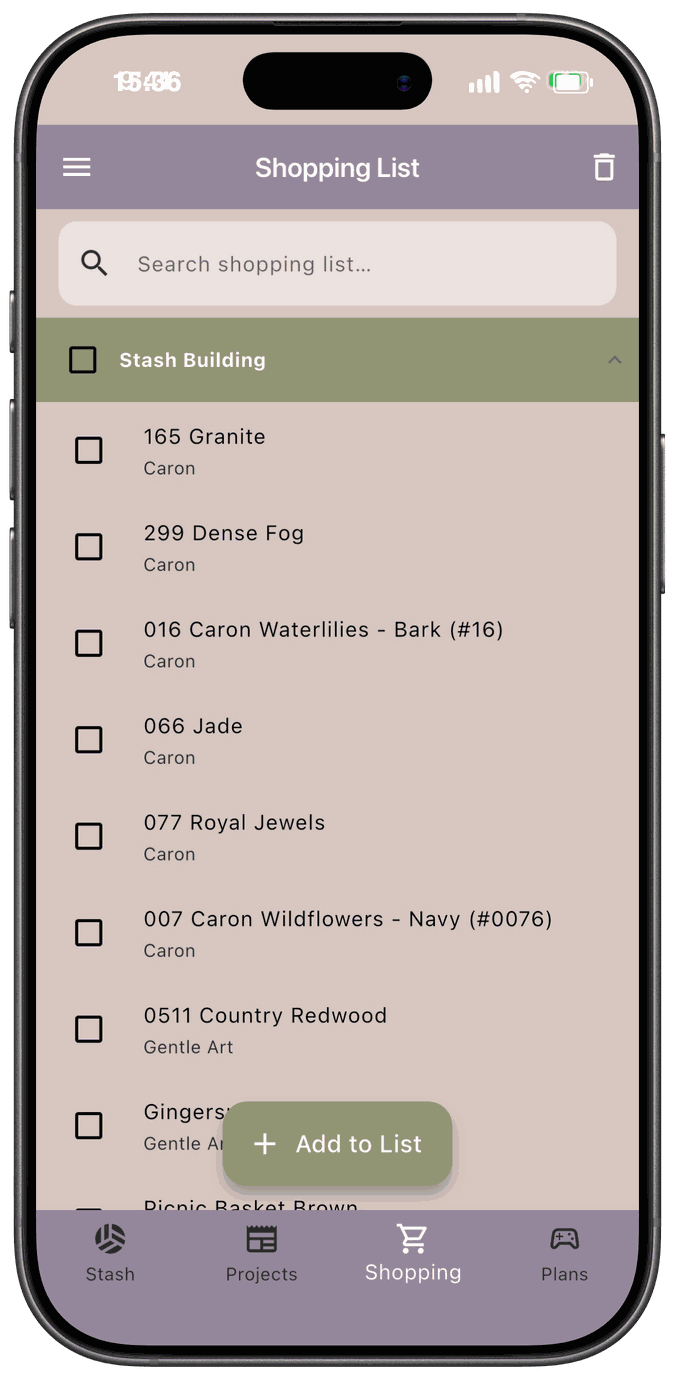
The tab at the bottom says Shopping, and the screen it opens is titled Shopping List. They’re the same place. Learn more in Shopping List.
Games that turn your projects into a challenge. Active shows the projects you’re playing with and how close you are to each goal. The Games tab is where you start and manage your games.
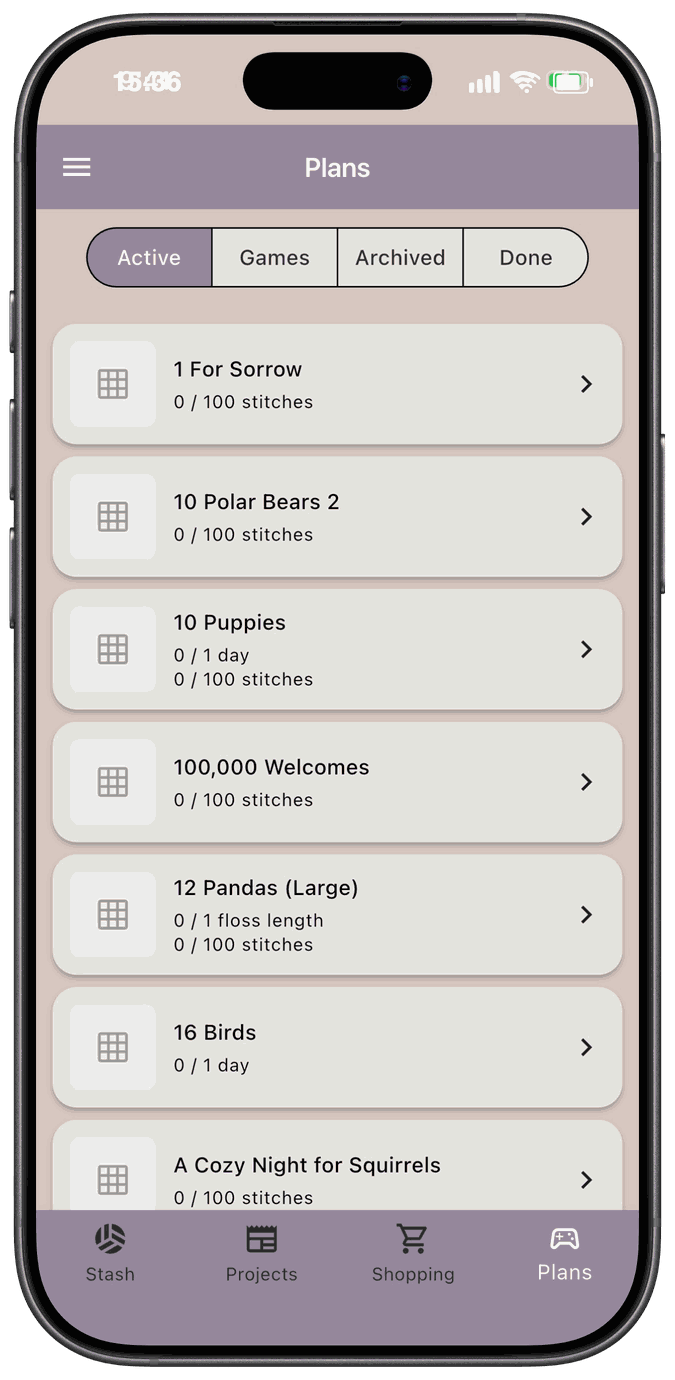
Learn more in Plans.
The menu
Section titled “The menu”Tap the menu icon in the top left of any of the four areas to open the menu. It shows your account, your subscription status, Settings, and Sign Out.
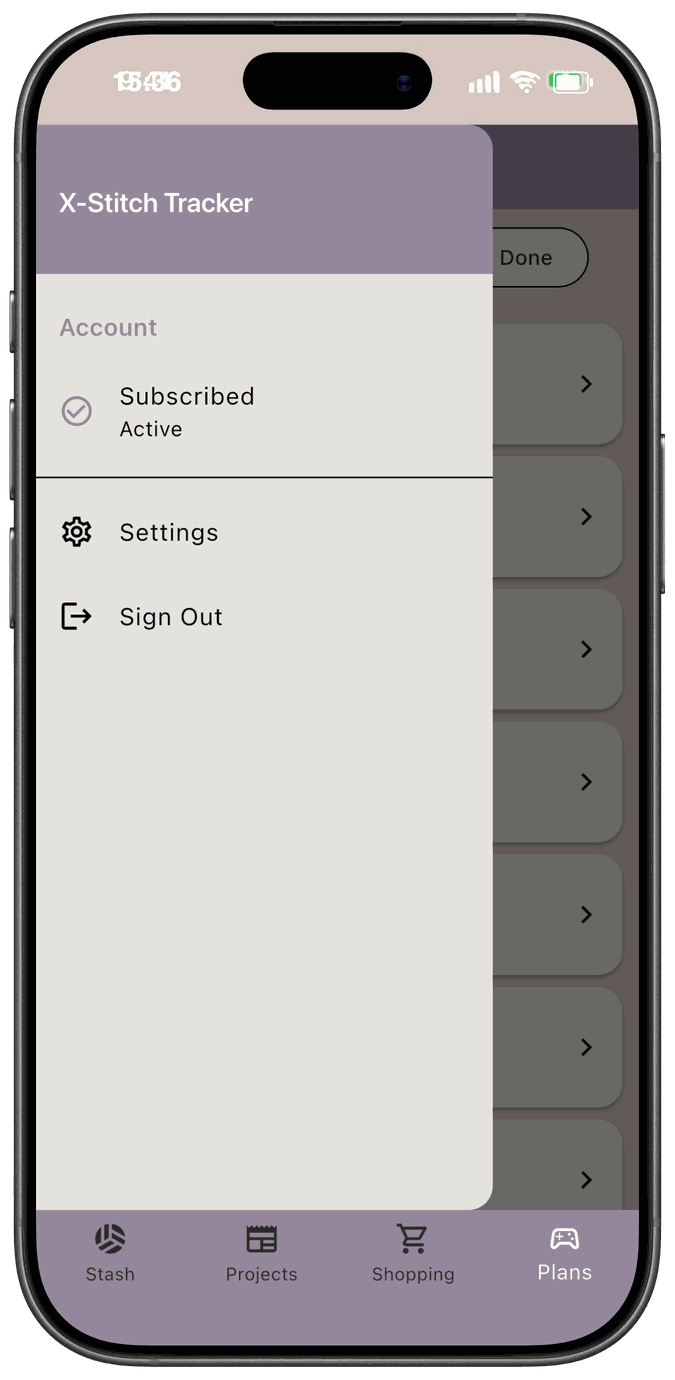
For everything in Settings, see Settings.
Switching between areas
Section titled “Switching between areas”When you switch to another area and back, the filters you set stay in place. Your scroll position doesn’t, so a long list returns to the top.
Filters and scrolling in lists
Section titled “Filters and scrolling in lists”On the Stash and Projects lists, the filter bar stays at the top of the screen while you scroll through your results.
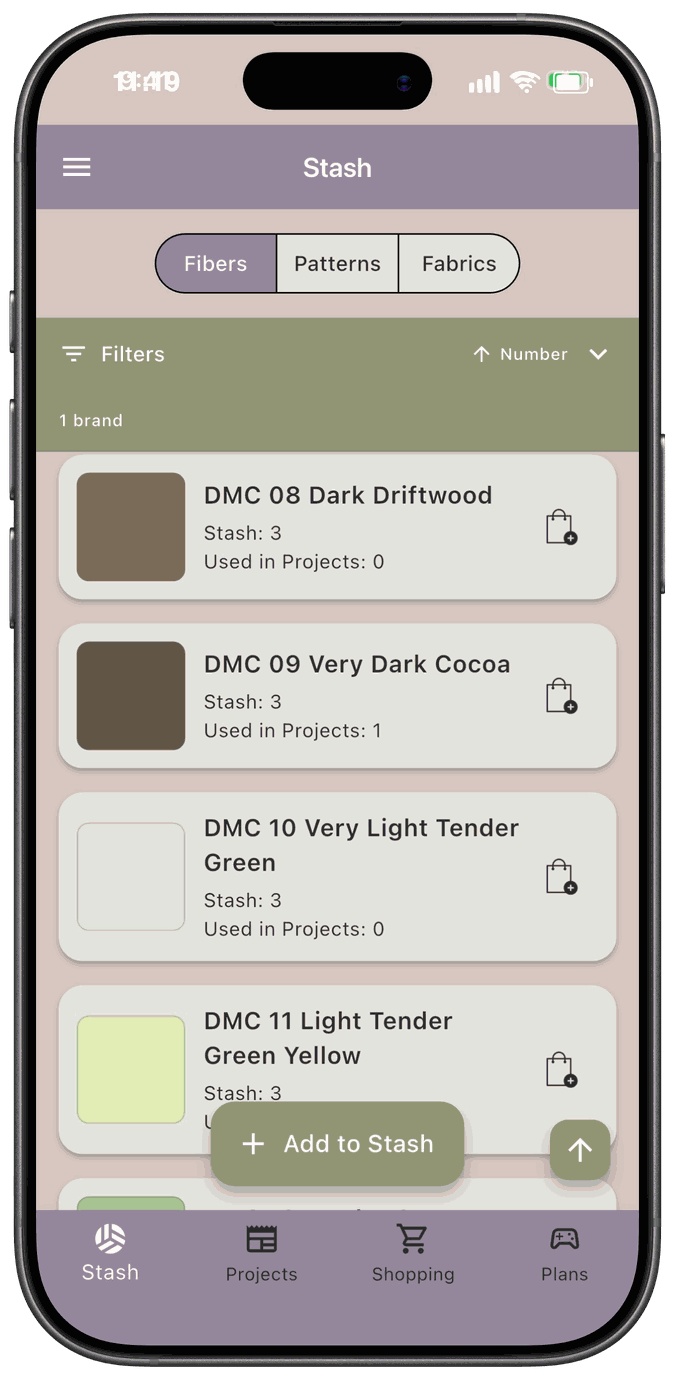
Once you’ve scrolled down the list, a round arrow button appears at the bottom right. Tap it to jump back to the top. The button hides while the keyboard is open.
Changing a filter, the search text, or the sort order also takes you back to the top of the list.
Choose which area opens first
Section titled “Choose which area opens first”By default, the app opens to Stash. To change that, go to Settings → General and look under Default Screens for Start Screen. Pick Stash, Projects, Shopping, or Plans.
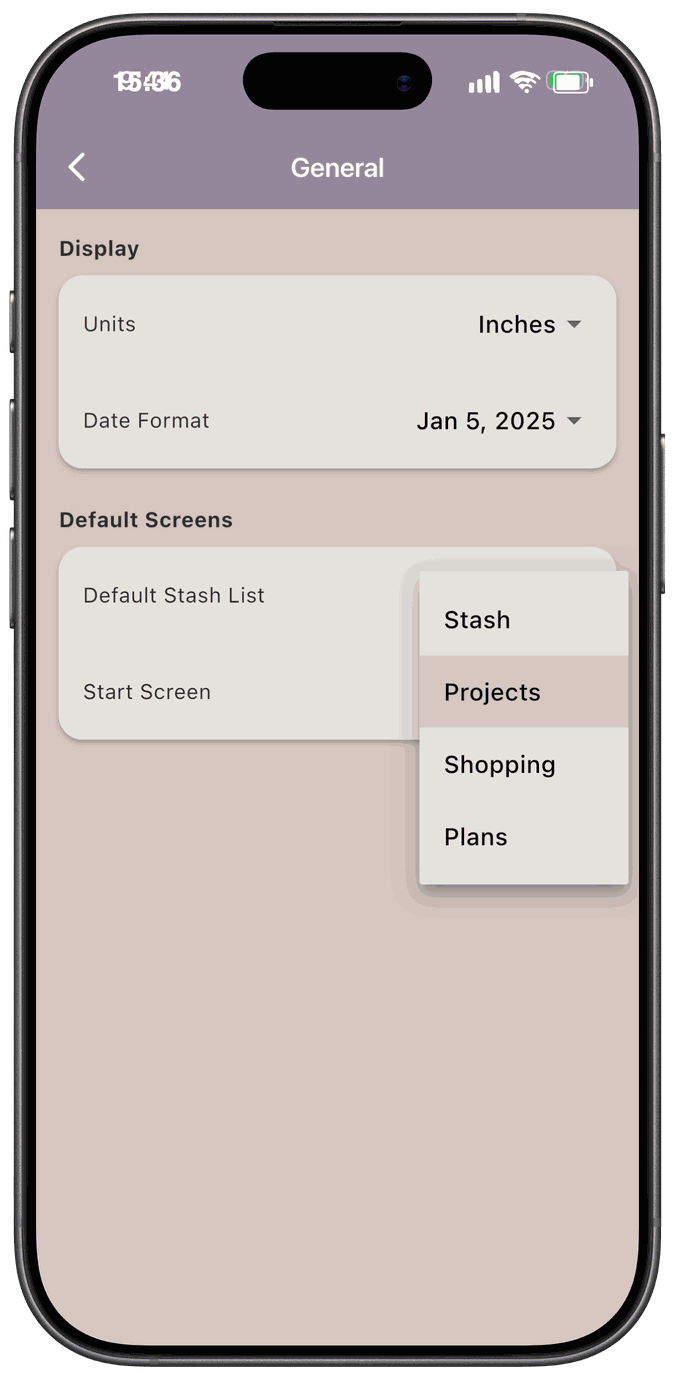
The next time you open the app, it starts there. See General for the other options on this screen.