
WIPGO
WIPGO is a bingo-style game for your WIPs created by Jessie Marie Does Stuff. You fill a board with your projects, then call numbers to see which square you stitch on next. When you finish squares in a row, a column, or a diagonal, you get a bingo.
Set up a game
Section titled “Set up a game”Tap New Game on the Games tab of Plans and choose WIPGO. Setup has two steps.
Step 1: The basics
Section titled “Step 1: The basics”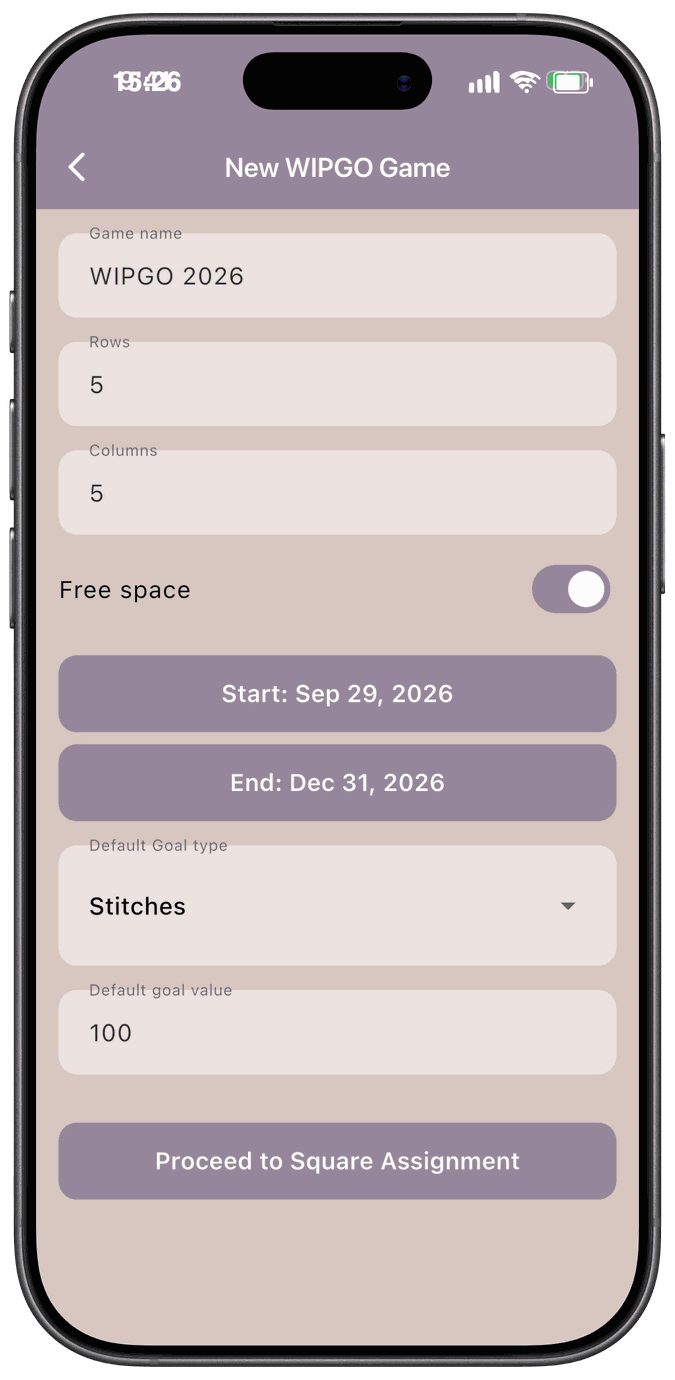
- Game name — whatever you like.
- Rows and Columns — each from 1 to 10, so your board can have up to 100 squares.
- Free space — gives you a free square in the middle. This only appears when both rows and columns are odd numbers, like 5 × 5. It counts as complete from the start.
- Start and End dates — the start defaults to today. The end date is optional.
- Default Goal type and Default goal value — what you’ll aim for on each square: Stitches, Minutes, Days, or Floss Lengths. The app suggests a value when you choose a type, and you can change it. Goal types and values can also be set for each square individually.
Tap Proceed to Square Assignment.
Step 2: Fill the squares
Section titled “Step 2: Fill the squares”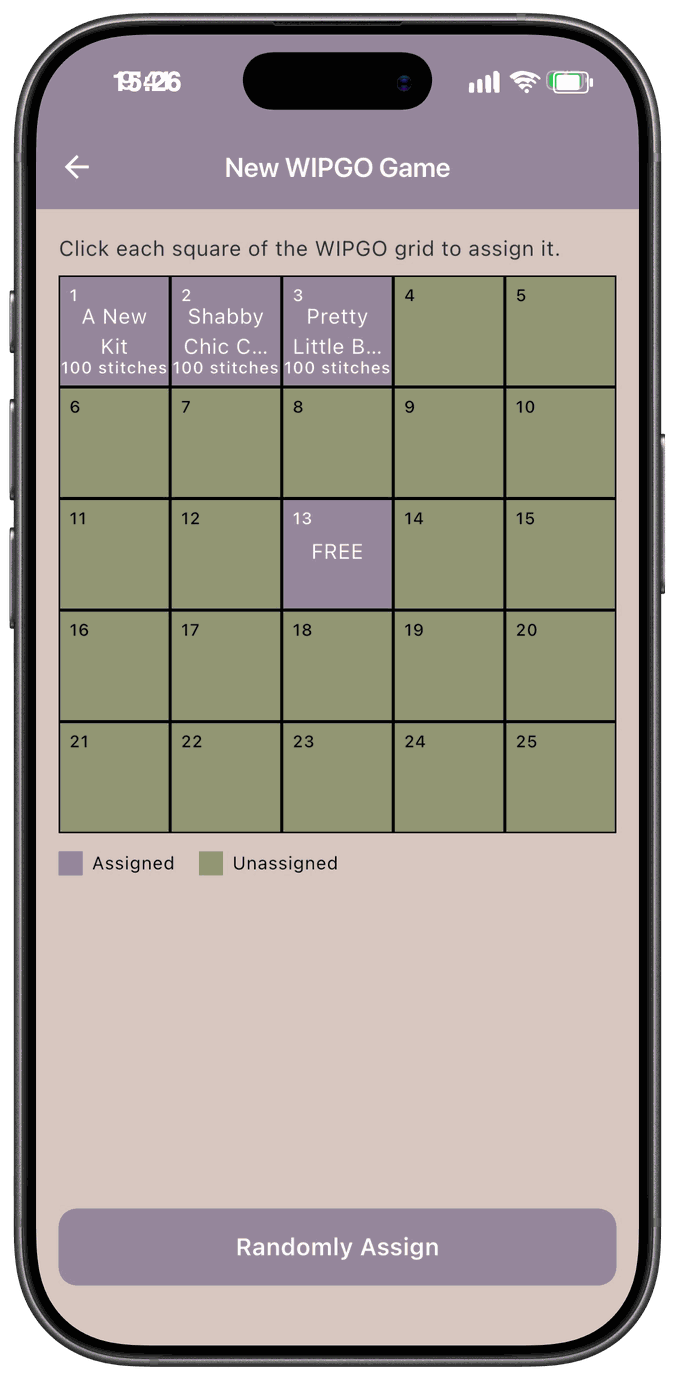
Each square gets a project or a category. Tap a square, choose Assign by Project or Category, and pick one. You can also change the goal type or value for just that square. Assigned squares are purple and unassigned ones are green.
Assigning by category means the square can be any project in that category. See Categories.
To fill the board faster, tap Randomly Assign.
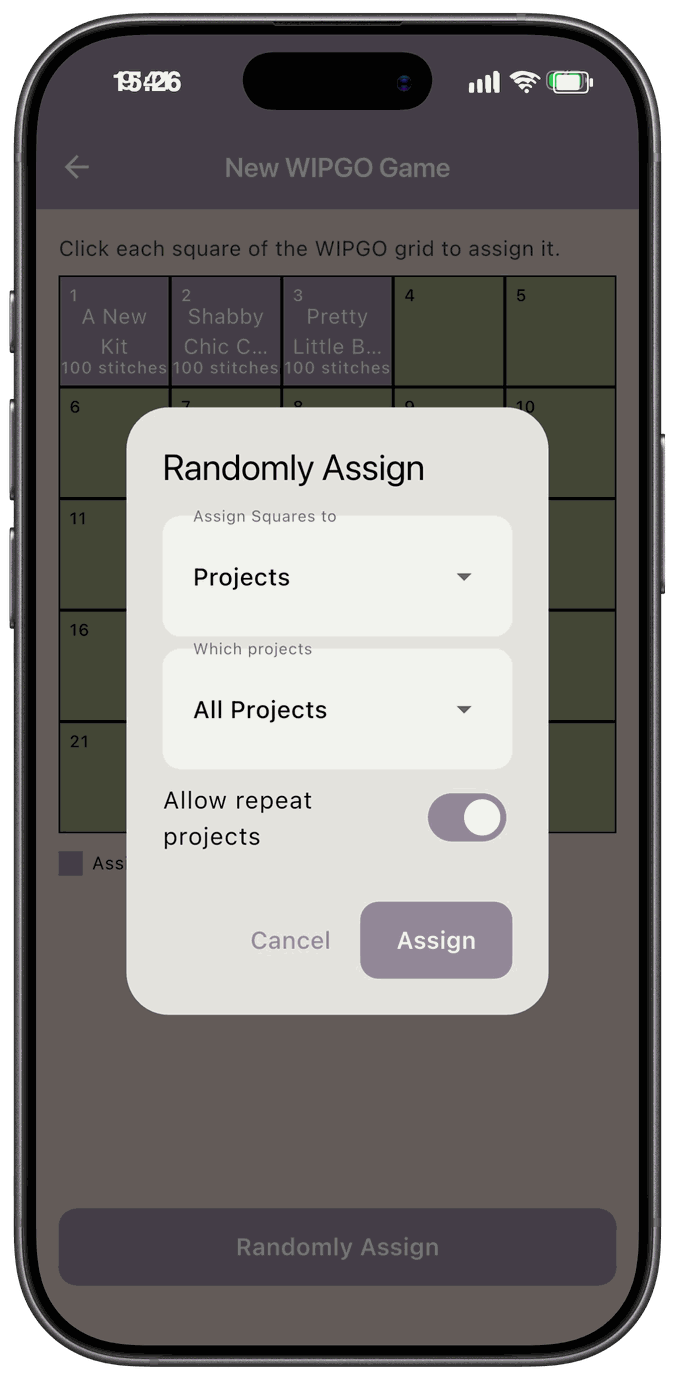
- Assign Squares to — Projects or Categories.
- Which projects — All Projects, or Select Categories to limit it.
- Allow repeat projects — turn this on if you have fewer projects than squares. With it off, each project can only be used once, and the app tells you if you don’t have enough.
When every square is filled, save the game.
Play the game
Section titled “Play the game”Open the game from the Games tab. The Grid tab shows your board and a count like 6 / 25 squares complete.
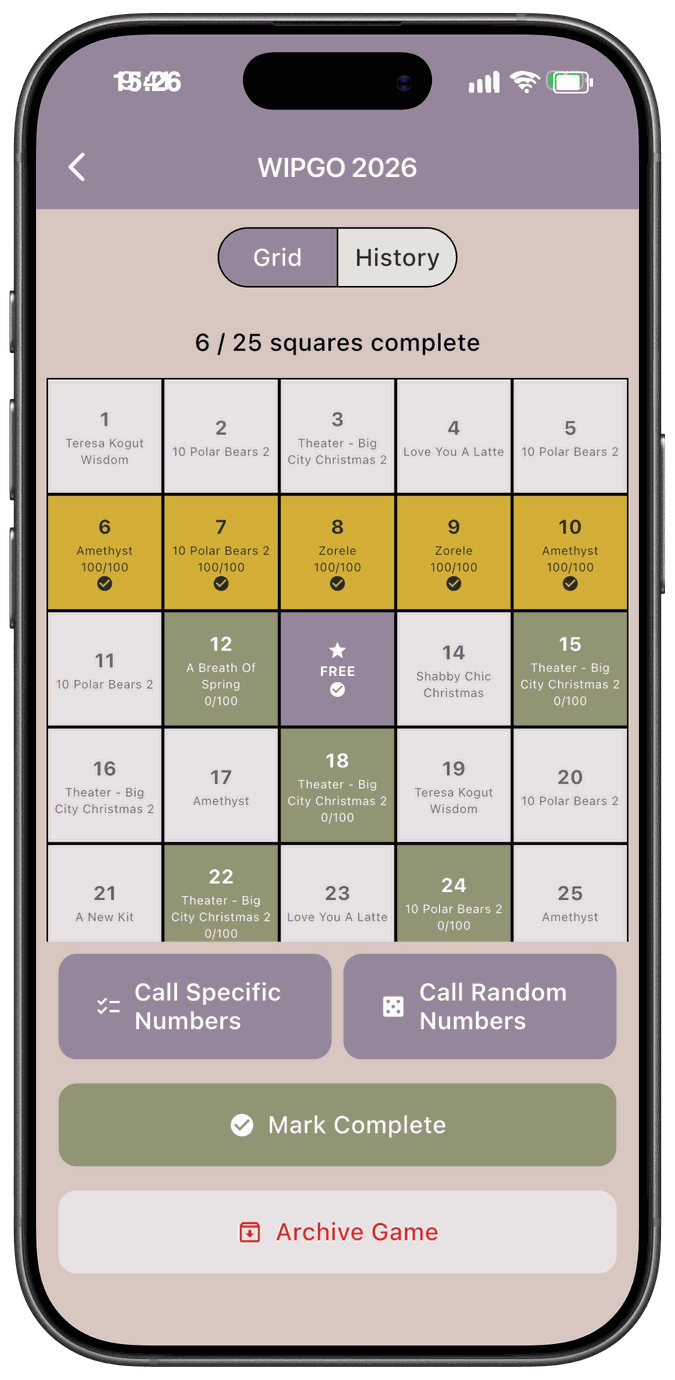
- Call Specific Numbers — you choose which squares to call.
- Call Random Numbers — the app picks from the squares you haven’t called yet.
A called square is now active, and you can start stitching on it. A completed square shows a check mark. When a full row, column, or diagonal is complete, it’s highlighted in gold. Diagonals only count when the board is square, like 5 × 5.
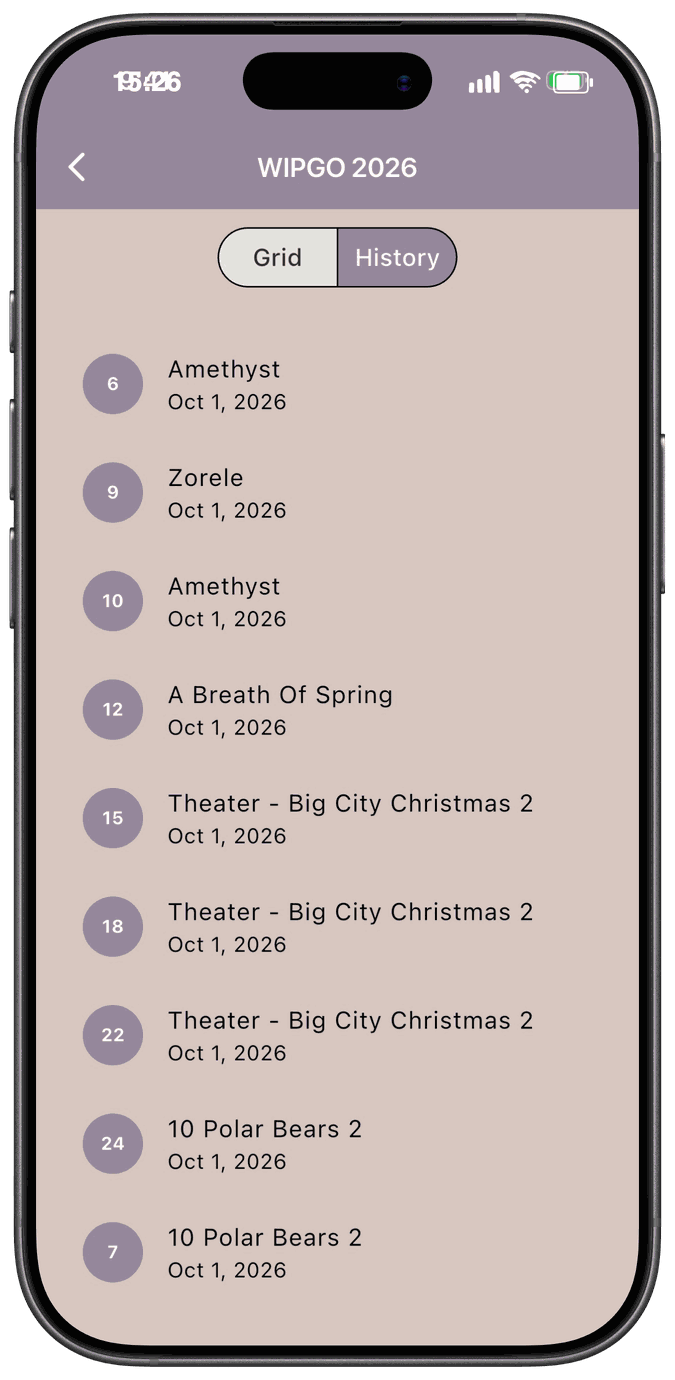
The History tab lists the numbers you’ve called, with the project and the date.
Log progress on a square
Section titled “Log progress on a square”Tap a square to see its details: your progress toward the goal, its number, the date it was called, and a log of your updates.
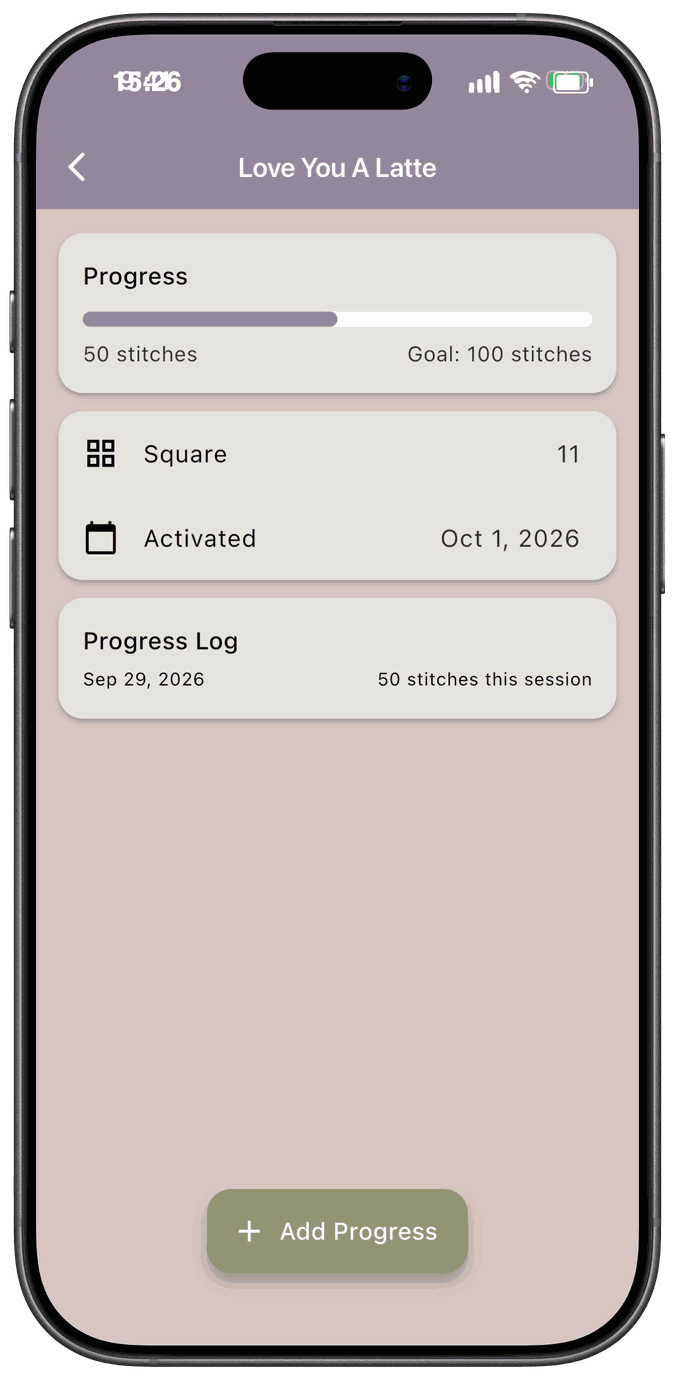
Tap Add Progress to log an update. Pick the date and how you want to enter it (Session, Total, or Percent), and add photos if you like. If the square is assigned to a category, you also choose which project the progress is for. For Minutes and Floss Lengths goals, there’s an extra required field for the minutes or floss length.
The update is saved on the project too, so it shows in that project’s history. See Progress Tracking.
Uncall a number
Section titled “Uncall a number”Called the wrong square? Tap it and choose Uncall This Number. The app confirms This will remove the activation for this WIPGO number. This number can be called again later.
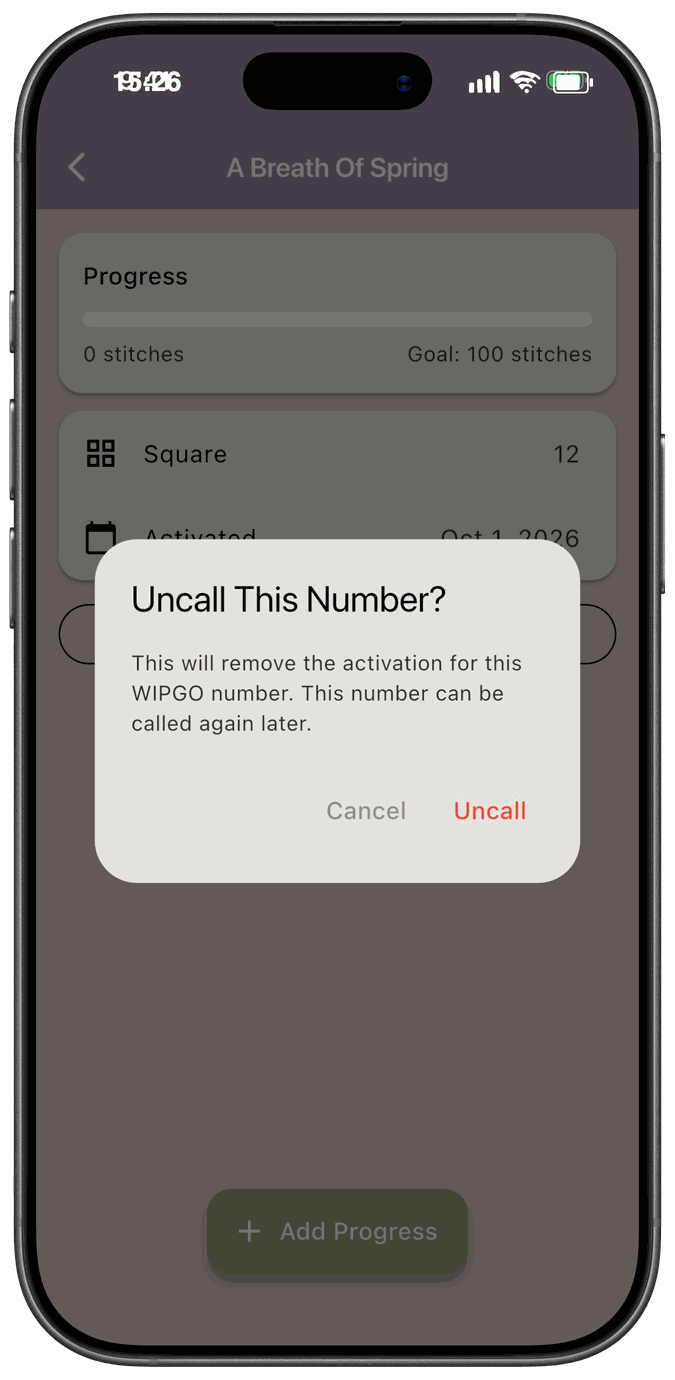
This only works on a square that has no progress logged yet, while the game is still active.
Finish or put away a game
Section titled “Finish or put away a game”Below the board are buttons for wrapping up a game.
-
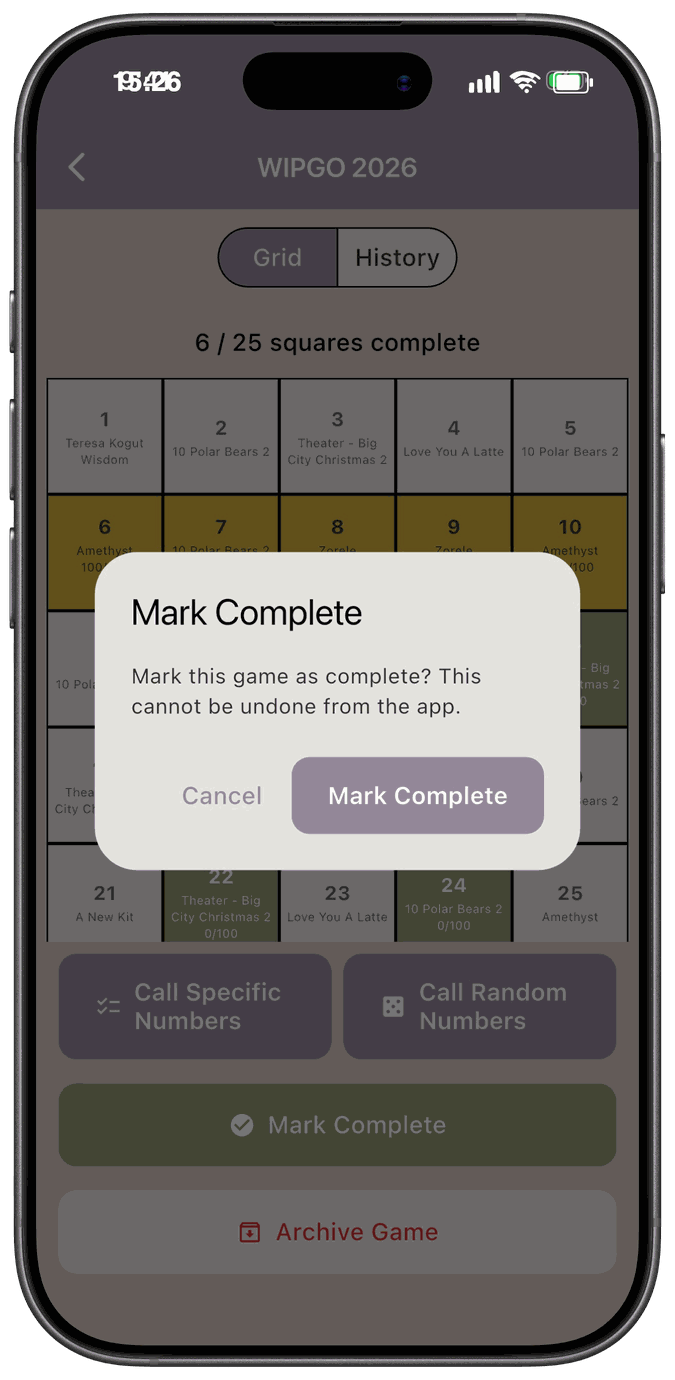
Mark Complete — finish the game. You can do this any time, even if the board isn’t full.
-
Archive Remaining Goals — keep the game but move its open goals out of your Active plans.
-
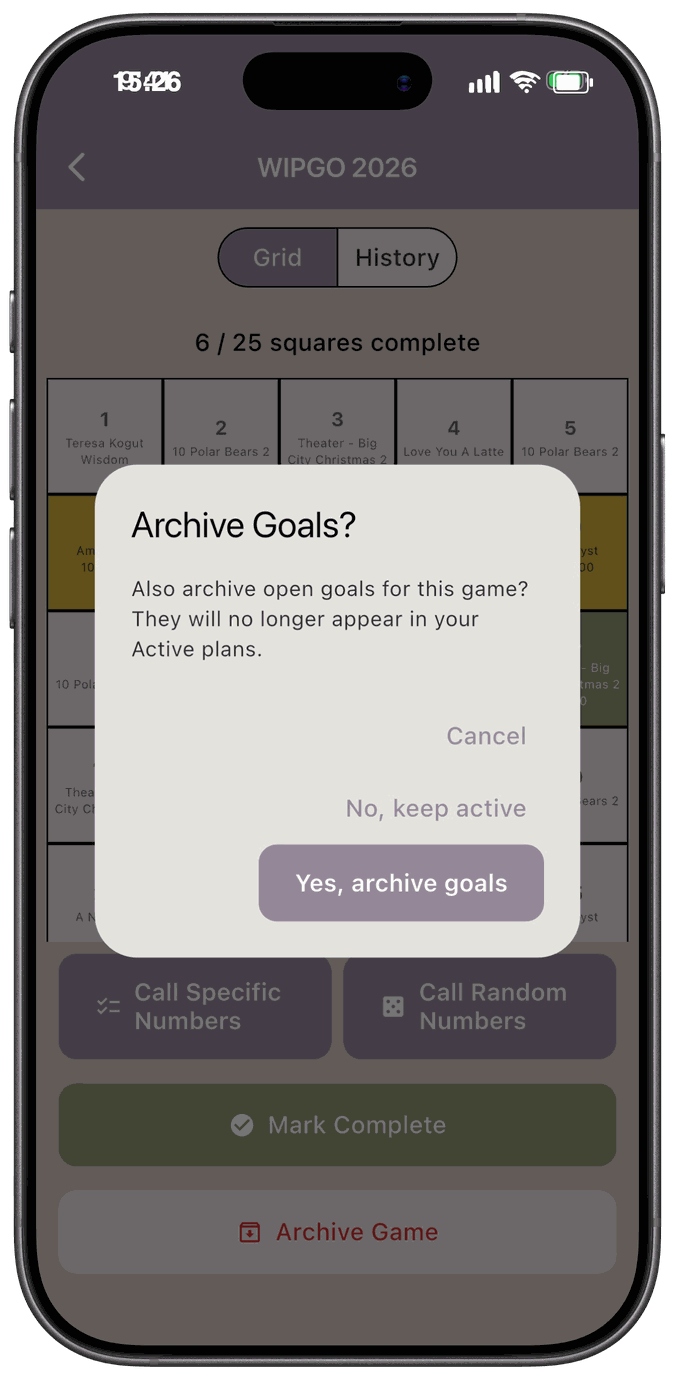
Archive Game — mark the game as abandoned. The app asks whether to archive its open goals too.
-
Delete Game — remove a game for good. This button only appears once a game is completed or archived.
If the game has progress updates on your projects, deleting it asks what to do with them.
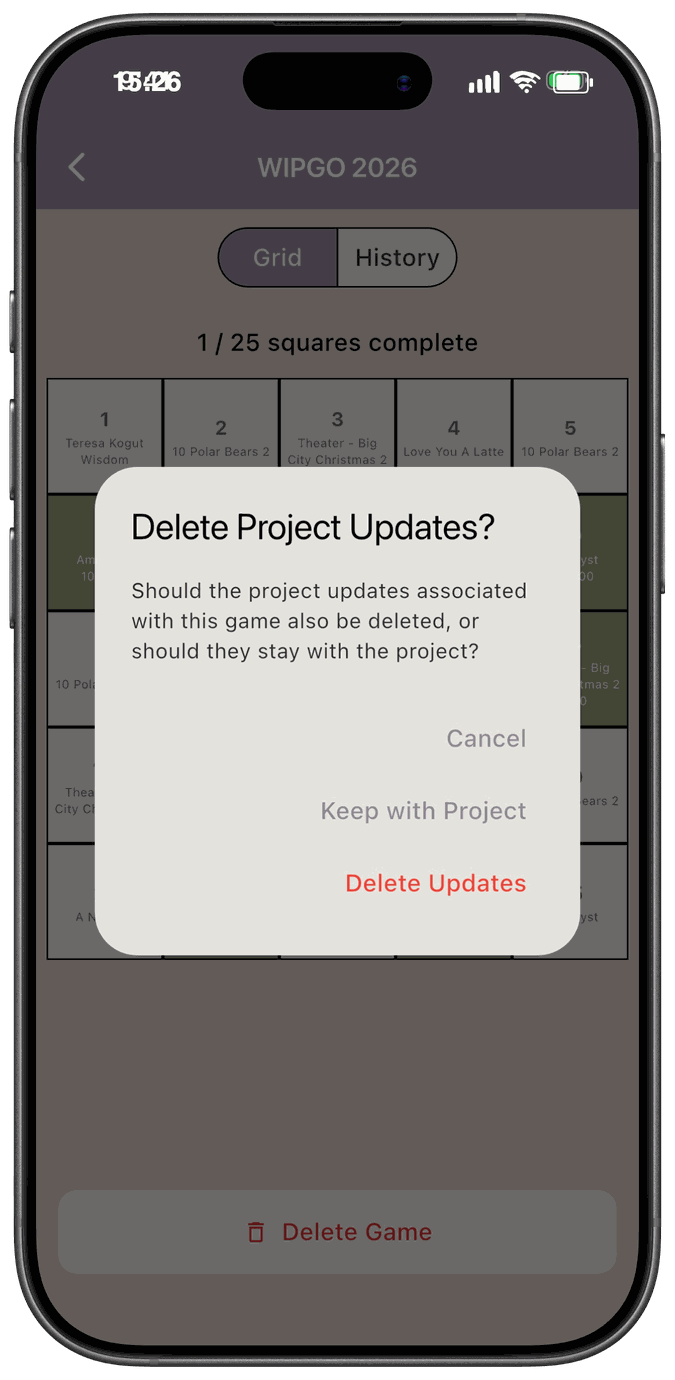
Choose Keep with Project to leave those updates on your projects, or Delete Updates to remove them along with the game.
A game also completes on its own once every square on the board (other than the free space) is complete. This is checked when you open the game.