
Fiber Stash
Stash → Fibers is your inventory of every floss, thread, and specialty fiber you own. Each card shows what’s on hand and how many projects are using that fiber, so you always know what you can stitch with before you head to the store.
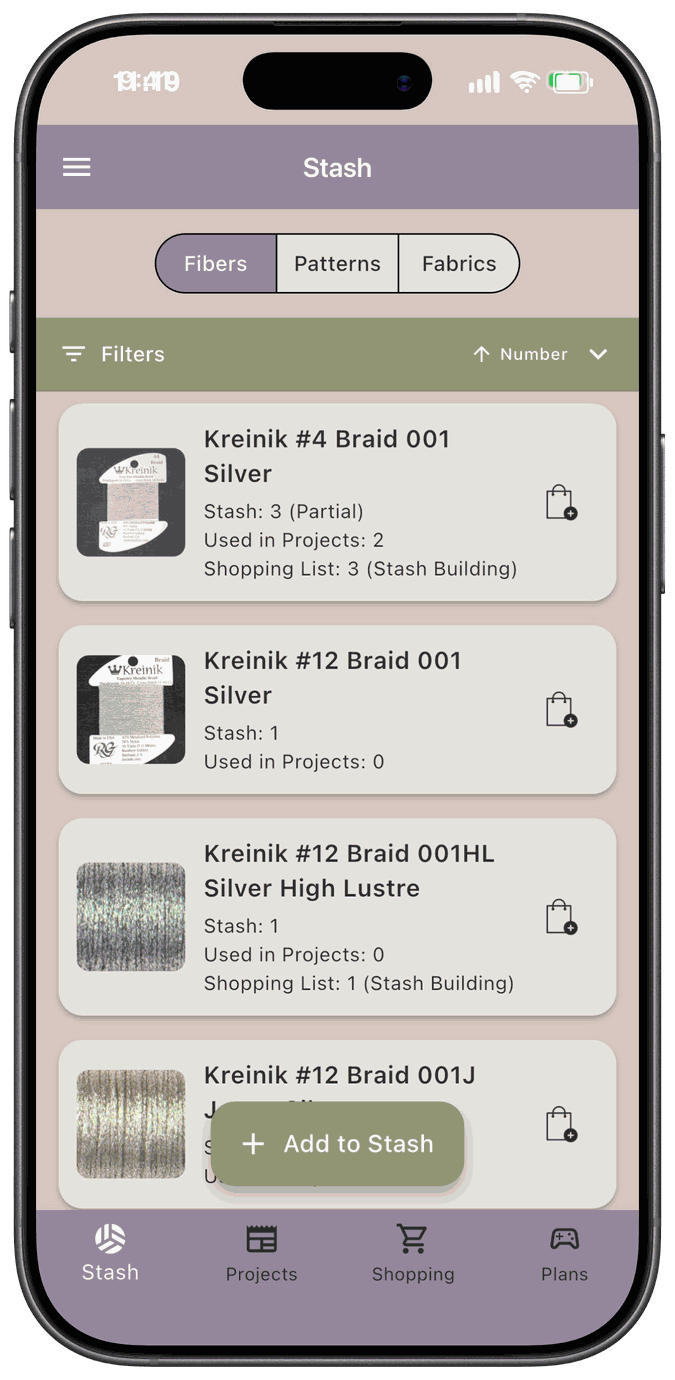
Each card shows the fiber’s name, plus two or three lines:
- Stash — how many you have available, meaning not currently kitted to a project. If any of them is a partial skein, you’ll see (Partial) after the number.
- Used in Projects — how many projects use this fiber.
- Shopping List — appears when the fiber is on your Shopping List, like Shopping List: 3 (Stash Building). If it’s on the list for both Stash Building and Projects, you see both counts, like Shopping List: 3 (Stash Building), 2 (Projects).
Tap the shopping bag icon on a card to add that fiber to your Shopping List. See Add a fiber to your Shopping List.
Tap a card to open the fiber’s detail screen.
Add fibers to your stash
Section titled “Add fibers to your stash”Tap Add to Stash on the Fibers tab to open Add Fiber to Stash.
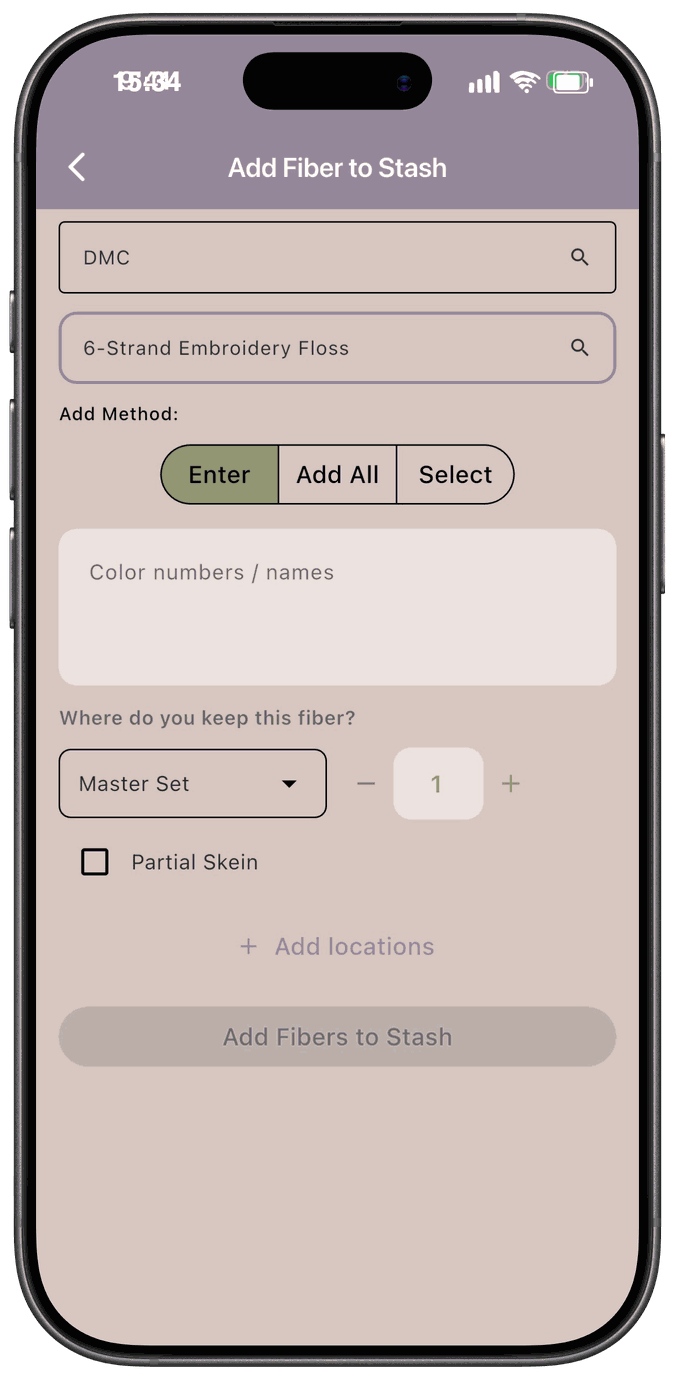
- Brand — search for a brand and pick it from the list. If yours isn’t there, choose Add New Brand and type the name.
- Collection — pick a collection within that brand, such as 6-Strand Embroidery Floss. This field unlocks once you’ve chosen a brand. Need something new? Choose Add New Collection.
- Add Method — choose how you want to tell the app which fibers you have:
- Enter — type the color numbers or names, one per line. For example:
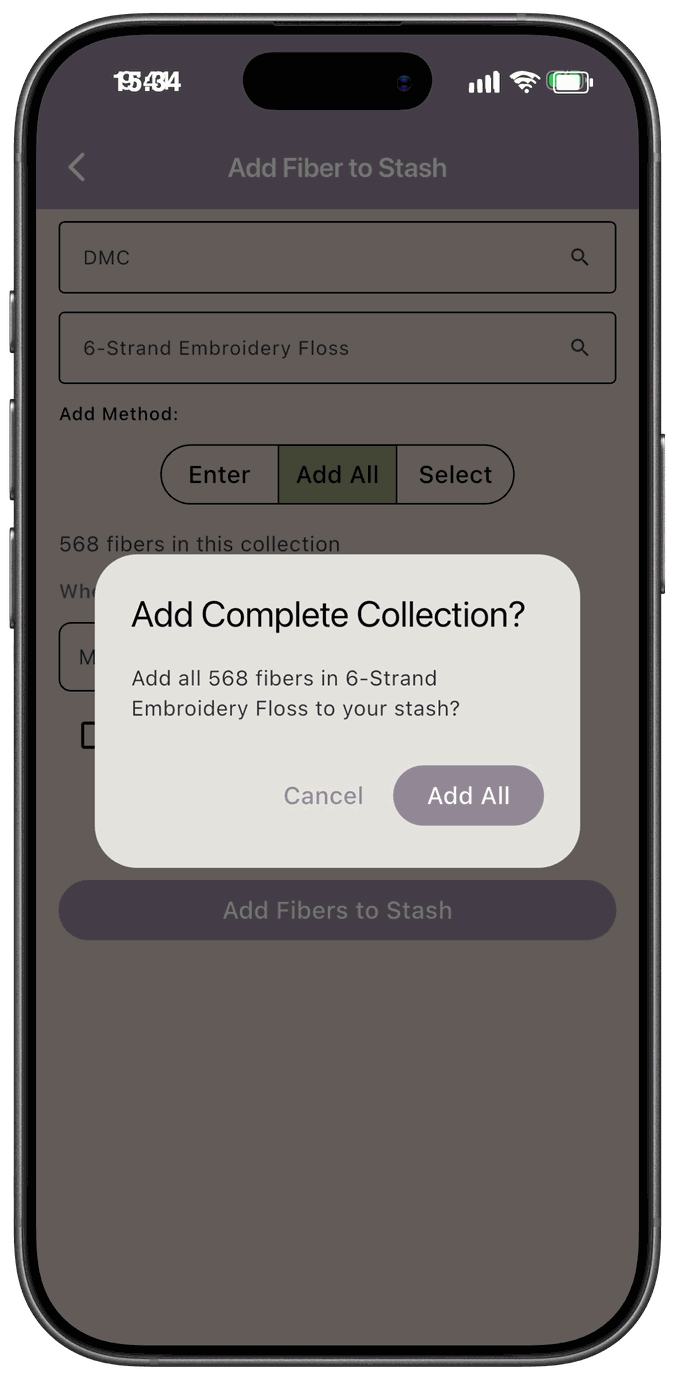
310,312,Ecru. - Add All — add every fiber in the collection at once.
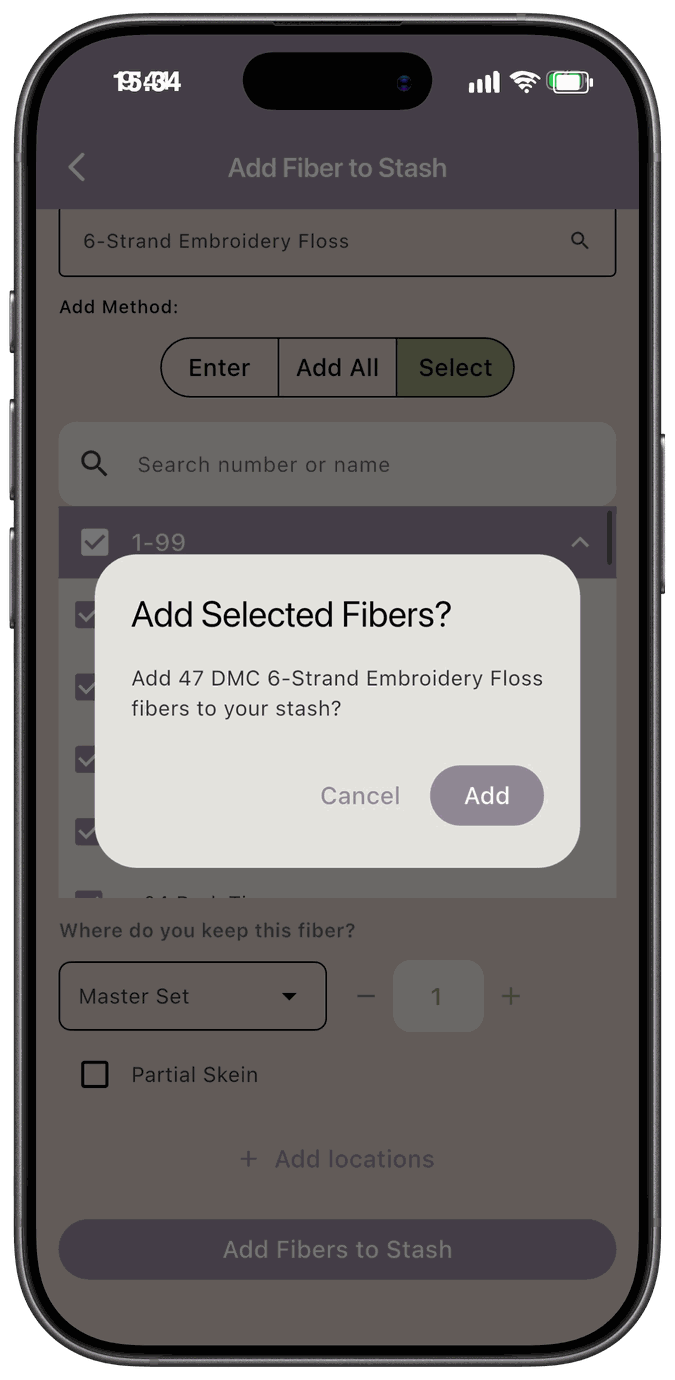
- Select — check off the fibers you own from the collection’s list. Use Search number or name to find them quickly.
- Enter — type the color numbers or names, one per line. For example:
- Where do you keep this fiber? — pick a location and set how many you have there. Tap Add locations if the same fiber is stored in more than one place, and use the delete icon to remove a row.
- Tap Add Fibers to Stash.
Add All and Select are only available when you’ve picked an existing brand and collection that the app already has fibers for. If you add a brand-new brand or collection, you can only use Enter.
Before adding a whole collection, or a batch of selected fibers, the app asks you to confirm.
After you add fibers, the form clears and shows a message like 3 fibers added to stash so you can keep adding more without leaving the screen.
Partial skeins
Section titled “Partial skeins”Have a skein that’s already been started? Check Partial Skein on the location row, then choose More than half or Less than half.
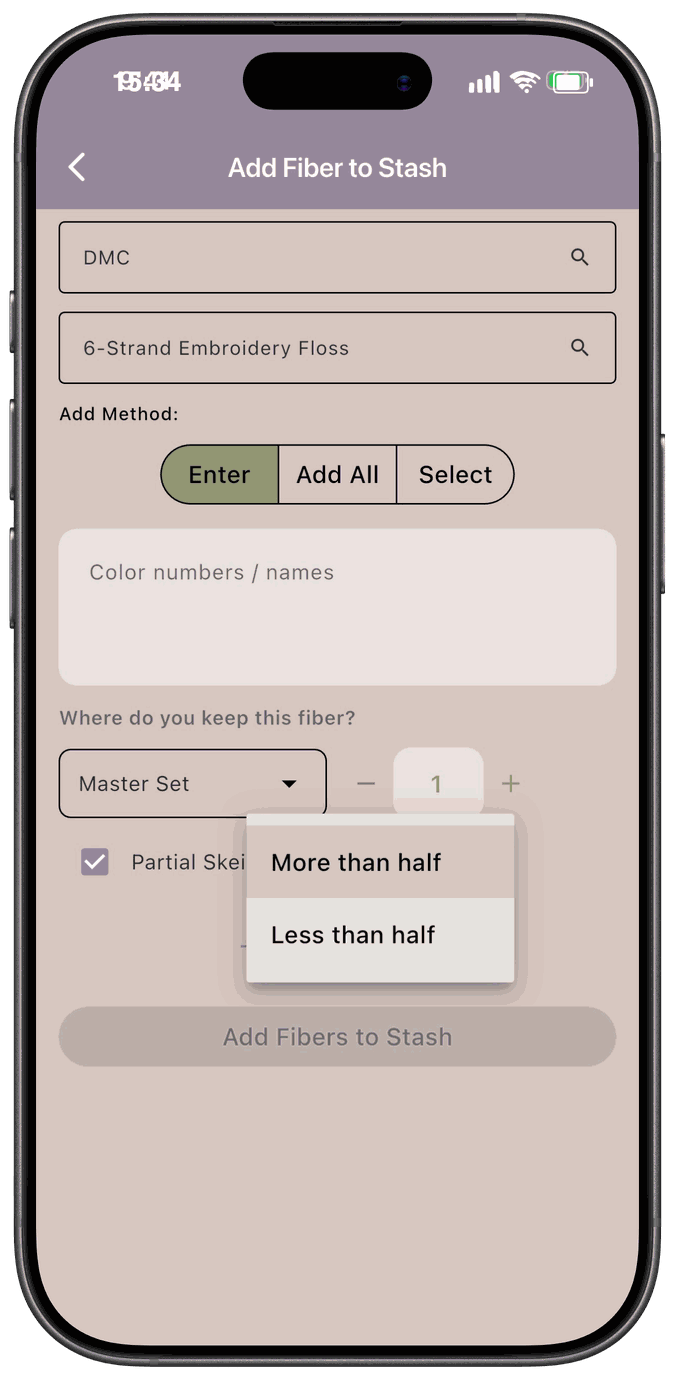
Each location row has its own Partial Skein setting, so you can store a full skein in one place and a partial in another.
See and change what you own
Section titled “See and change what you own”Tap a fiber card to open its detail screen.
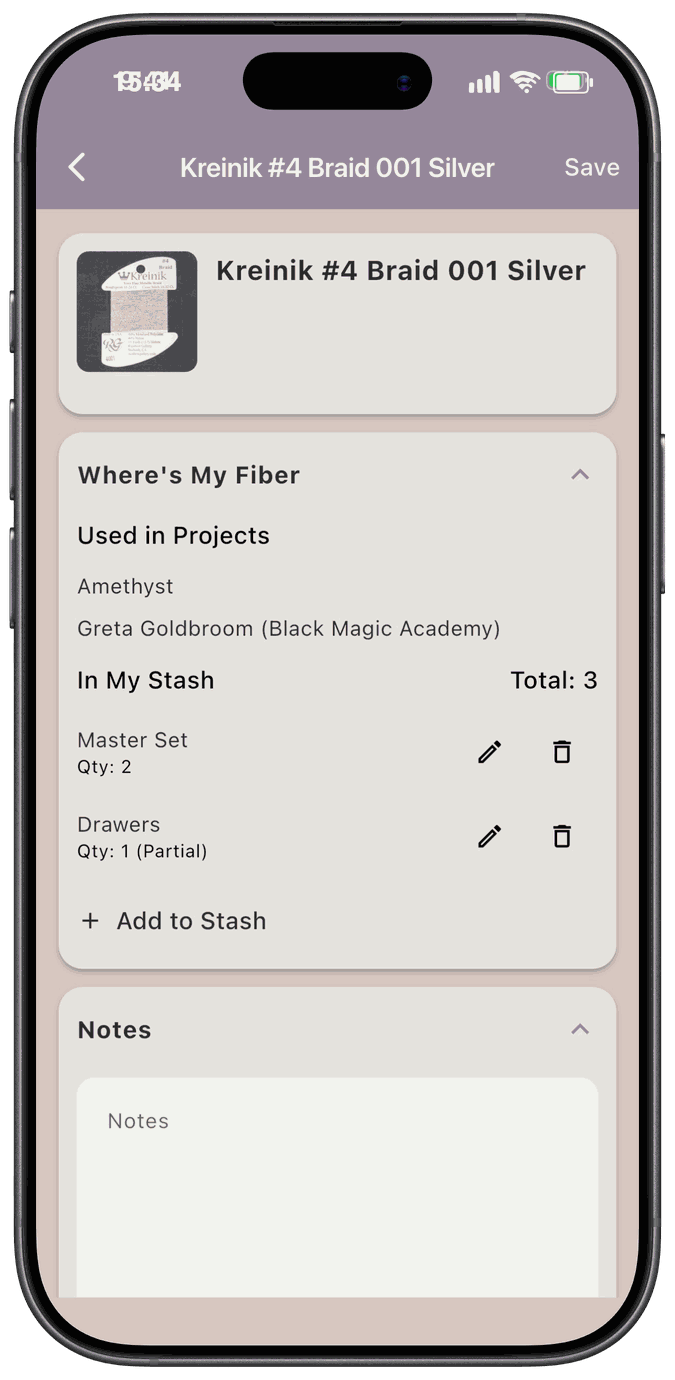
-
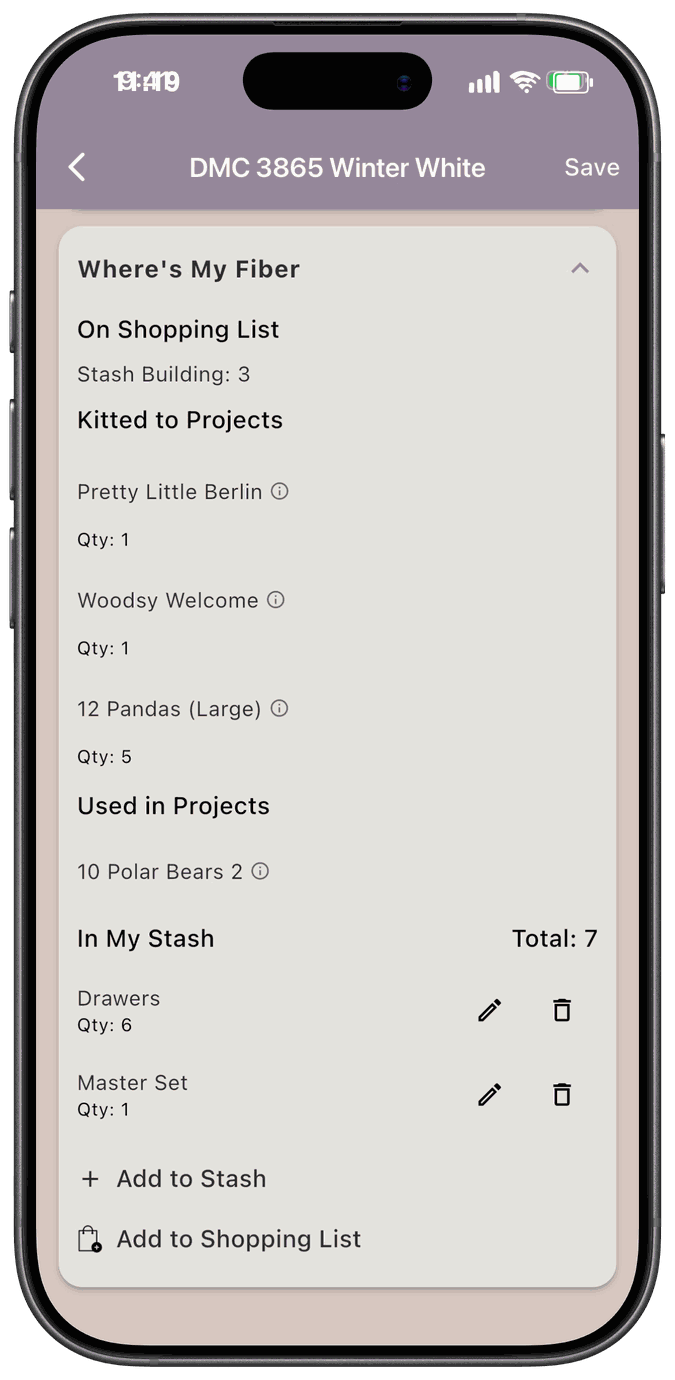
On Shopping List shows how many of this fiber are on your Shopping List, under Stash Building and under Projects. Tap Add to Shopping List to add more. See Add a fiber to your Shopping List.
-
Used in Projects lists the projects that use this fiber when kitted up using Stitch from Stash
-
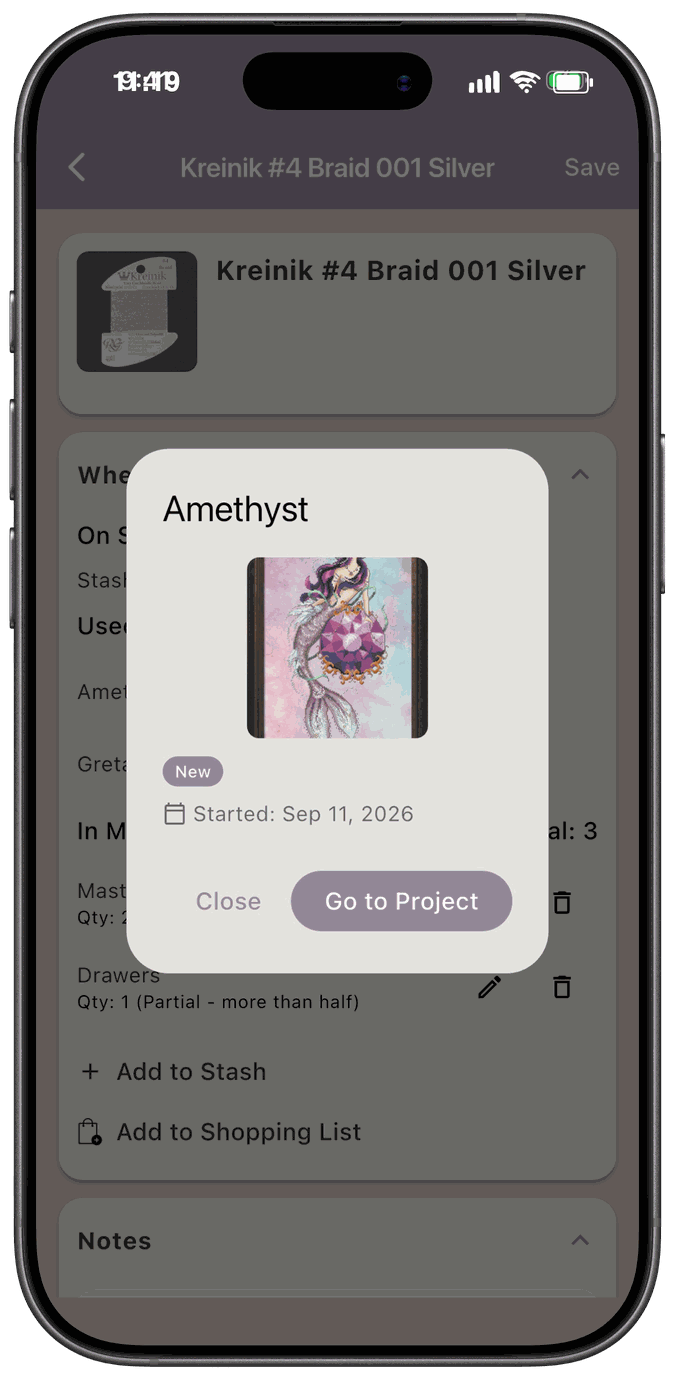
Kitted to Projects lists the projects that use this fiber when kitted up using Pull from Stash or Floss in Hand. Tap a project’s name to open a preview of it with a Go to Project button.
-
In My Stash shows the total, then each location with its quantity. A partial skein is marked (Partial), with more than half or less than half added when that’s recorded, like Qty: 1 (Partial - more than half).
-
Tap the pencil to change a row’s location, quantity, or partial status. Tap the trash can to remove the row.
-
Tap Add to Stash to add more of this fiber, in the same location or a new one.
-
Notes is a private space for anything you want to remember. Only you can see it.
When you choose a location, locations that already have a row for this fiber are dimmed so you don’t create duplicates. Pick Add new location… to create one on the spot.
If you remove the last location row for a fabric, it disappears from your stash list.
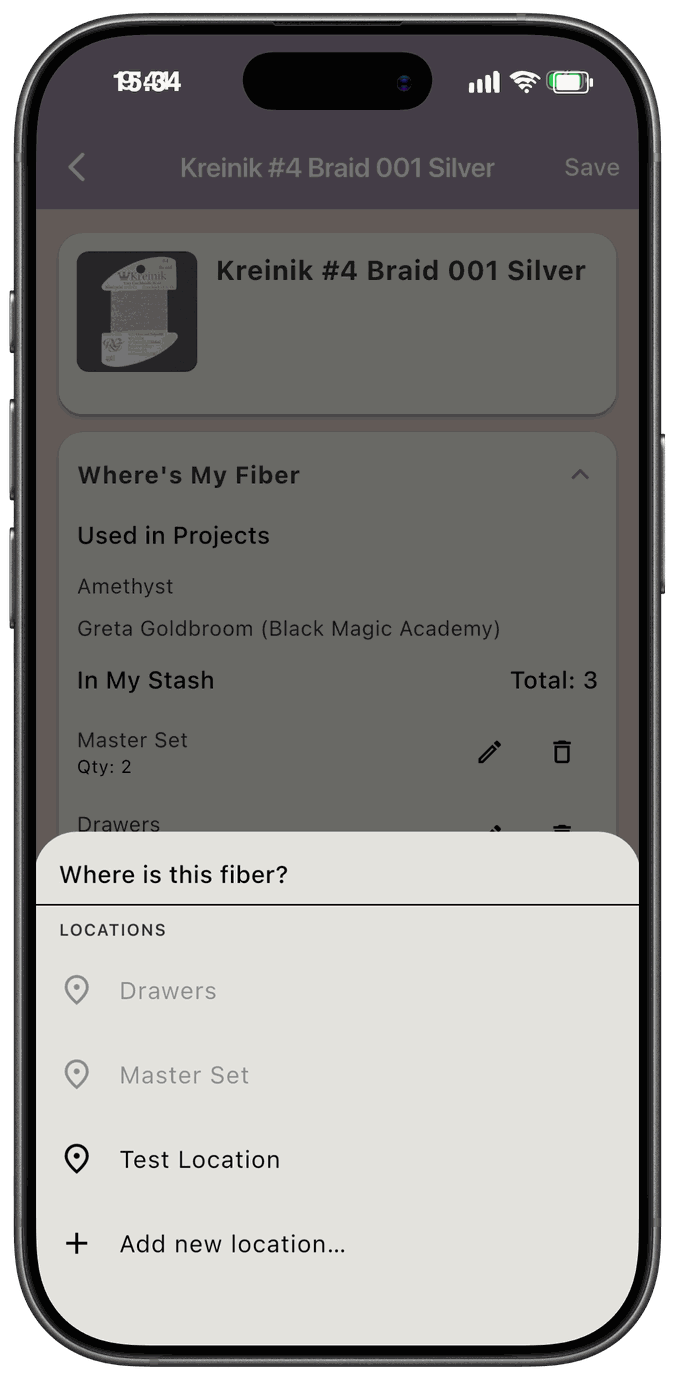
Tap Save at the top to keep your changes.
Add a fiber to your Shopping List
Section titled “Add a fiber to your Shopping List”Running low on a fiber? Tap the Add to Shopping List icon, a shopping bag with a plus, on its card. You can also tap Add to Shopping List on the fiber’s detail screen.
- In the Add to Shopping List sheet, set how many you want with – and +, or type a number. The smallest quantity is 1.
- Tap Add, or tap Cancel to close the sheet without adding anything.
The app confirms with a message like Added 2 to shopping list, or tells you Failed to add to shopping list if it didn’t work. The fiber goes on your Shopping List under Stash Building, and the Shopping List line on its card updates to match. If the fiber already has a line there that you haven’t checked off, the quantity goes onto the oldest one. Lines you’ve already checked off aren’t changed.
To add other kinds of items, or to pick fibers by brand and collection, see Manually Adding Items.
Search, sort, and filter
Section titled “Search, sort, and filter”Tap Filters at the top of the Fibers tab to open the filter bar.
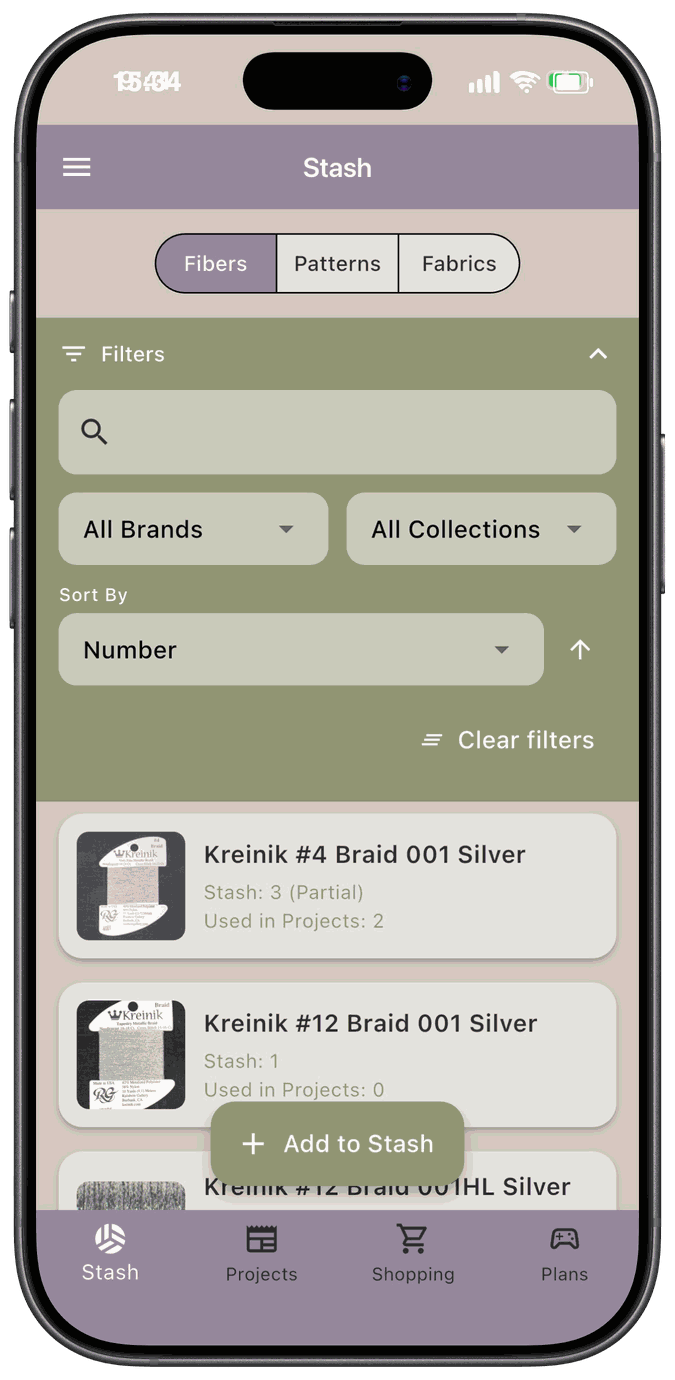
- Search by fiber number, fiber name, brand, or collection.
- All Brands narrows the list to one brand. All Collections narrows it further, and it only shows collections from the brand you picked. All Locations narrows the list to the fibers kept in one location.
- Sort By lets you sort by Number, Name, or Quantity. Tap the arrow next to it to switch between ascending and descending.
- Clear filters resets everything.
The filter bar stays at the top of the screen while you scroll the list, and changing a filter, the search text, or the sort takes you back to the top.
The app remembers your filters while you move around, so you’ll come back to the same view. To choose how the list looks each time you open the app, see Fiber Defaults. To pin the brands and collections you use most to the top of every dropdown, see Fiber Favorites.
When you use fibers in a project
Section titled “When you use fibers in a project”How you kit up your projects determines how your fiber stash is affected. See Three Ways to Kit Up Fibers to a Project to choose the right method for the way you stitch.
| Stash Affected | Stash Not Affected | |
|---|---|---|
| Pull From Stash | ✓ | — |
| Stitch From Stash | — | ✓ |
| Floss In Hand | — | ✓ |