Clearing the List
Items leave your Shopping List in three ways: you buy them, you delete them, or you remove them when you unkit a project. Buying an item can add it to your stash, so it’s worth knowing which option you’re picking.
Mark items as bought
Section titled “Mark items as bought”When you buy something, check it off and save.
- Check the box next to each item you bought. The app crosses it out.
- Tap Save. The button shows how many changes are waiting, like Save (3).
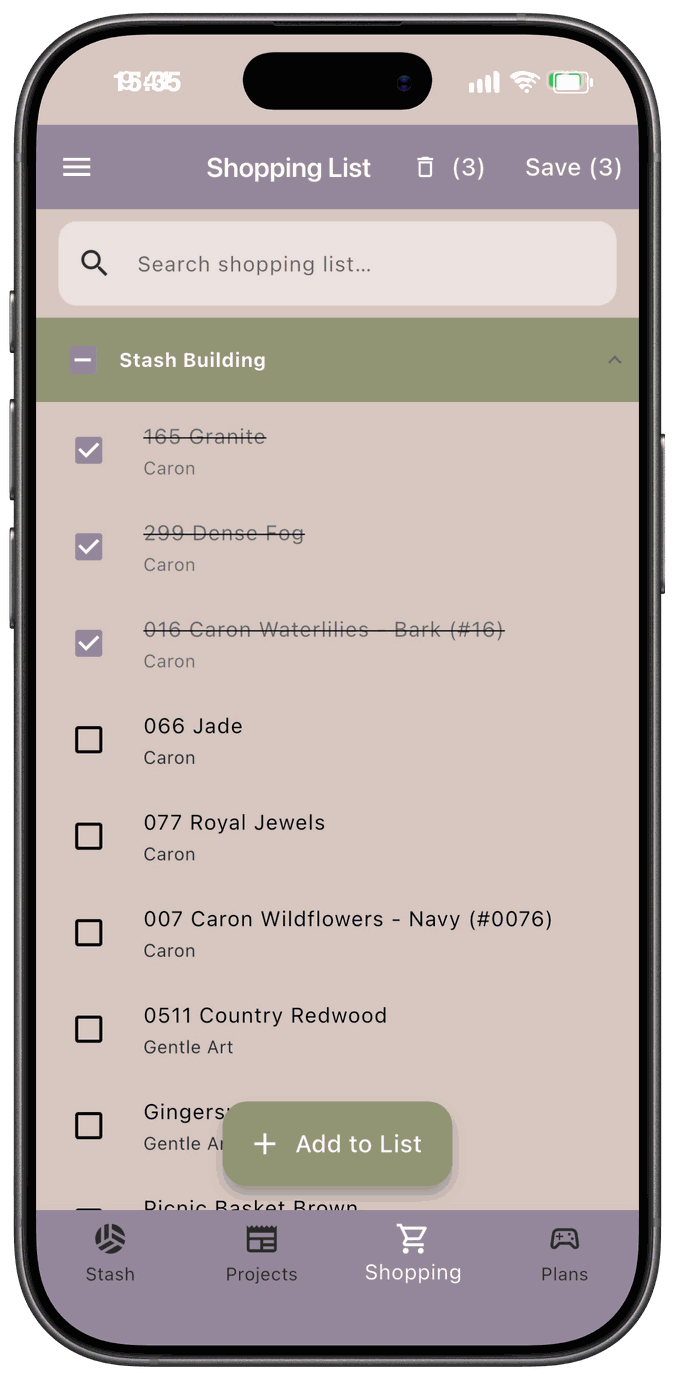
Each checked item is added to your stash, then removed from the list. If the item was added by Kit Up for a project, it goes to that project. Otherwise it goes to a default location: Master Set for fibers, Pattern Stash for patterns, and Fabric Stash for fabric. If you don’t have a location by that name, it goes to your first one.
Changed your mind? Uncheck the box before you save, and nothing happens.
You can check a whole group at once with the box in the group’s header.
If you bought fewer than you needed
Section titled “If you bought fewer than you needed”When you check an item that has a quantity of more than one, a small counter appears next to it, showing how many you picked up out of how many are on the list.
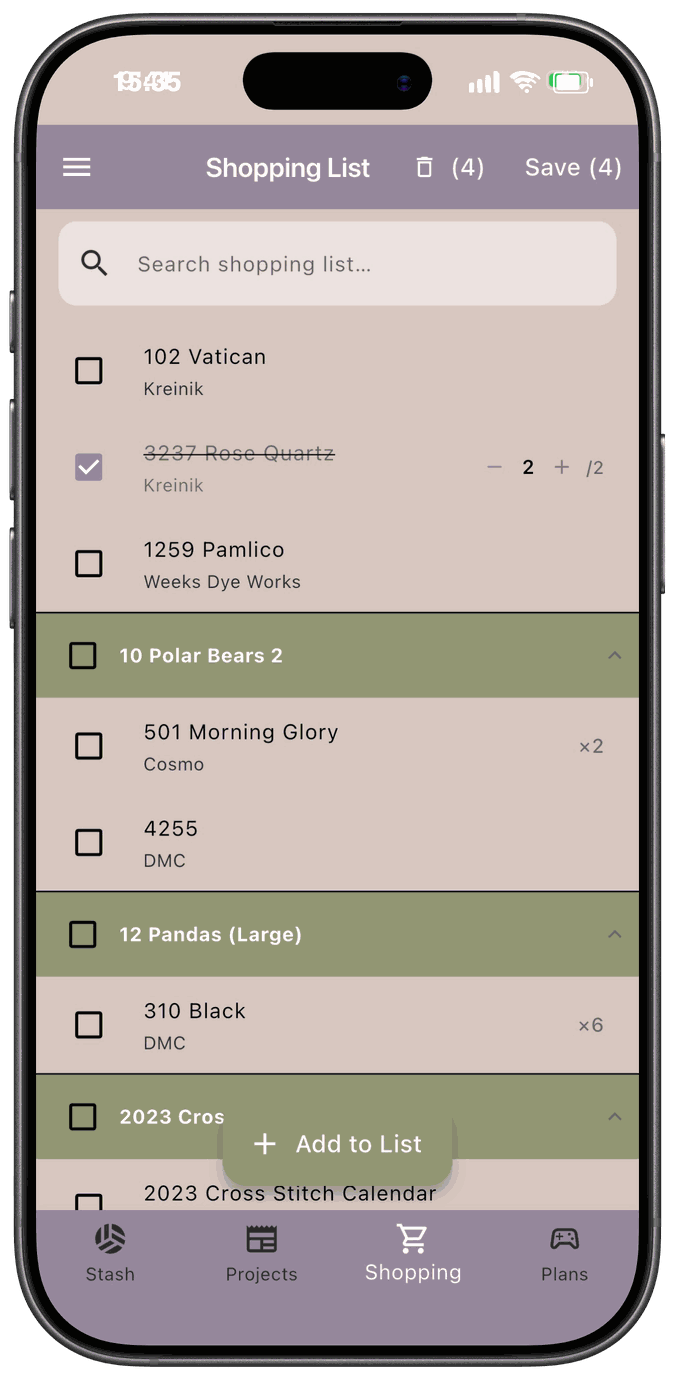
Use – to lower the number to what you actually bought. When you save, that many go to your stash, and the rest stays on the list, unchecked, with a smaller quantity.
Delete items from the list
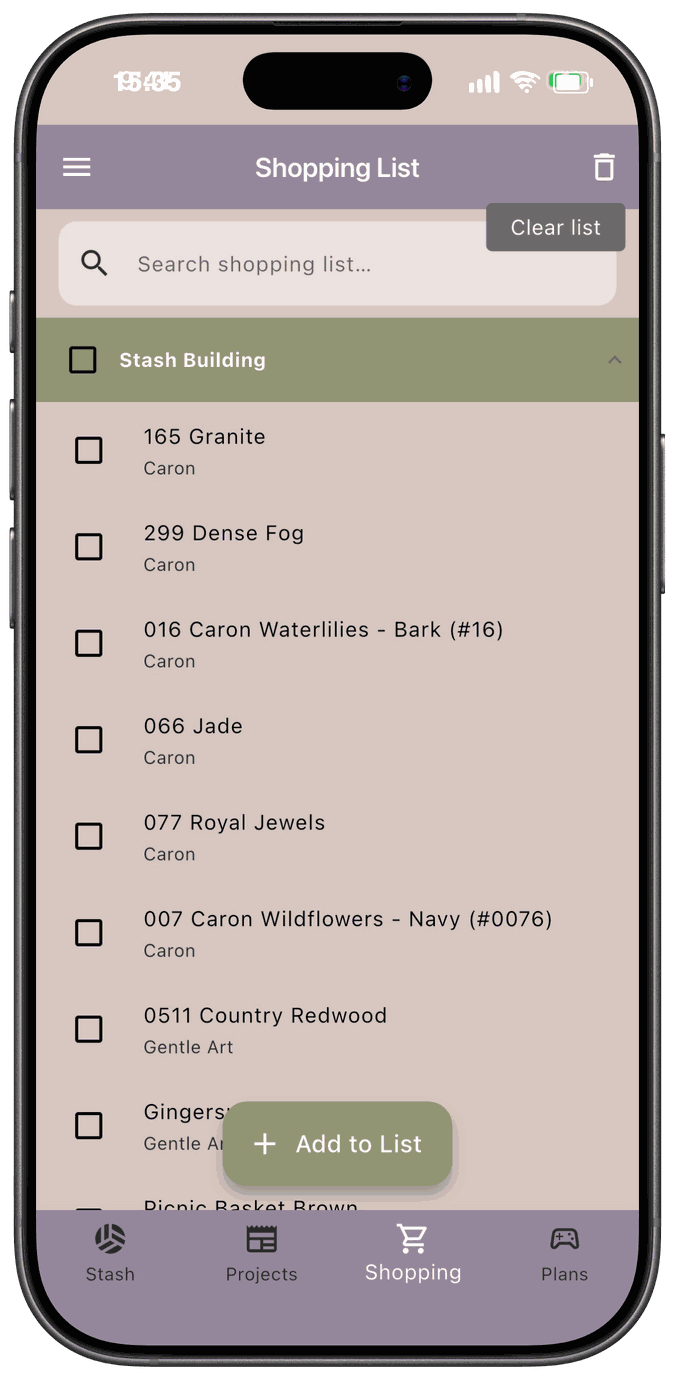
Section titled “Delete items from the list”Use the trash can in the top bar to delete items. It works differently depending on whether anything is selected.
Delete the whole list
Section titled “Delete the whole list”With nothing checked, tap the trash can. The Clear shopping list dialog asks Did you purchase these items?
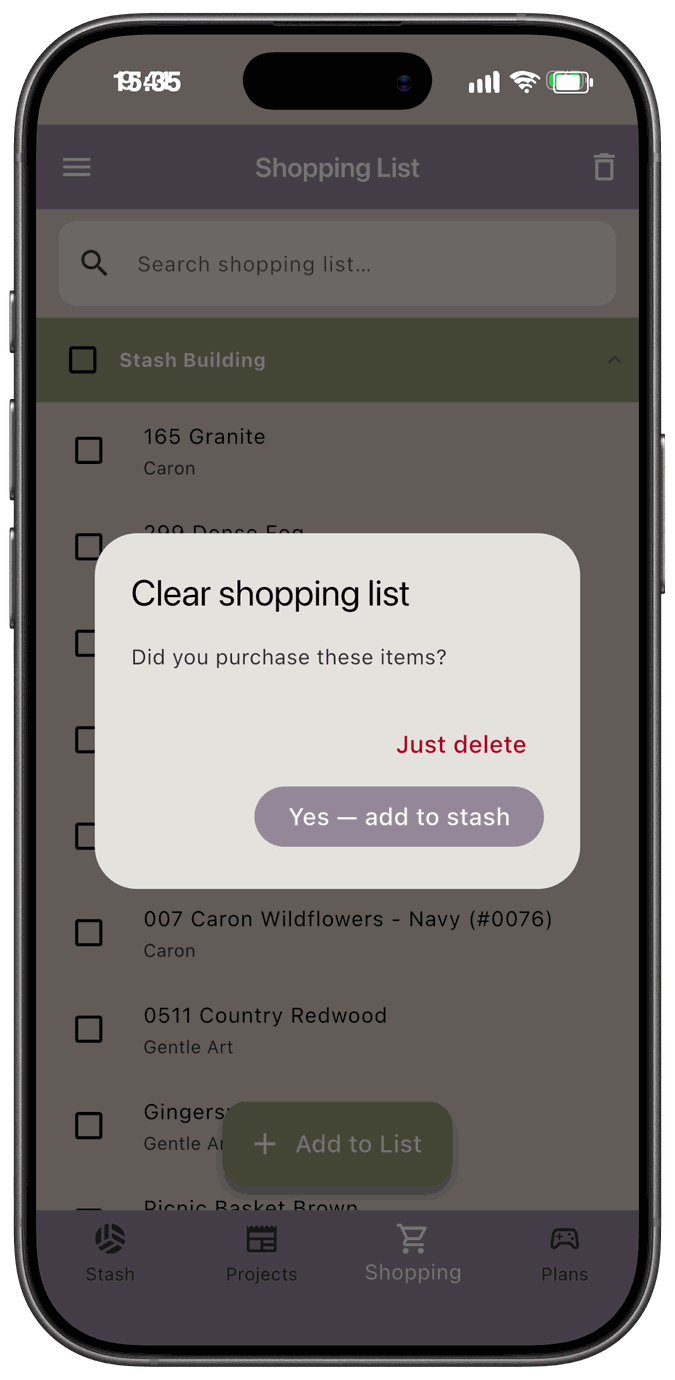
- Yes — add to stash adds everything on the list to your stash, then clears it.
- Just delete clears the list without changing your stash.
Delete only some items
Section titled “Delete only some items”Check the items you want to remove. The top bar now shows the trash can with a count, like (3). Tap it, and the Delete selected items dialog asks Did you purchase the selected items?
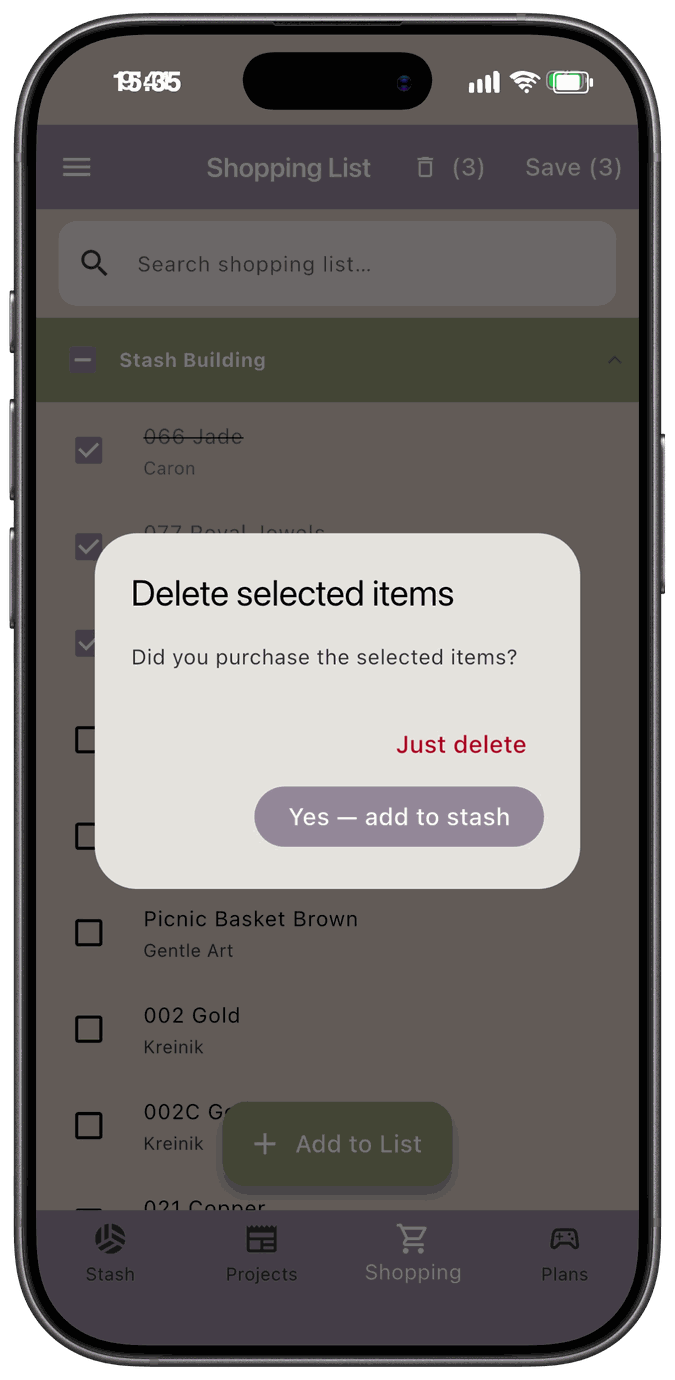
- Yes — add to stash adds only the selected items to your stash, then removes them.
- Just delete removes only the selected items and leaves your stash alone.
When it’s done, a message confirms what happened, such as Selected items deleted or Items added to stash.
When you unkit or delete a project
Section titled “When you unkit or delete a project”Deleting or unkitting a project has its own step for that project’s Shopping List items: Keep on Shopping List or Delete from Shopping List. Kept items move to Stash Building. See How Kit Up Populates It.
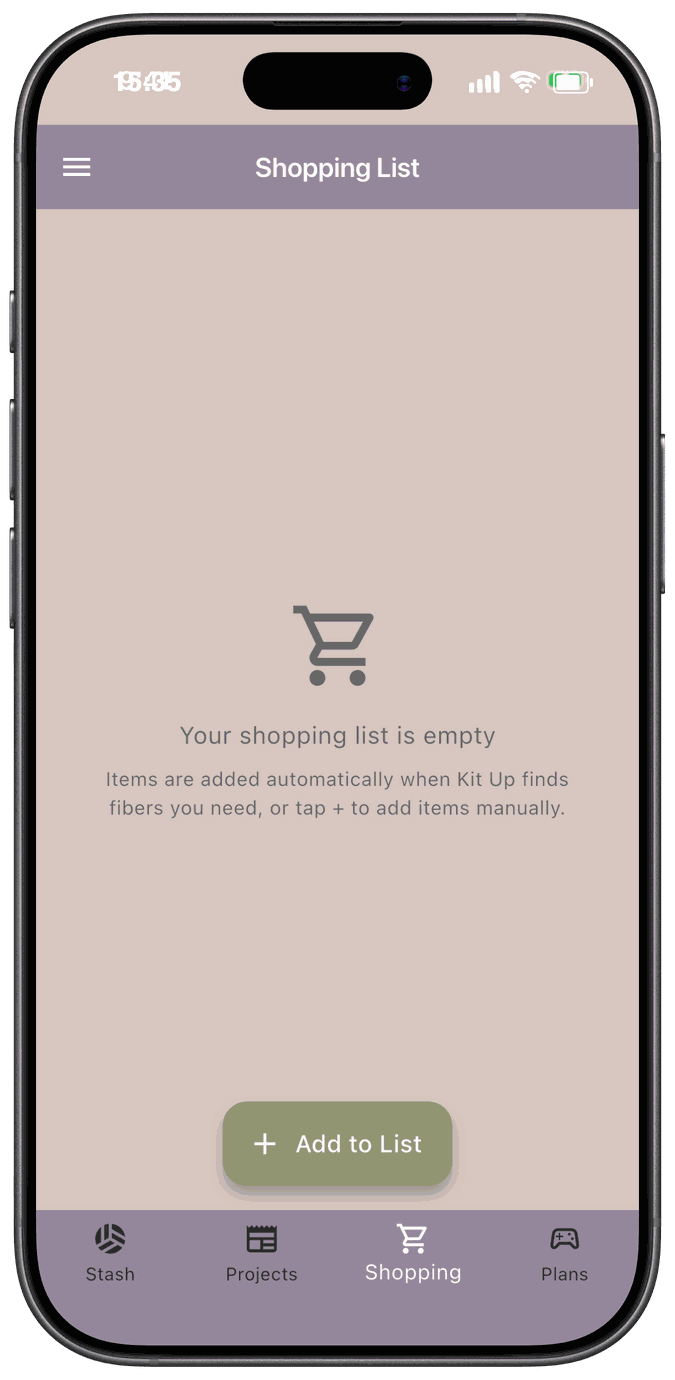
When the list is empty
Section titled “When the list is empty”Once everything’s gone, the screen tells you your shopping list is empty and reminds you how items get added.