
Pattern Stash
Stash → Patterns is your library of charts, whether they’re paper, digital, or part of a kit. Each pattern card shows its designer, size, and categories, plus how many copies you have on hand and how many are tied up in projects.
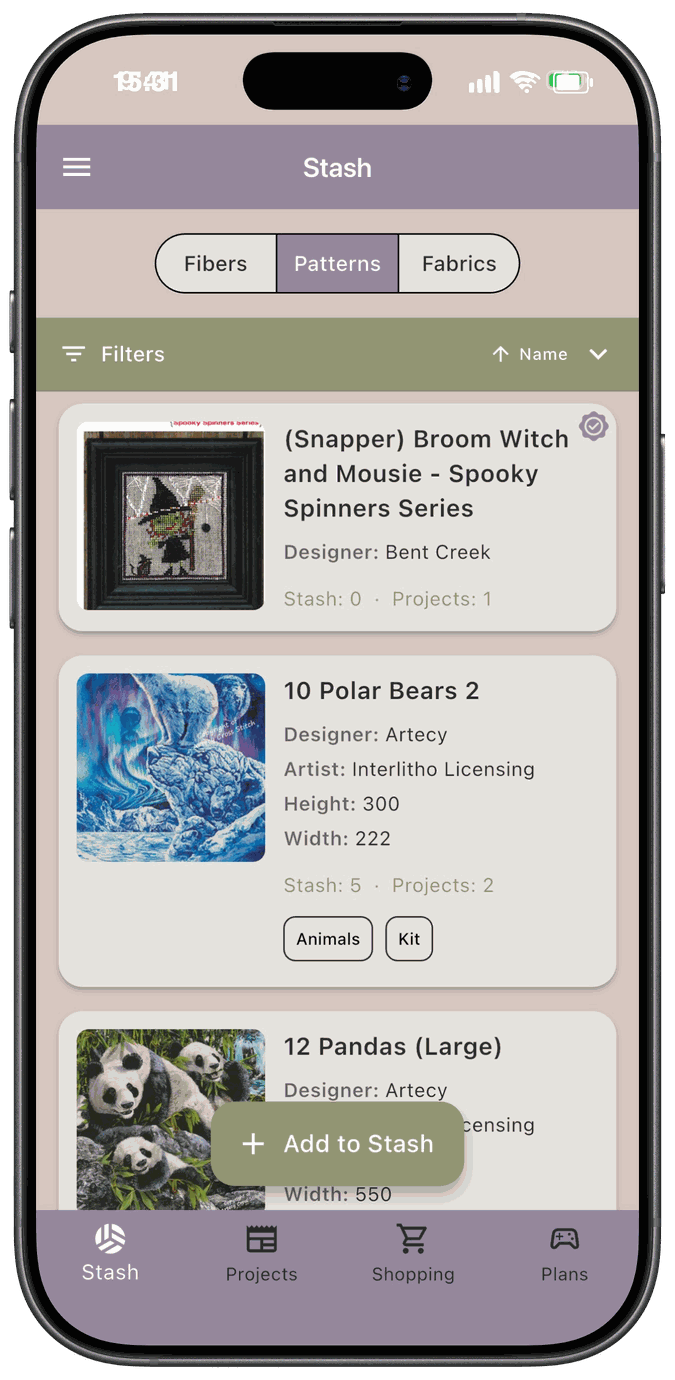
A card shows whatever details the pattern has: Designer, Artist, Height, Width, and category chips. The quantity line shows Stash for copies that are free and Projects for copies assigned to a project. Tap a category chip to filter the list to that category.
Tap a card to open the pattern’s detail screen.
Add a pattern to your stash
Section titled “Add a pattern to your stash”Tap Add to Stash on the Patterns tab to open Add Pattern to Stash. Start by choosing a designer. If yours isn’t in the list, choose Add New Designer and type the name.
If the pattern already exists
Section titled “If the pattern already exists”Once you pick a designer, the app lists that designer’s patterns. Search with Search patterns…, then tap one or more to select them. Selected patterns show a checkmark, and a Selected: line lists them.
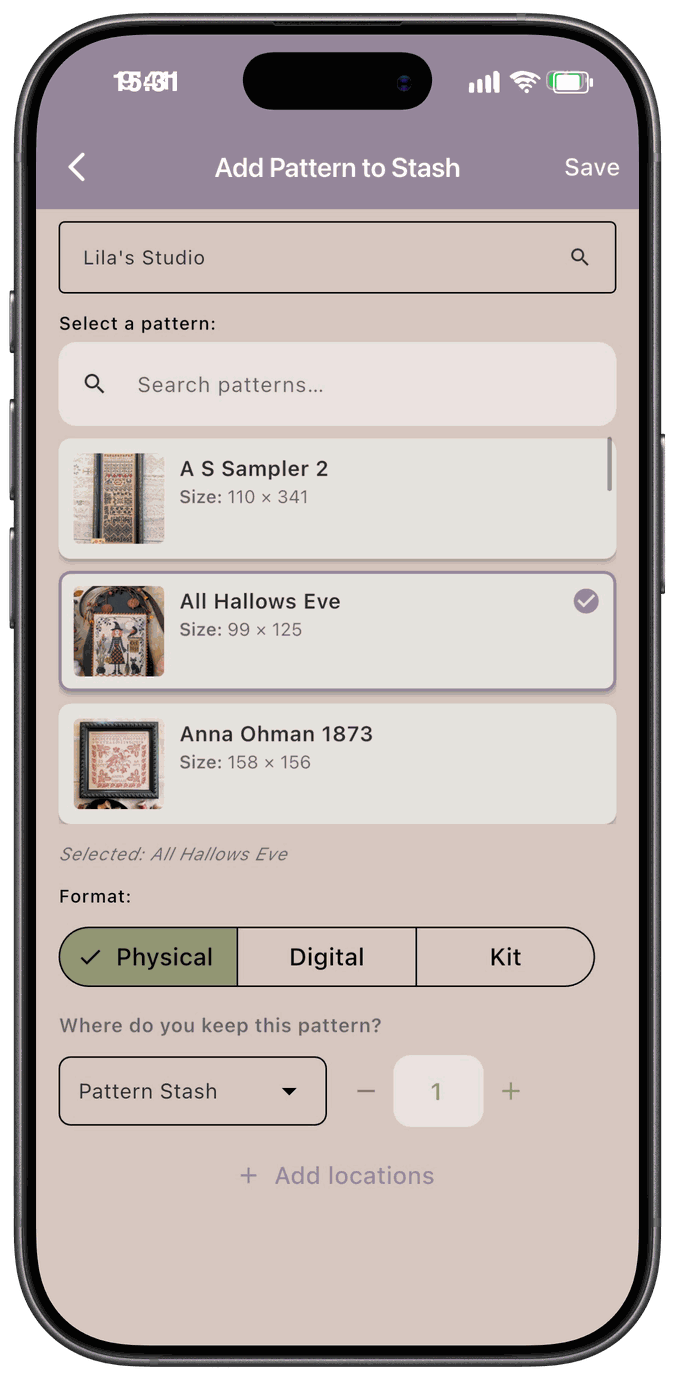
Adding several patterns at once uses the same format and location for all of them.
If it’s a new pattern
Section titled “If it’s a new pattern”If you don’t see your pattern, tap Add a new one under the list. (If you chose a brand-new designer, you’ll go straight to these fields.)
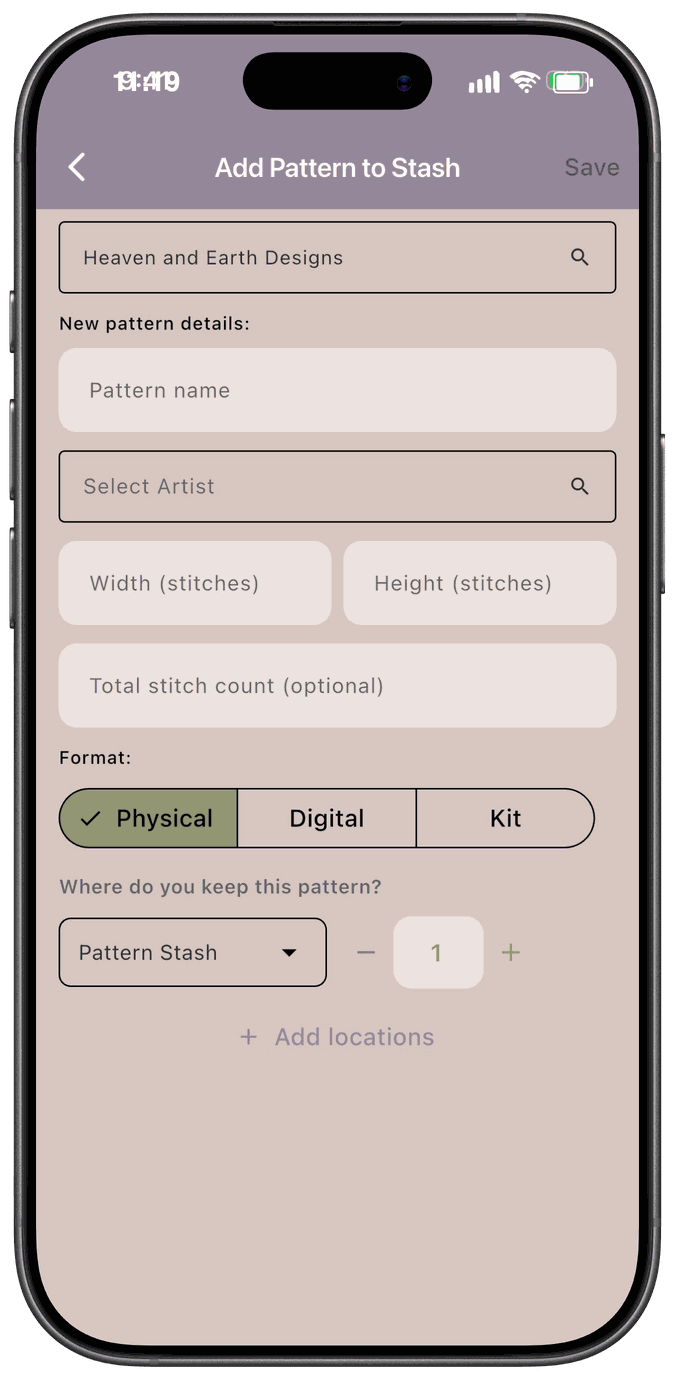
- Pattern name — required.
- Artist — optional. Use it when the artwork is credited to someone other than the designer. Type to search the list and pick a name, or choose Add New Artist.
- Width (stitches), Height (stitches), and Total stitch count (optional) — optional, but filling in width and height unlocks the Design Size table on the detail screen.
To add an artist who isn’t in the list, choose Add New Artist and type the name under New Artist name. If you leave that blank, the app says Please enter an artist name. If you type in the Select Artist field without picking a name, it says Pick an artist or tap Add New Artist or leave blank.
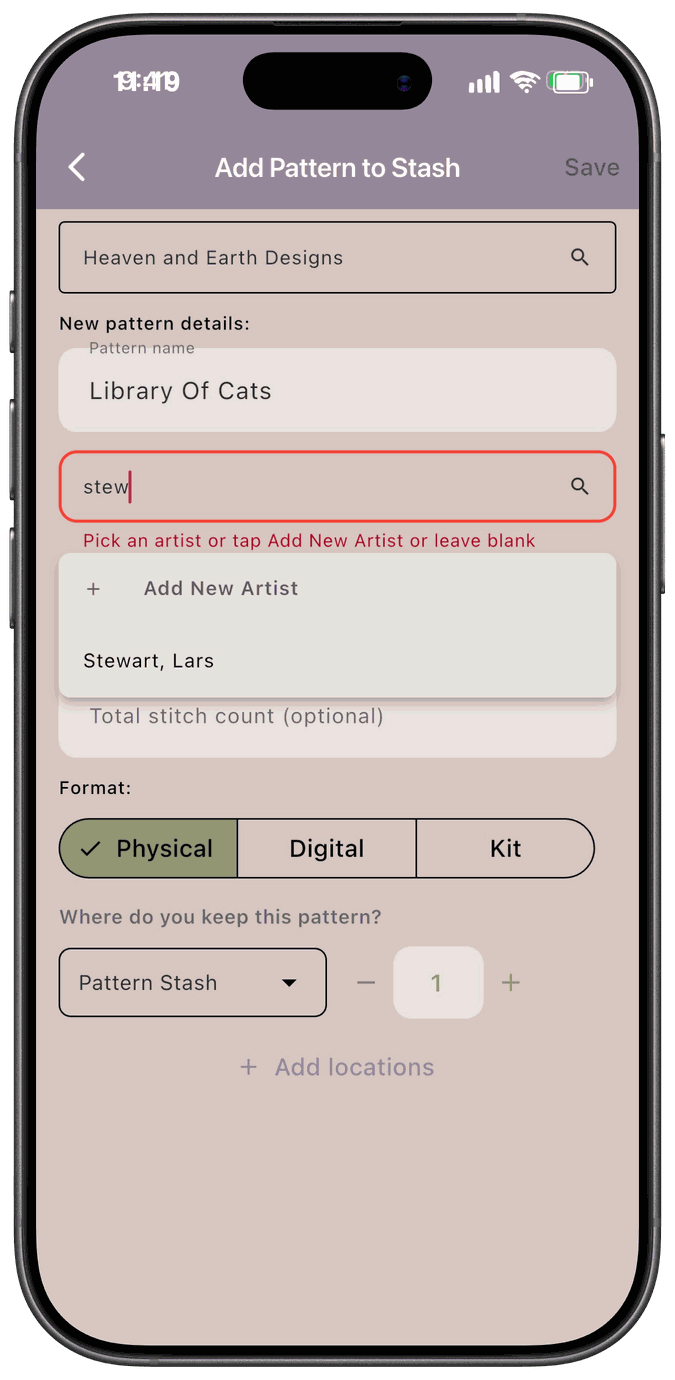
If you change the text in the designer or artist field after picking a name, the pick clears and you need to choose again.
Format, kit fabric, and location
Section titled “Format, kit fabric, and location”- Format — choose Physical, Digital, or Kit. It defaults to Physical.
- Kit fabric (optional) — if you choose Kit, you can record the fabric that came with it: brand, type, color, count, and size in inches.
- Where do you keep this pattern? — pick a location and a quantity. Tap Add locations if you have copies in more than one place.
Tap Save when you’re done. If you add a pattern you already have at the same location, the quantity goes up rather than making a duplicate.
See and edit a pattern
Section titled “See and edit a pattern”The top of the detail screen shows the pattern’s image and an About this Pattern card with the designer, artist, width, height, stitch count, and the number of floss colors.
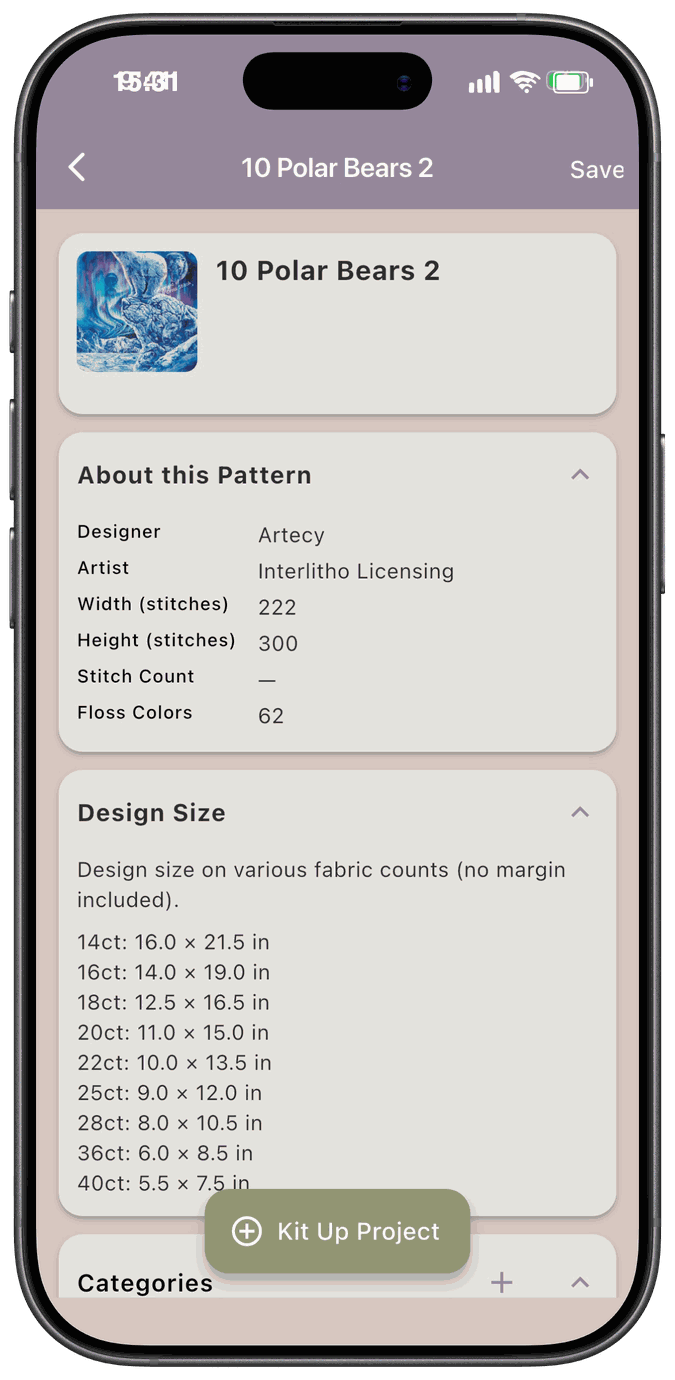
If you added the pattern yourself, you can change its name, size, stitch count, and image. Tap the image to Choose from library, Take a photo, or Remove photo. Tap Save to keep your changes. You can also correct the designer’s name if you created that designer.
Patterns that were already in the app’s shared library can’t be edited, but everything that’s personal to you, including your notes, categories, locations, quantities, and your own stitch counts, can be changed at any time. See My Stitch Counts.
Design Size
Section titled “Design Size”When a pattern has a width and height, Design Size lists how big the finished design will be on common fabric counts, from 14ct to 40ct, without any margin. It’s a handy way to see whether a piece of fabric from your stash will be big enough. If you’ve entered your own stitch counts for a pattern, Design Size uses them.
Categories
Section titled “Categories”The Categories card holds tags like Animals or Kit. Tap the + to assign one and the x on a chip to remove it. Category chips also show up on the pattern’s card, and you can filter your stash by them.
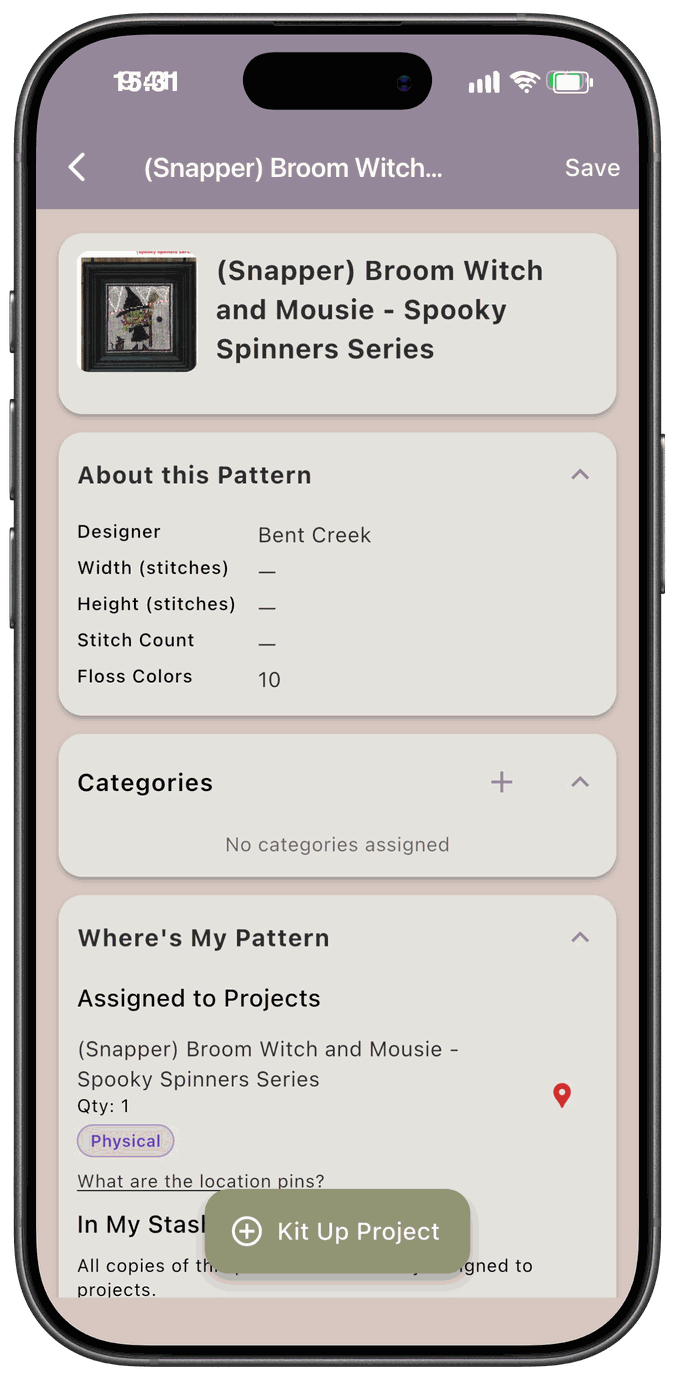
Where’s My Pattern
Section titled “Where’s My Pattern”This card shows where every copy is.
- Assigned to Projects lists copies that are being used by a project. A red location pin marks the project that currently has the physical copy.
- In My Stash shows the total, then each location, quantity, and format (Physical, Digital, or Kit). If every copy is in use, it tells you All copies of this pattern are currently assigned to projects.
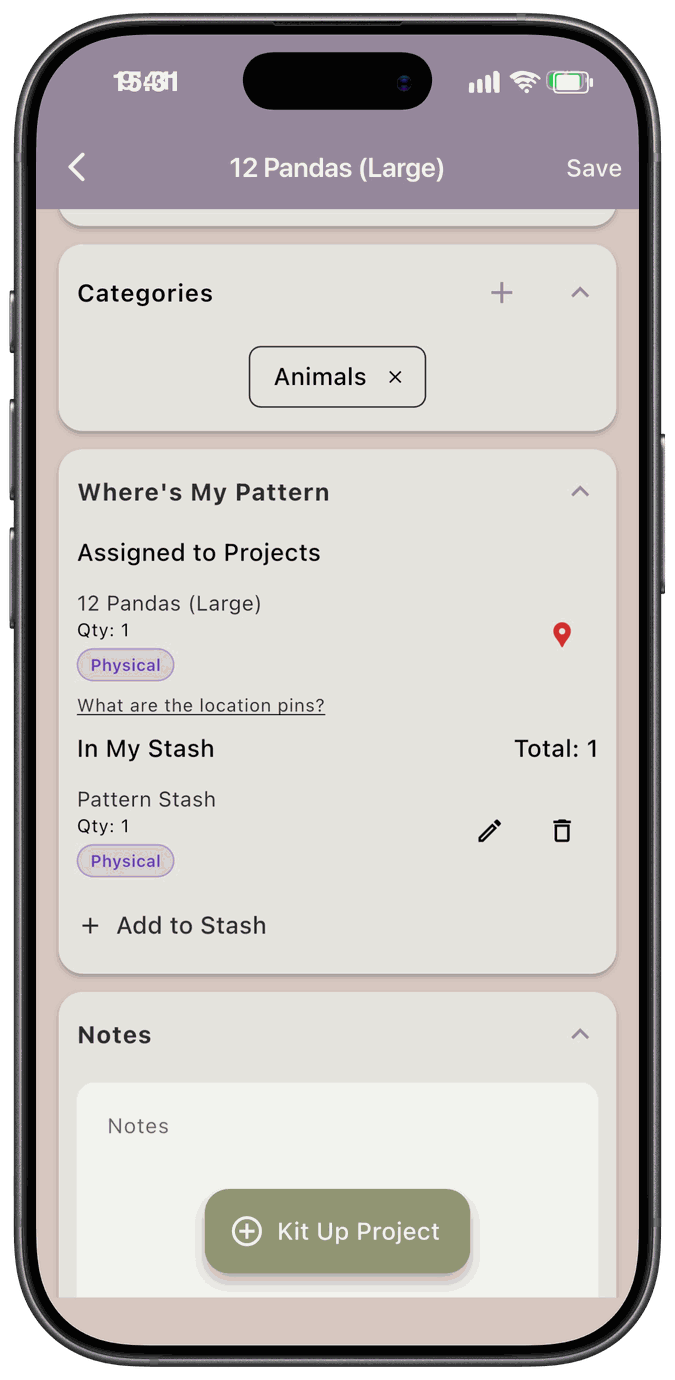
Tap the pencil to change a row’s location or quantity, the trash can to remove it, or Add to Stash to add another copy. Removing a row asks you to confirm.
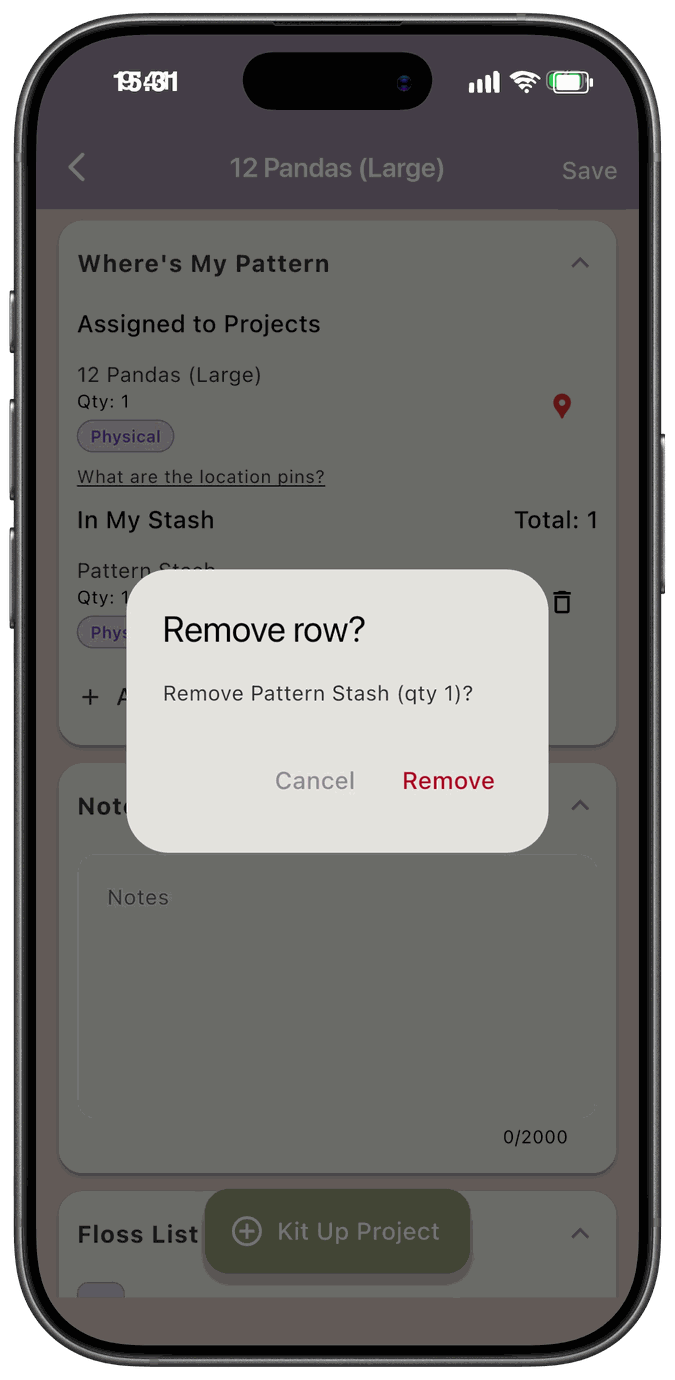
If you remove the last row for a pattern, it disappears from your stash list.
Notes and Kit Fabric
Section titled “Notes and Kit Fabric”Notes is a private space for anything you want to remember, and only you can see it.
If the pattern came as a kit, Kit Fabric shows the fabric that came with it. Tap Edit to change it, or Add if there’s nothing yet.
Kit fabric belongs to the pattern, so it stays the same however many copies you own.
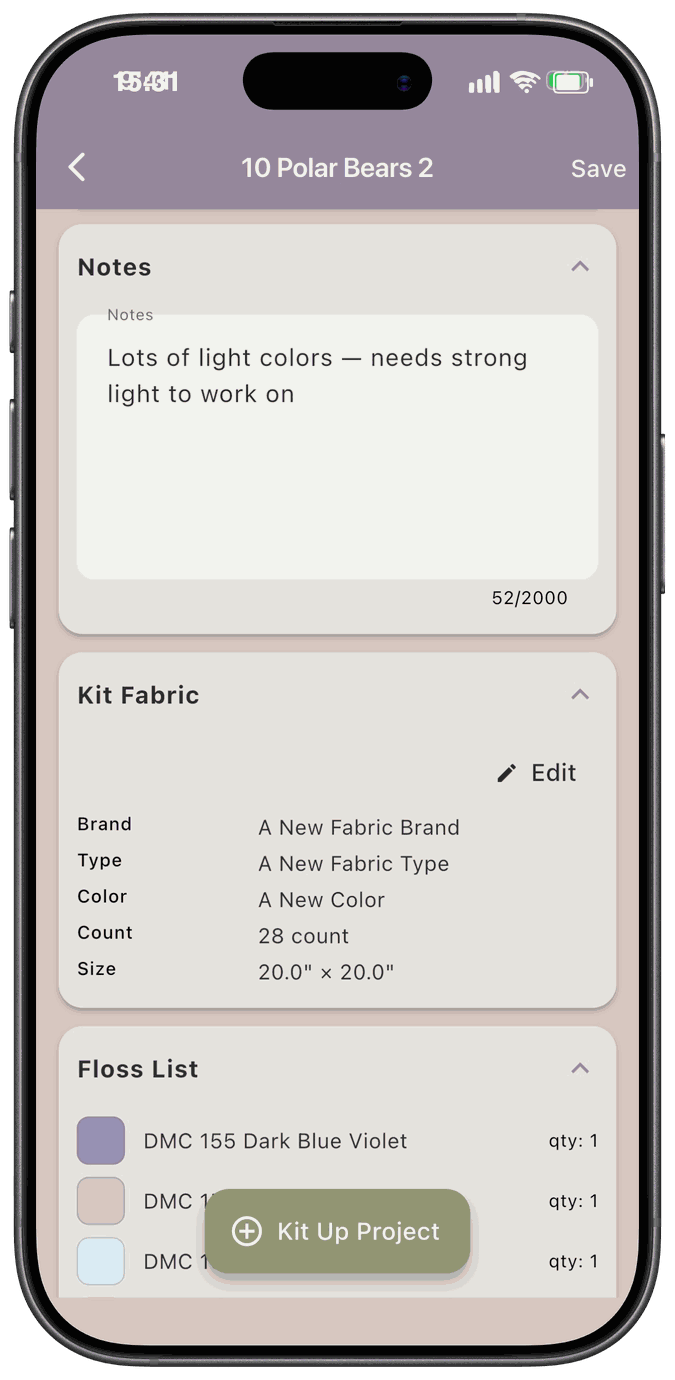
Floss list
Section titled “Floss list”The Floss List card lists every fiber the pattern calls for and how many of each. It’s what the app uses when you kit up a project.
If a pattern has no floss list yet, you’ll see No fibers added yet. Tap Edit to add. On patterns you can’t edit, you’ll see No fiber list available. instead.
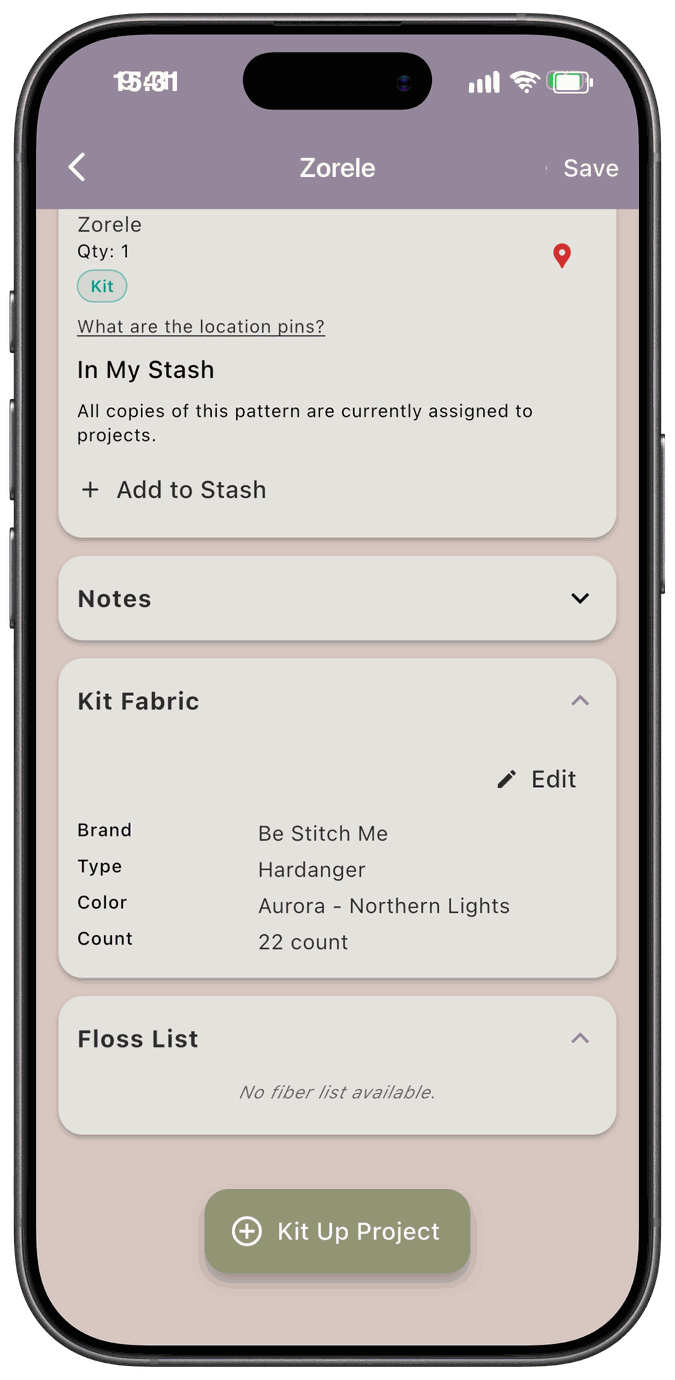
If this is a pattern you have added, you can edit the floss list. Tap Edit to open the floss list editor.
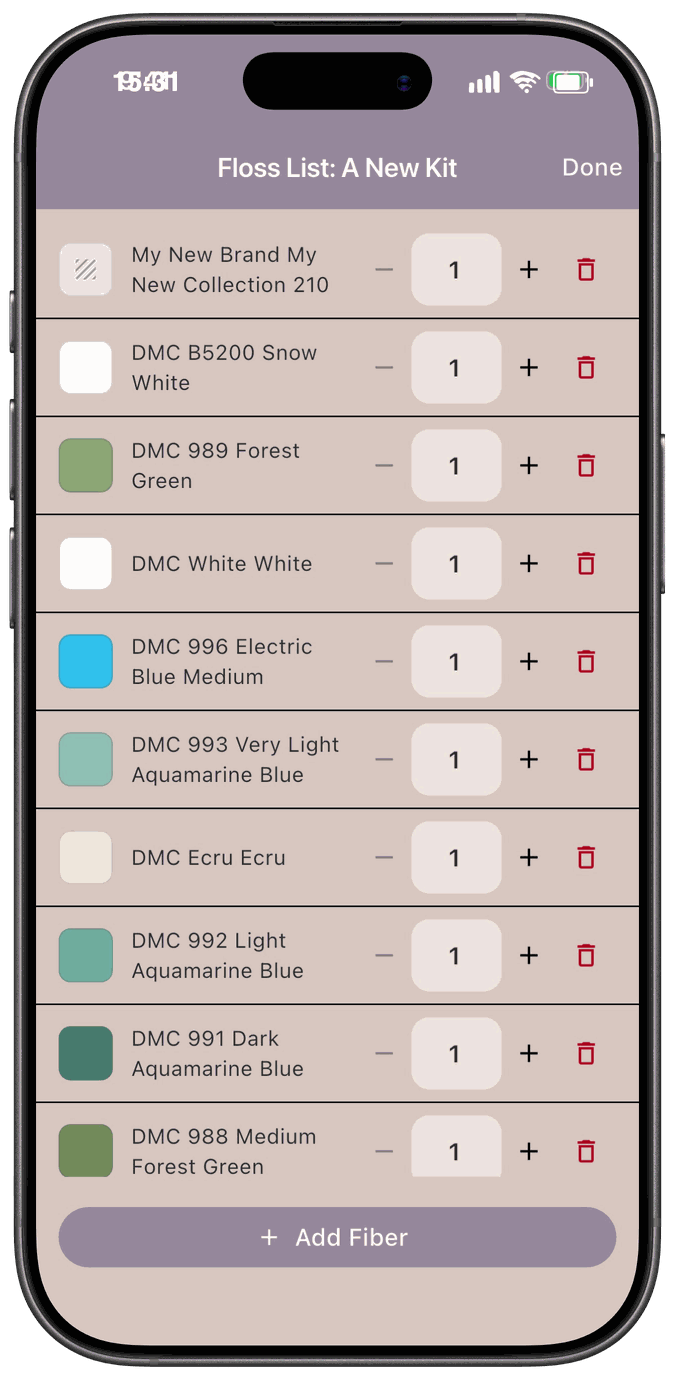
- Use + and – to change how many of a fiber the pattern needs, and the red trash can to remove one.
- Tap Add Fiber to add more.
- There’s no Save button. Every change is saved as you make it. Tap Done when you’re finished.
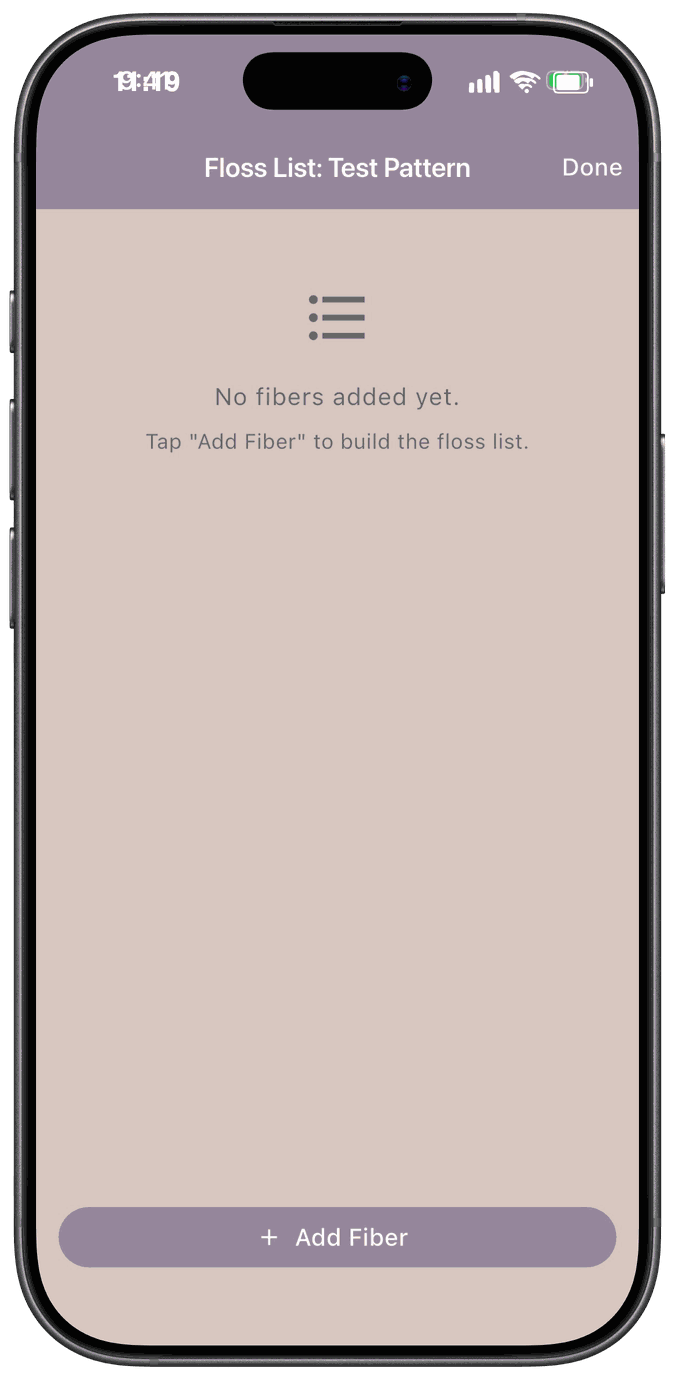
When the list is empty, the editor reads No fibers added yet. and Tap “Add Fiber” to build the floss list.
Add Fiber opens the Fiber Picker. Pick a brand and collection, search by number or name, check the fibers you want, and tap the button at the bottom. It reads Add Selected until you’ve checked something, and then Add with the number you’ve checked, like Add 3.
If a fiber isn’t in the list, tap Add a new one. at the bottom of the picker and enter its details.
Kit up a project from a pattern
Section titled “Kit up a project from a pattern”Tap Kit Up Project on any pattern to start a project with that pattern already chosen.
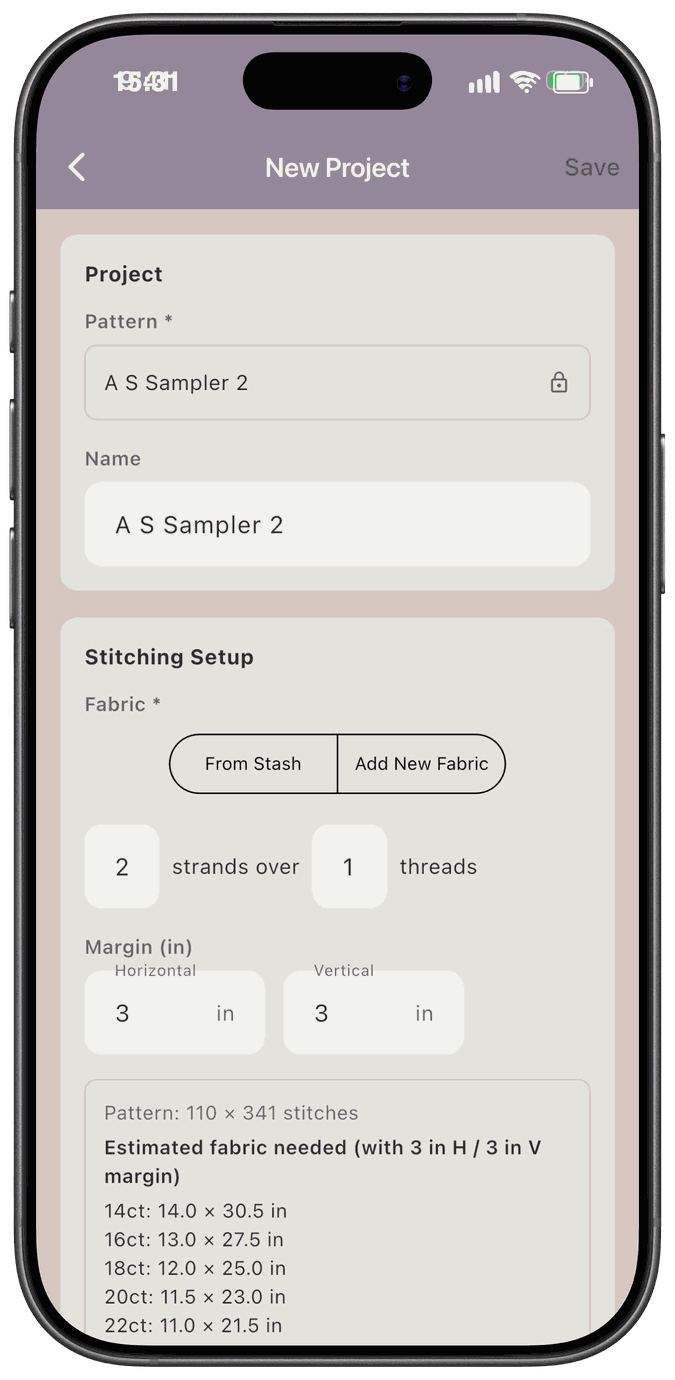
The pattern is locked in, and you fill in the rest of the project as described in Projects. The Stitching Setup section estimates how much fabric you’ll need at each count.
Two things can happen first:
-
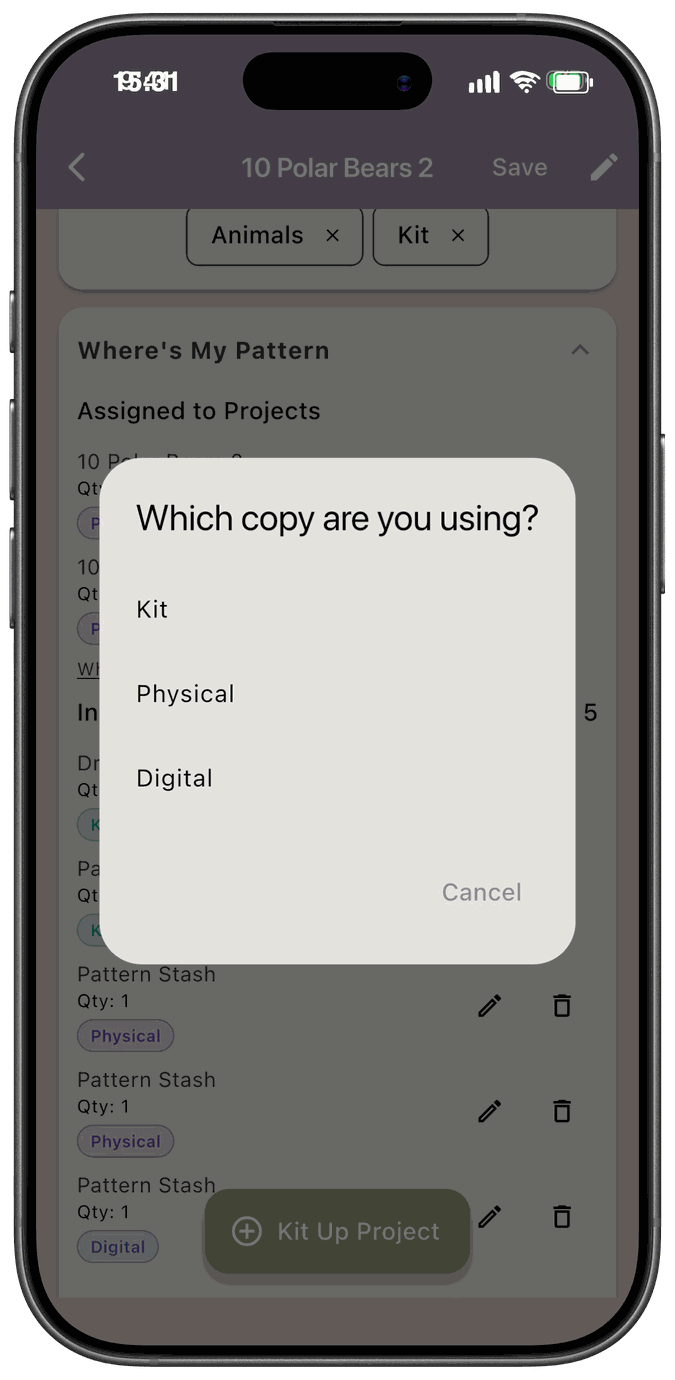
** If you own it in more than one format:** The app asks Which copy are you using? Pick Kit, Physical, or Digital.
-
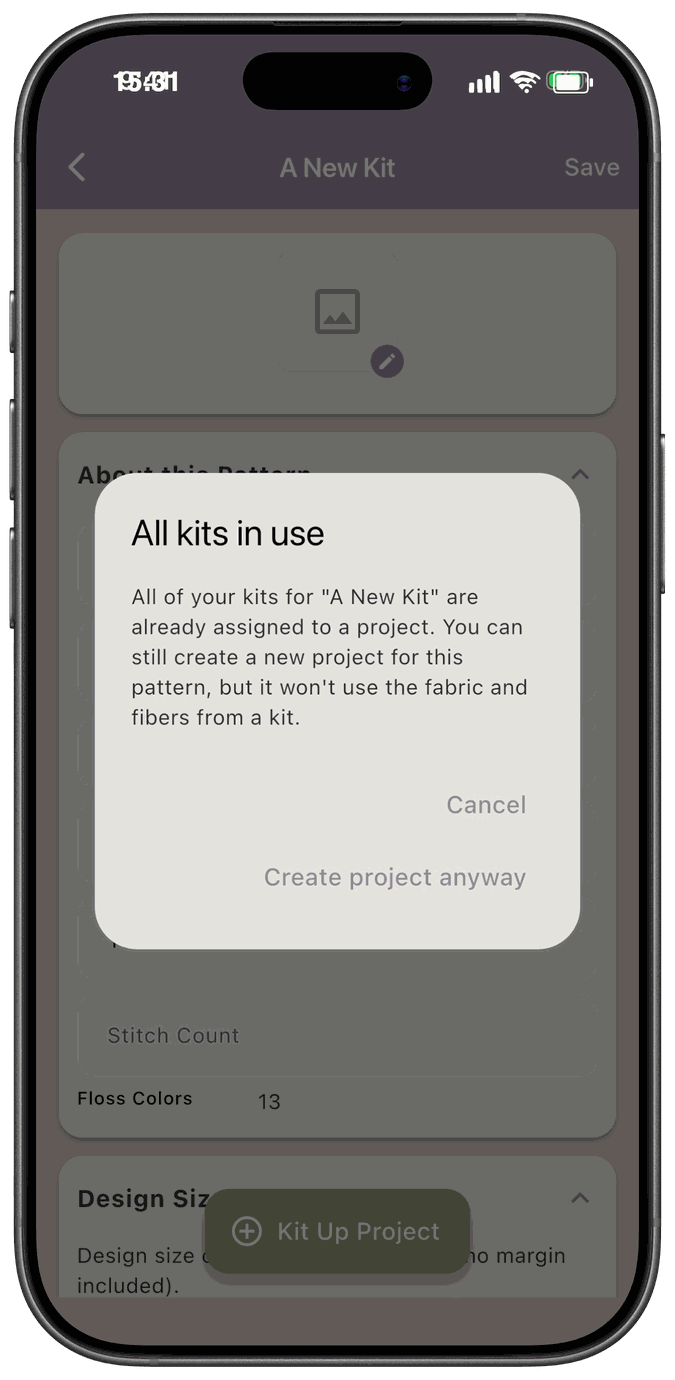
If every kit is already in a project: The app tells you All kits in use. You can still make a project for the pattern by choosing Create project anyway, but it won’t use the fabric and fibers from a kit.
Return a pattern to your stash
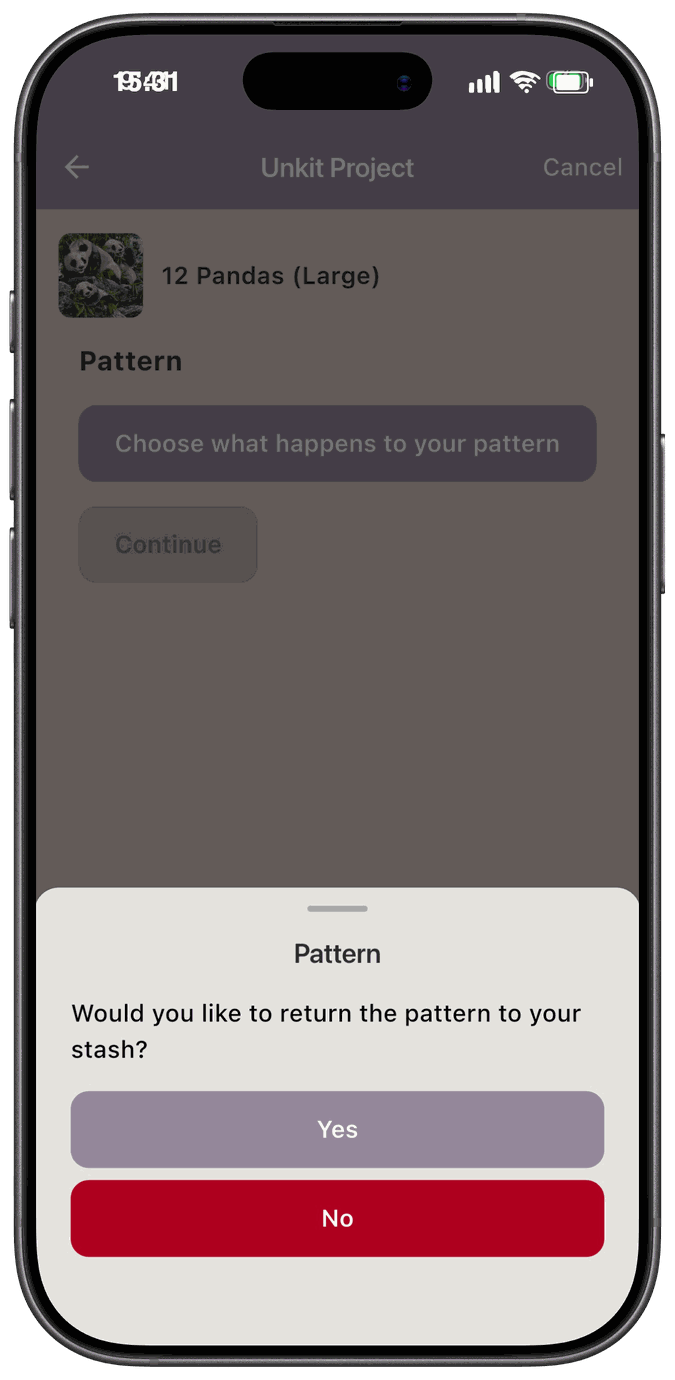
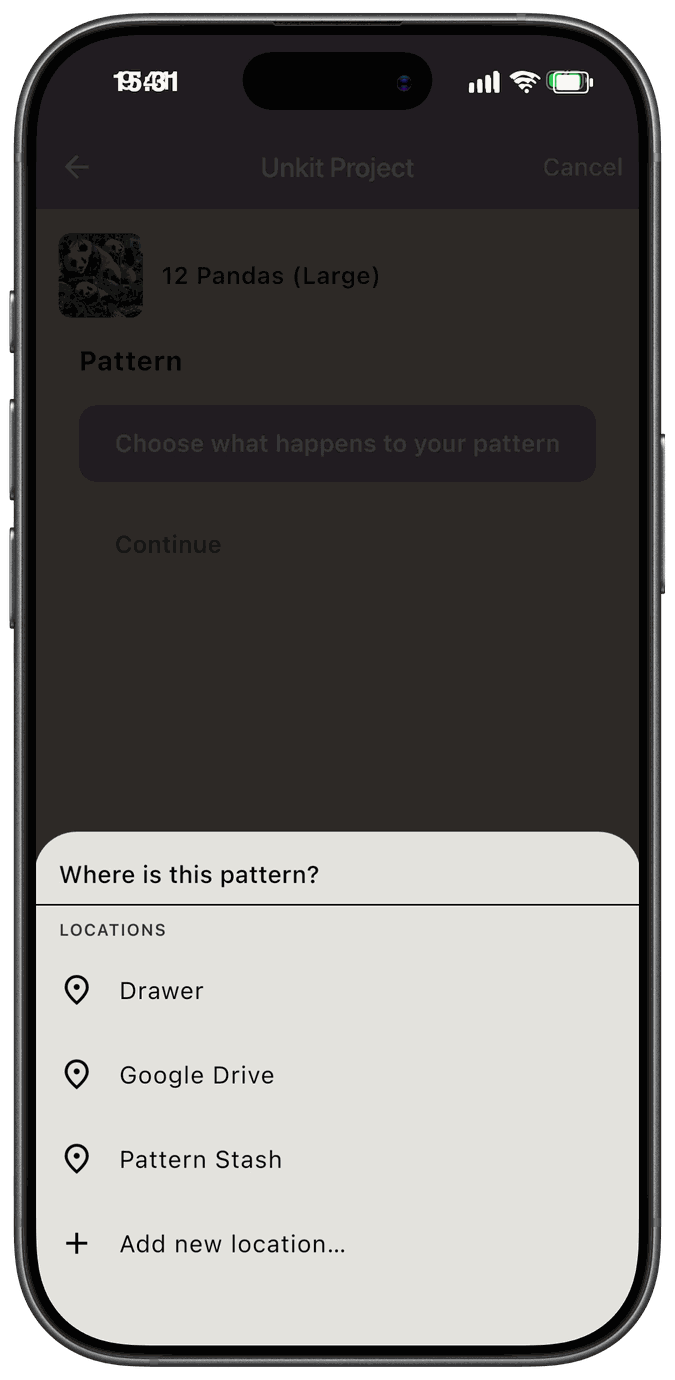
Section titled “Return a pattern to your stash”When you unkit a project, the app asks Would you like to return the pattern to your stash?
-
Yes — pick where it’s kept in Where is this pattern? (or Add new location…), and it goes back to your stash.
-
No — the copy is removed from your stash.
If another project is still using the same copy, the app doesn’t ask. It just releases the pattern from the project you’re unkitting.
Search, sort, and filter
Section titled “Search, sort, and filter”Tap Filters at the top of the Patterns tab.
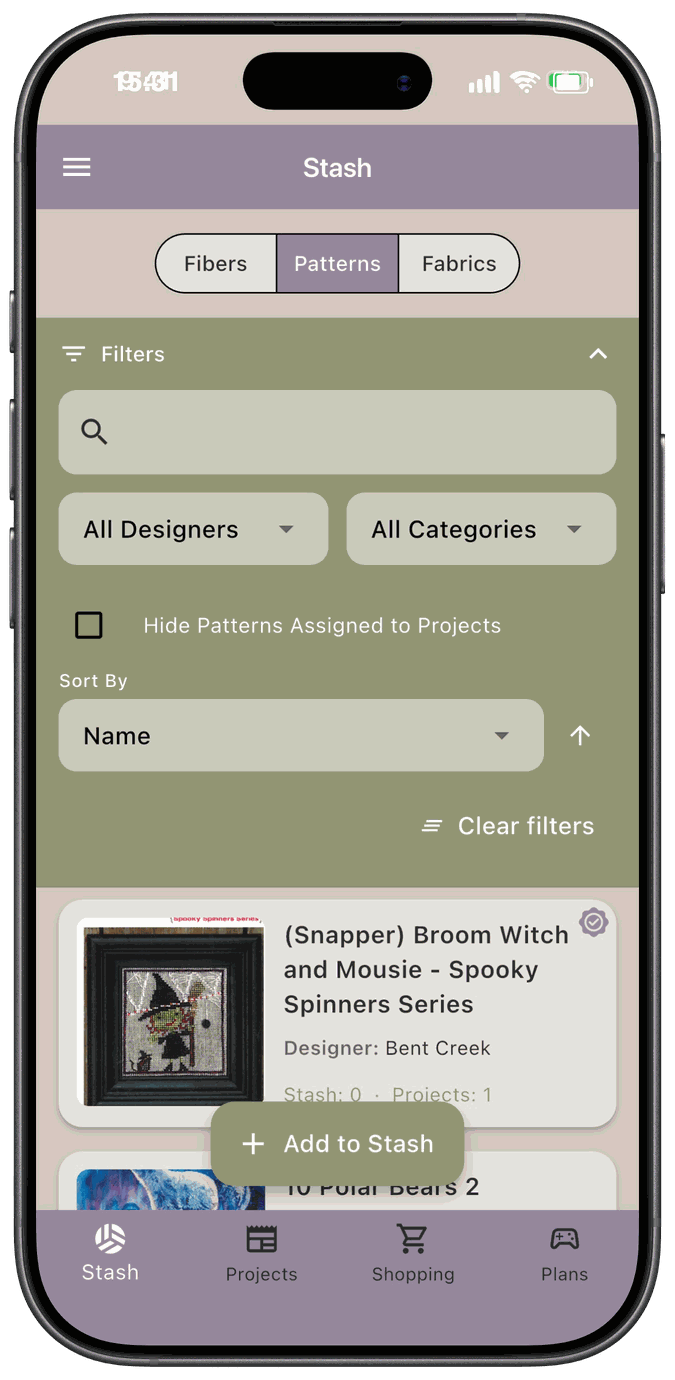
- Search by pattern name, designer, or artist.
- All Designers, All Categories, and All Locations narrow the list.
- Hide Patterns Assigned to Projects hides patterns that have been kitted up into a project.
- Sort By offers Name or Designer. Tap the arrow to switch between ascending and descending.
- Clear filters resets everything.
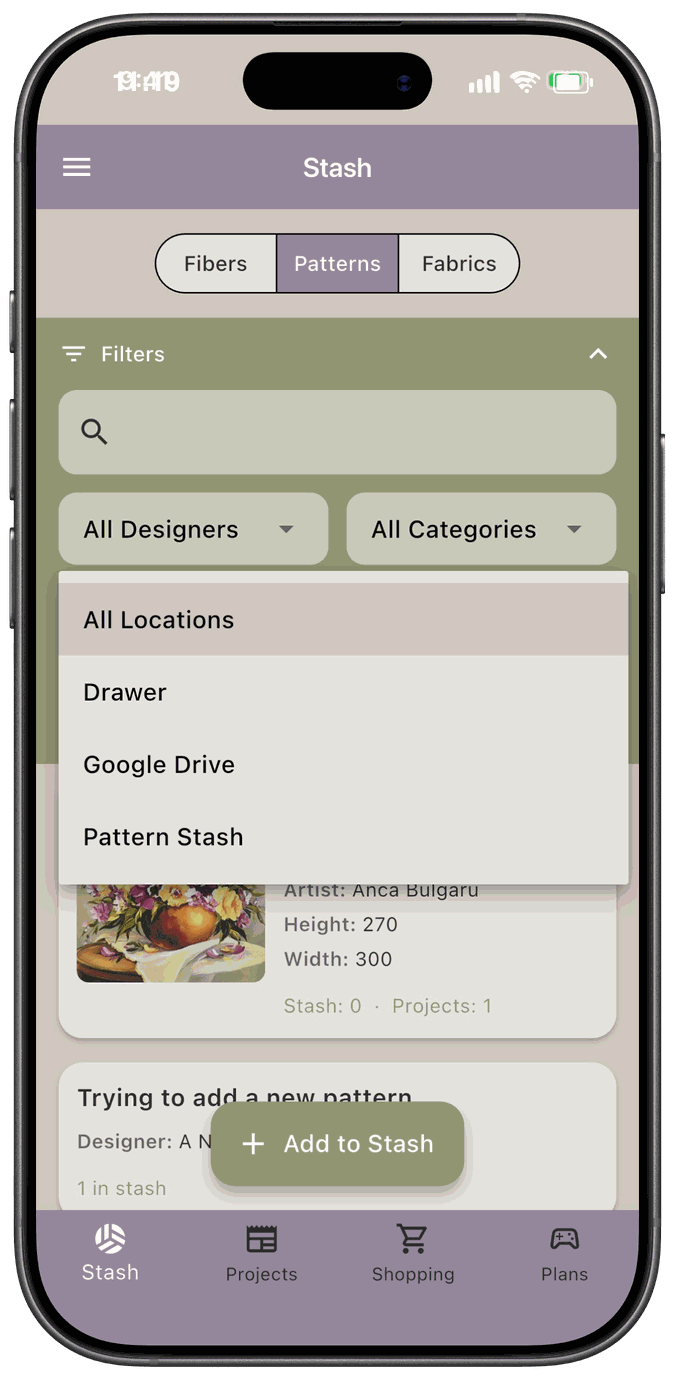
The filter bar stays at the top of the screen while you scroll the list, and changing a filter, the search text, or the sort takes you back to the top.
The app remembers your filters as you move around. To choose how the list looks when you open the app, see Pattern Defaults. To pin the designers and categories you use most to the top of every dropdown, see Pattern Favorites.