
Stitching App
If you stitch from a digital pattern in an app such as Markup R-XP, Pattern Keeper, or Saga, you can record which app each project is loaded in. The Stitching App field belongs to the project, so you can see it on the project and filter your Projects list by it.
Choose a stitching app
Section titled “Choose a stitching app”- Open the Projects tab. Tap New Start, or open a project and tap the pencil icon to edit it.
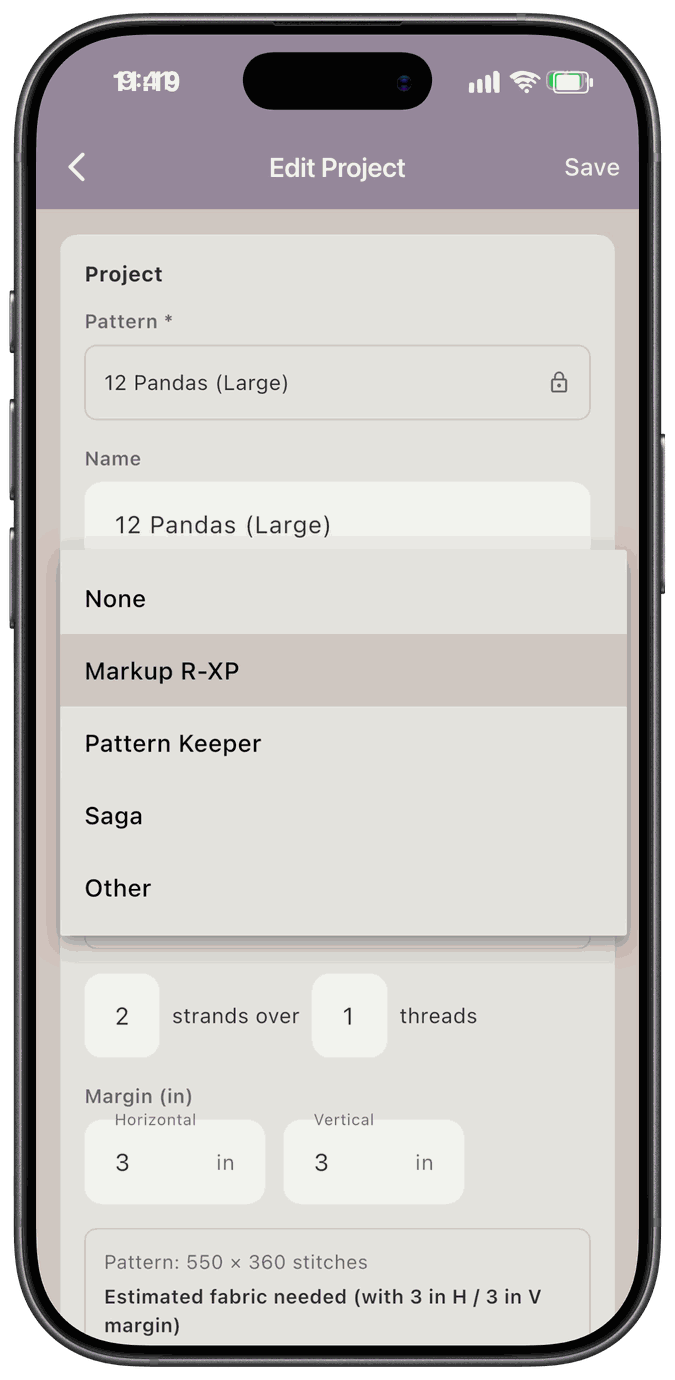
- Scroll to Stitching App and open the dropdown.
- Pick Markup R-XP, Pattern Keeper, Saga, or Other. Pick None to clear it.
- Tap Save.
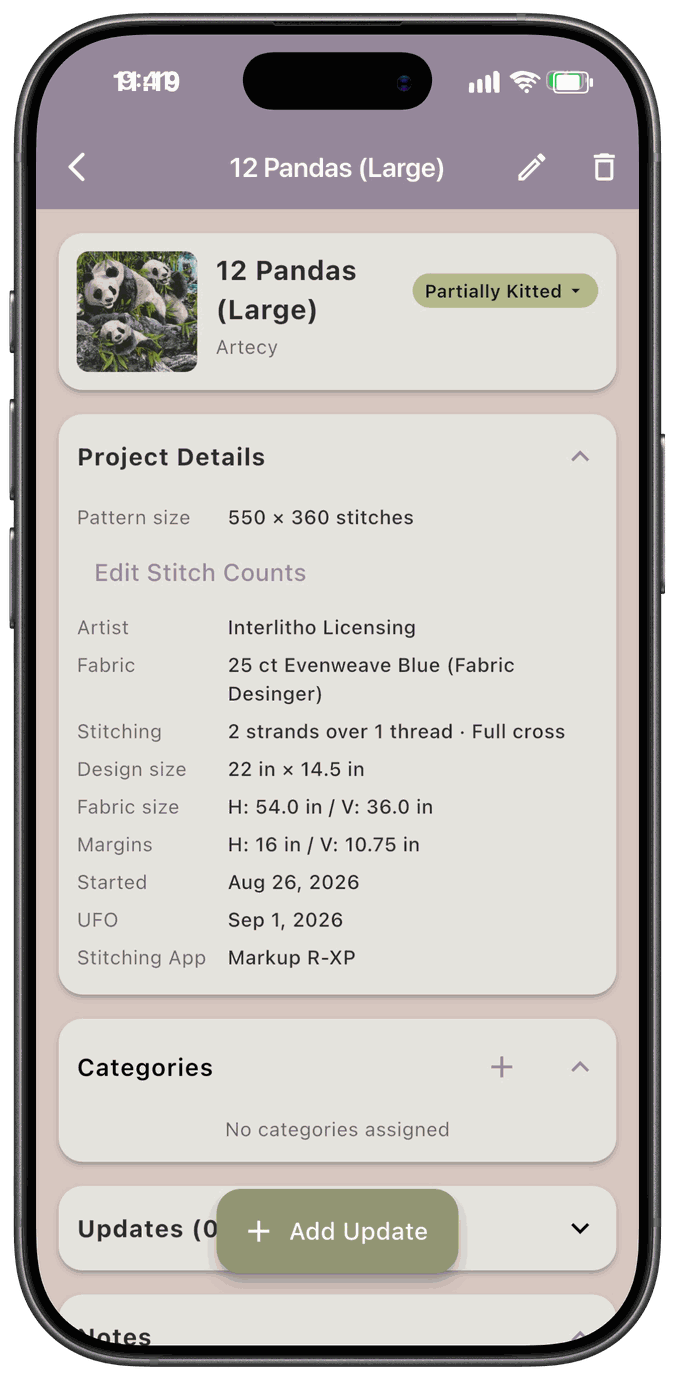
The app you picked shows as a Stitching App row in the Project Details card on the project.
Filter your projects by stitching app
Section titled “Filter your projects by stitching app”Tap Filters at the top of the Projects list and open the stitching app dropdown. It reads All Projects until you choose something. Pick Markup R-XP, Pattern Keeper, Saga, or Other to see only the projects set to that app, or pick Not Loaded in App to see the projects that aren’t loaded in any of them.
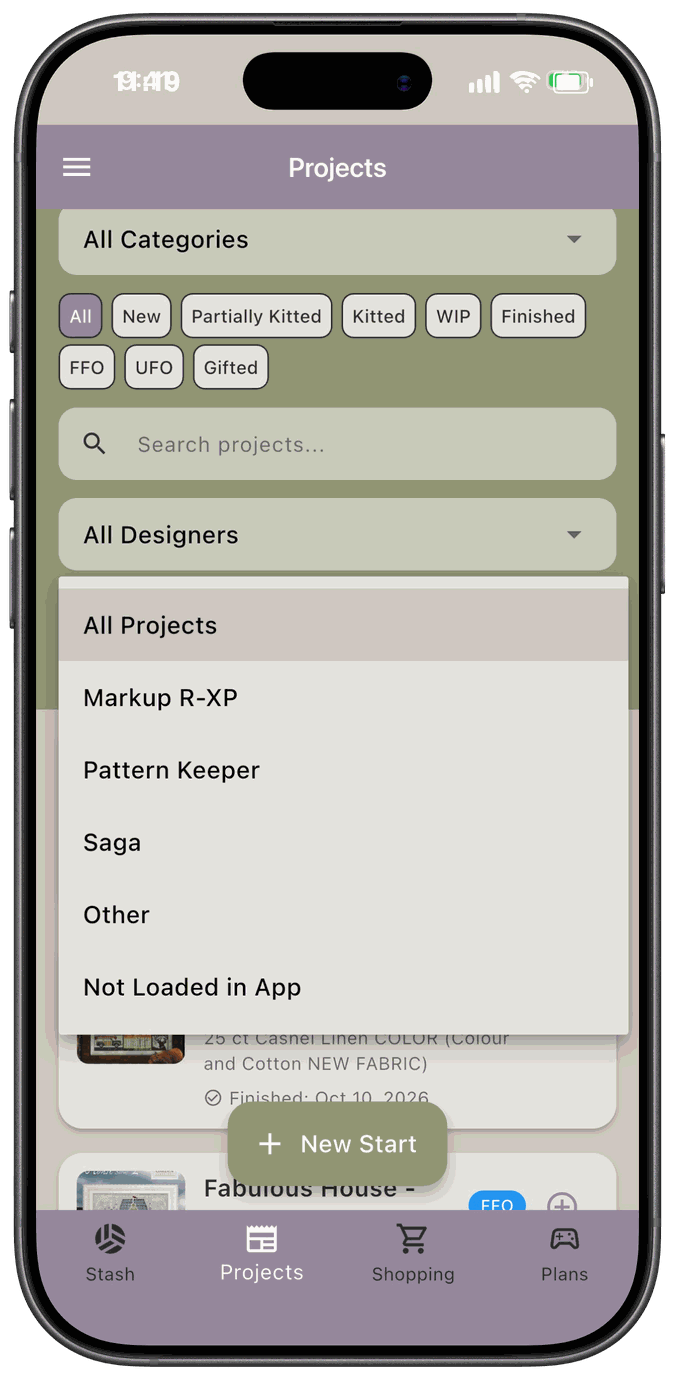
You can combine it with the status chips and the other filters. See Project Statuses.