
Deleting a Project
Deleting a project permanently removes it from the app, along with all its progress photos and updates. This cannot be undone.
How to delete a project
Section titled “How to delete a project”There are two ways to start the delete process:
- From the project detail screen — tap the trash icon in the top right corner of the screen.
- From the Projects list — swipe left on the project and tap the red delete button that appears.
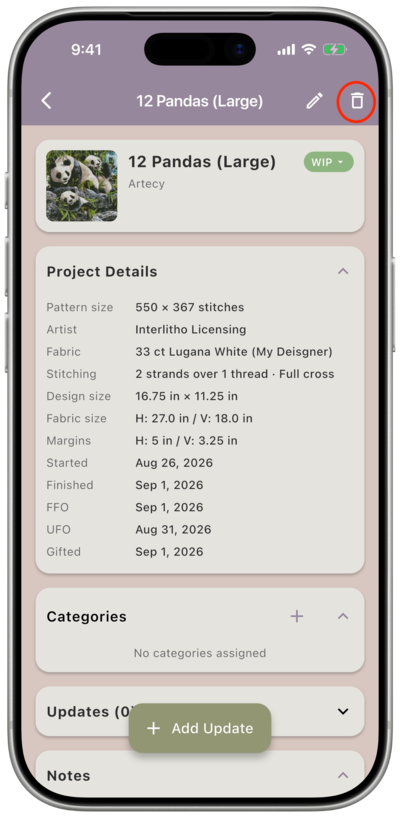
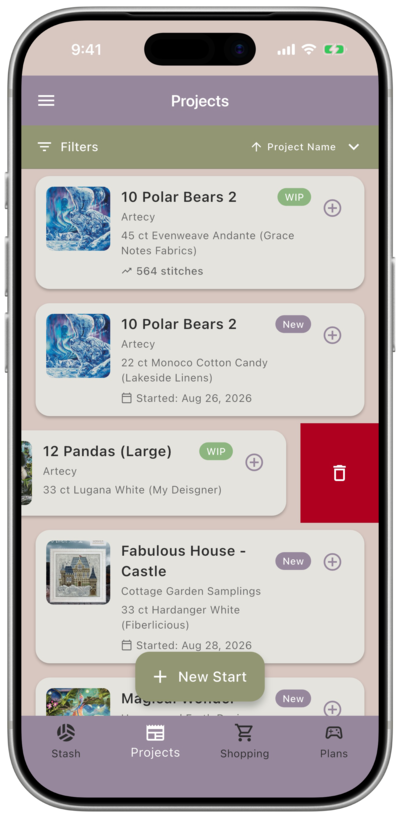
Either way, the app will ask you to confirm before anything happens.
Confirming the delete
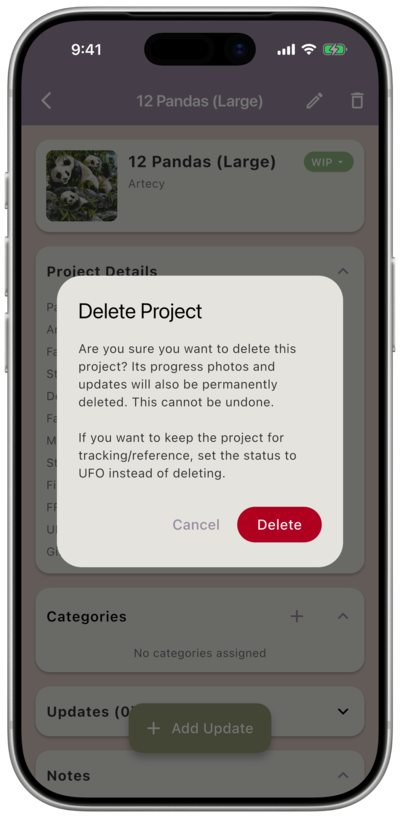
Section titled “Confirming the delete”A confirmation message appears warning you that the project’s progress photos and updates will also be permanently deleted. Tap Delete to continue, or Cancel to go back.
Returning materials to your stash
Section titled “Returning materials to your stash”After confirming, the app asks: “Return Materials to Stash?” This gives you the chance to send your fabric, pattern, and fibers back to your stash before the project is removed.
- Yes — opens the unkitting process, where you can choose what to do with each material. See Unkitting a Project for a full walkthrough.
- No — skips straight to the final confirmation; nothing is moved
Final confirmation
Section titled “Final confirmation”Whether or not you unkitted, the last screen shows a summary of everything that’s about to happen and gives you one final warning that the project will be permanently deleted.
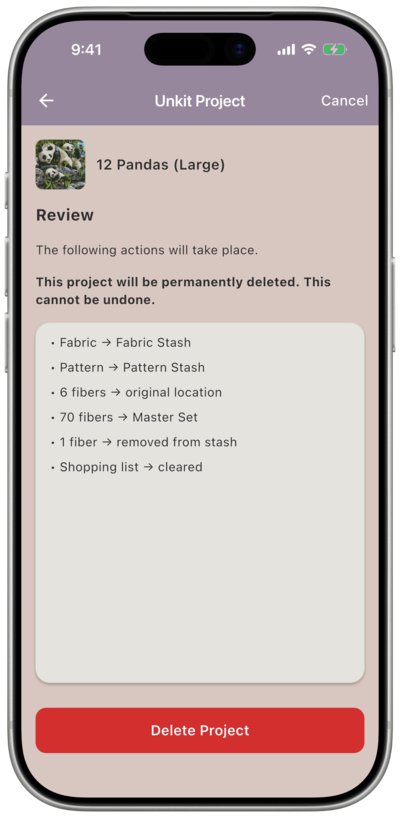
Tap Delete Project to confirm. The project is removed at this point, along with all its progress photos and updates.