
Fiber Substitution
Patterns call for specific fibers, but for your project you may want to use a different brand, a different shade, or something you already own. Fiber substitution lets you swap any fiber on a project for another one. The project remembers the original fiber the pattern asked for, so you can always see both.
Substitute while you create a project
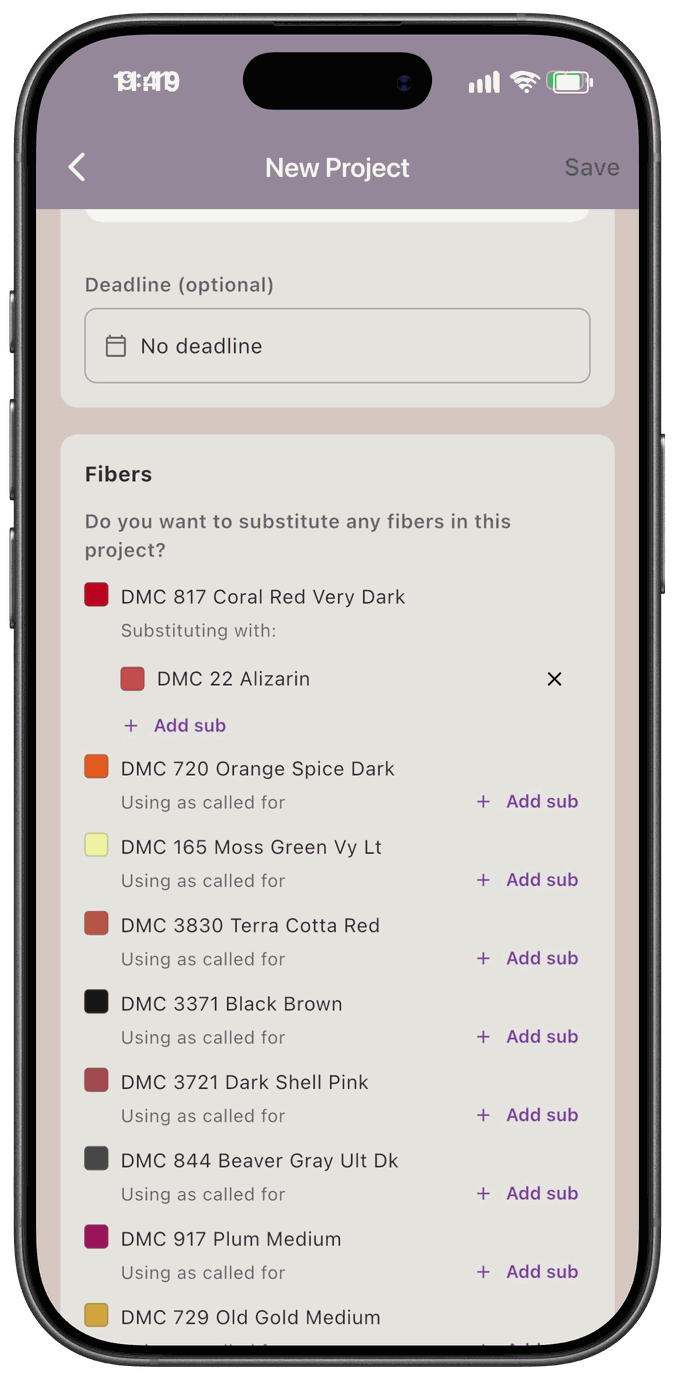
Section titled “Substitute while you create a project”When you create a project from a pattern that has a floss list, the Fibers section asks Do you want to substitute any fibers in this project? Each fiber on the list reads Using as called for. Tap Add sub next to a fiber and choose the fiber you want to use instead in the Fiber Picker. The fiber then reads Substituting with: followed by your choice. Tap Add sub again to add another substitute, or tap the x next to one to take it off.
Substitute on an existing project
Section titled “Substitute on an existing project”-
Open the project and find the Fibers card.
-
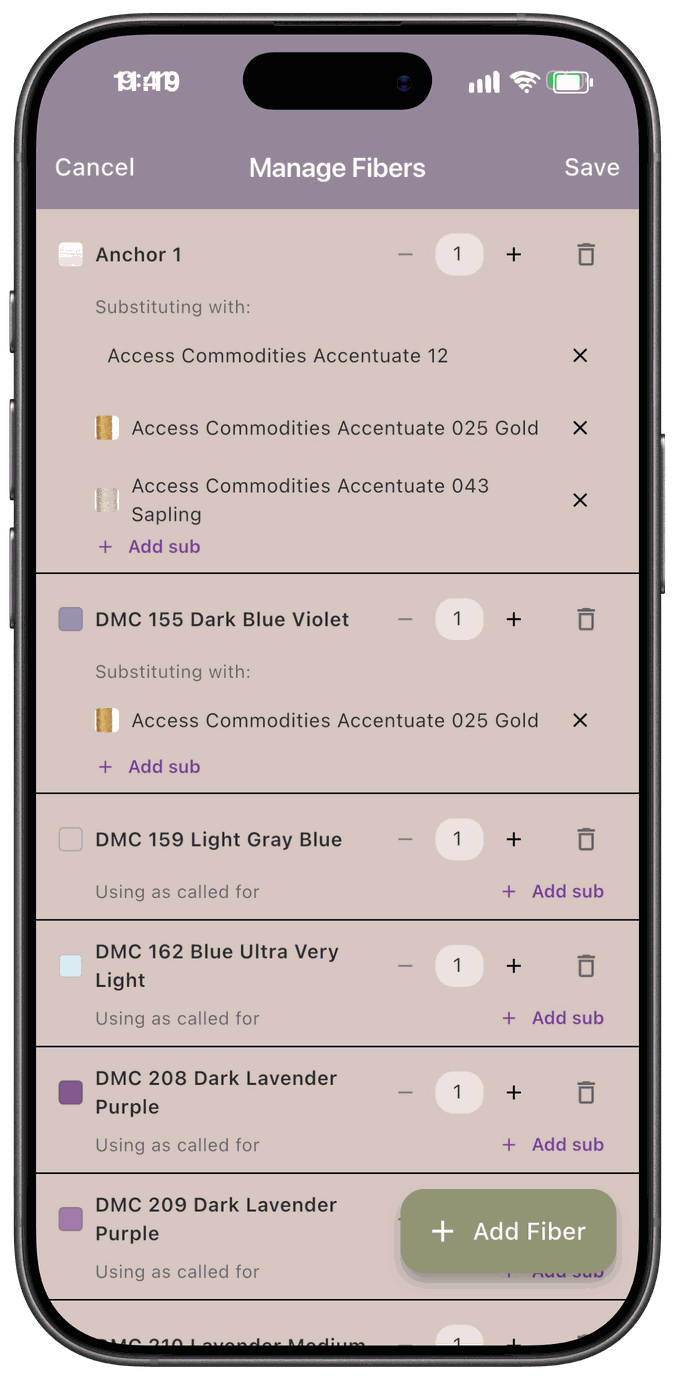
Tap the sliders icon on the card to open Manage Fibers.
-
Find the fiber you want to change. Tap Add sub to open the Fiber Picker and choose one or more replacements.
-
Tap Save.
A fiber with a substitution reads Substituting with: followed by each replacement on its own line. A fiber without one reads Using as called for. You can give a fiber more than one substitute, and the quantity you set for the fiber is shared by all of them.
While you’re in Manage Fibers, you can also:
- Change the quantity with – and +. It can be anything from 1 to 99, and it doesn’t have to match what the pattern lists.
- Remove a fiber with the trash can. The app asks Remove fiber? before it does.
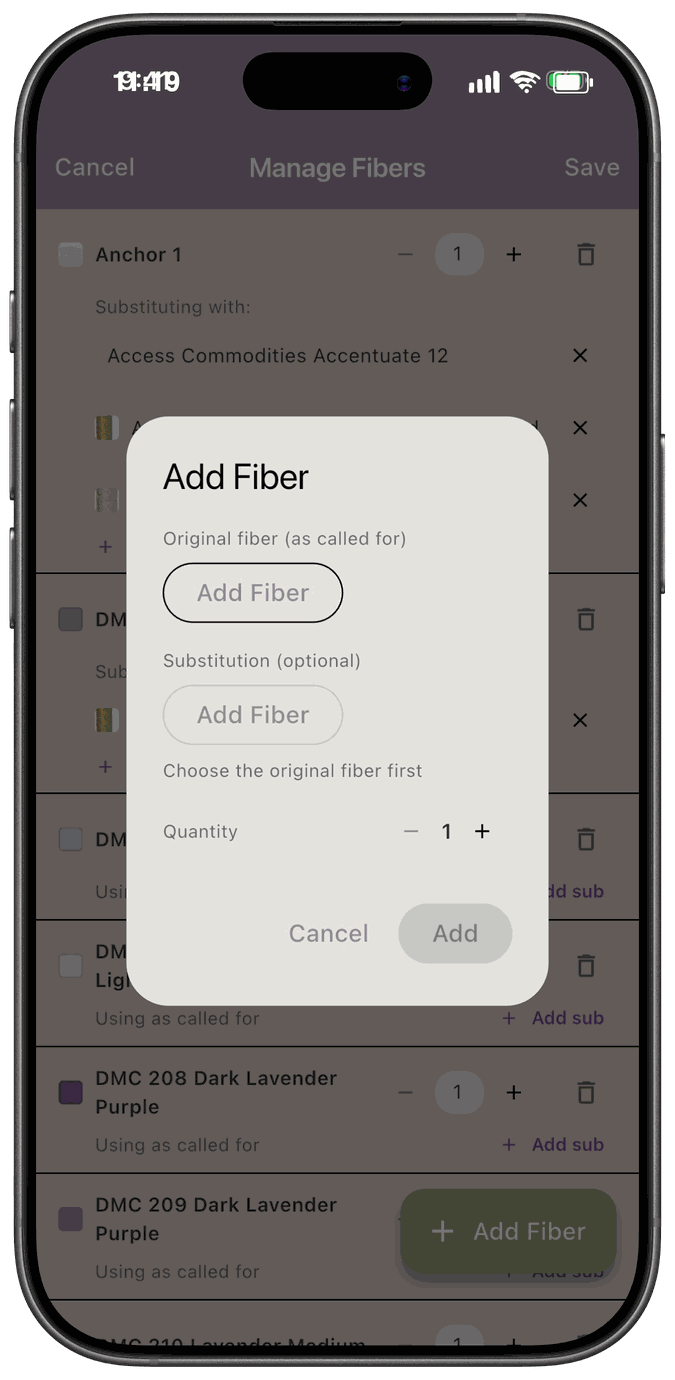
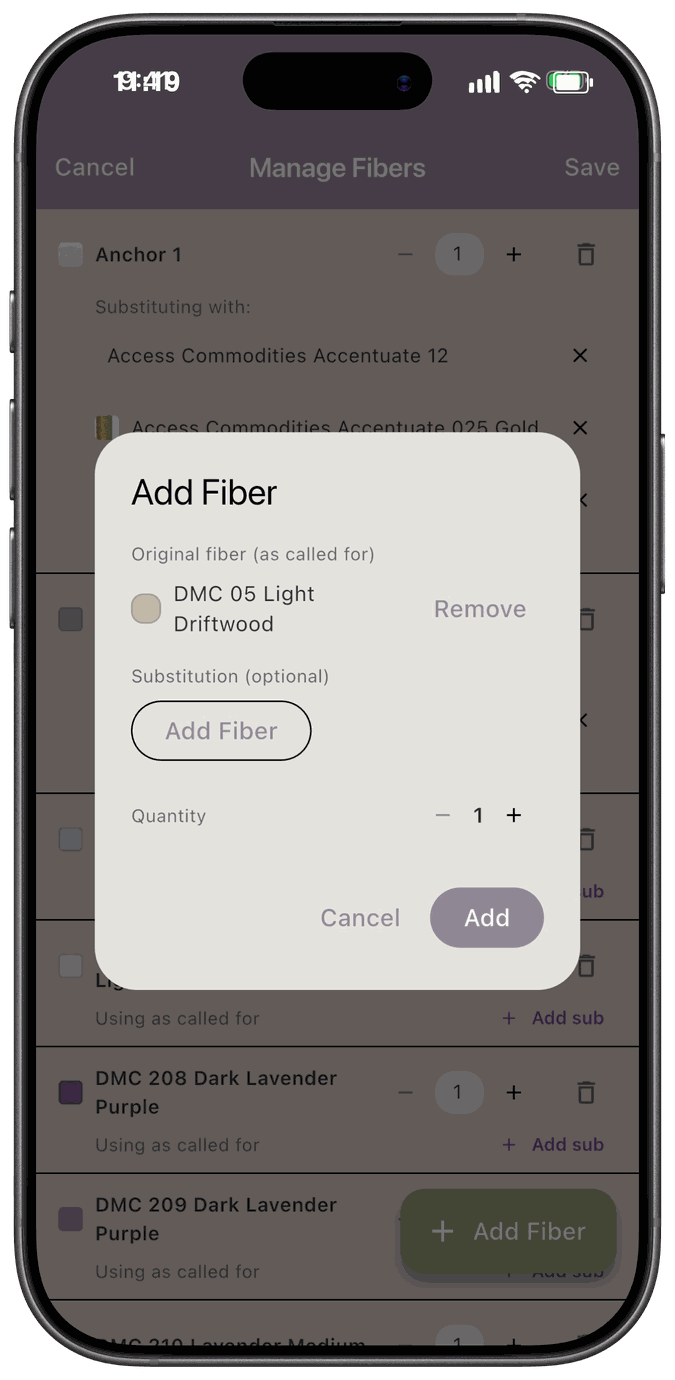
- Add a fiber with Add Fiber. Under Original fiber (as called for), tap Add Fiber and pick it in the Fiber Picker. Fibers that are already on the project are grayed out there. If you like, tap Add Fiber under Substitution (optional) to pick a substitute too. That button stays unavailable until you’ve chosen the original, and the dialog says Choose the original fiber first. A fiber you’ve picked shows its swatch and name with a Remove link, and removing the original also clears the substitution. Set the Quantity, then tap Add. New rows show a New badge, and you can tap the x on one to take it back out before you save.
Nothing is saved until you tap Save. Tap Cancel to throw away your changes.
Choose how to source the fibers
Section titled “Choose how to source the fibers”If you added a fiber or changed a substitution, the Source These Fibers sheet opens after you tap Save.
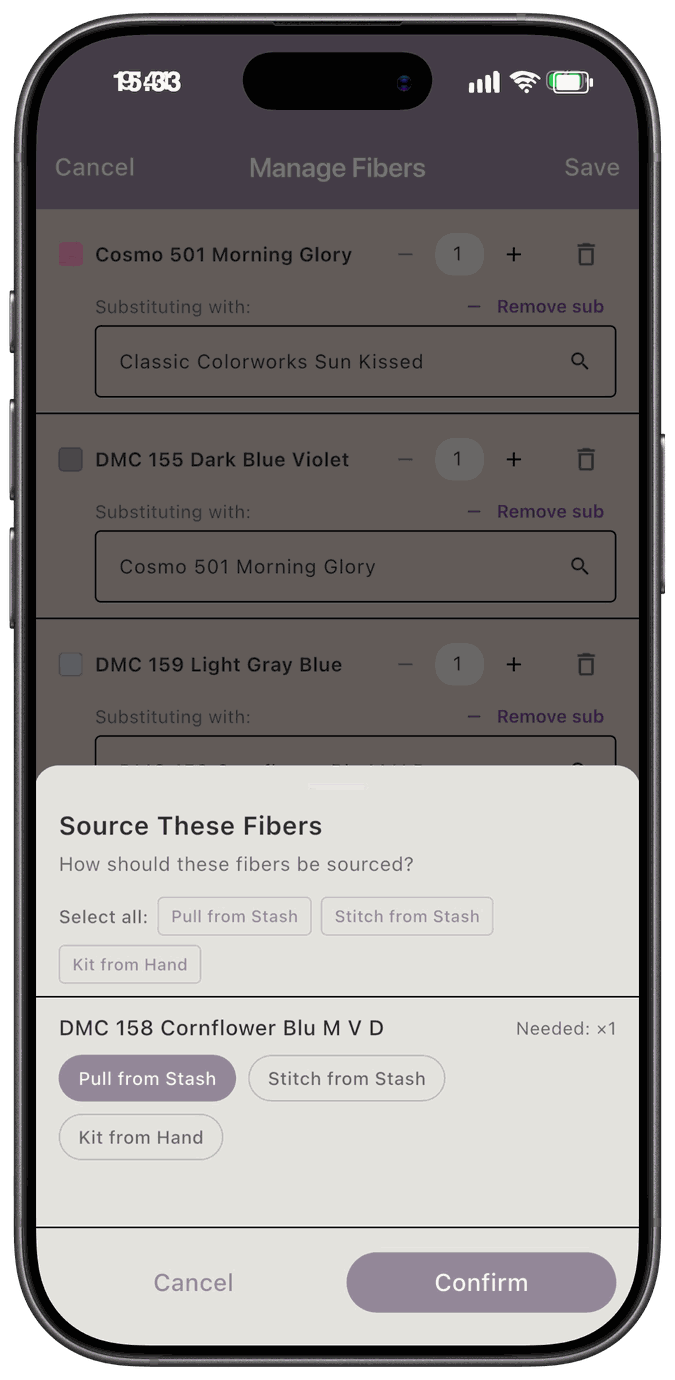
For each fiber, choose how you’ll get it:
- Pull from Stash takes it out of your stash and assigns it to the project. If you don’t have enough, the shortage goes on your Shopping List.
- Stitch from Stash uses it without changing your stash.
- Kit from Hand ignores your stash entirely.
Pull from Stash is selected to start. Use the Select all buttons at the top to apply one choice to every fiber. Then tap Confirm.
These are the same three choices you get when you kit up a project. For what each one does in detail, see Three Ways to Kit Up Fibers to a Project. To see when the Shopping List is involved, see How Kit Up Populates It.
If the project is already kitted
Section titled “If the project is already kitted”Changing the fibers on a project whose fibers are already kitted can affect your stash.
- Replacing or removing a fiber you’d already kitted. The app asks what to do with it: return it to your stash, or delete it from your stash.
- Lowering a quantity. The extra is taken off the project without asking.
- Adding a fiber or raising a quantity. The app tries to pull the fiber from your stash. If you don’t have enough, you’re taken to the Floss in Hand screen to sort out the rest.
When it’s done, a summary lists what was Pulled from Stash and what was Added to Shopping List. If something goes wrong while your stash is being updated, you’ll see Stash update failed. You may need to re-kit the project.
Editing the fibers on a project that hasn’t been kitted doesn’t touch your stash.
The Fiber List
Section titled “The Fiber List”The Fibers card lists every fiber. A fiber with one substitute shows the original swatch, an arrow, and then the fiber you’re using instead, with both names. A fiber with more than one substitute lists each one on its own line, starting with Sub:.
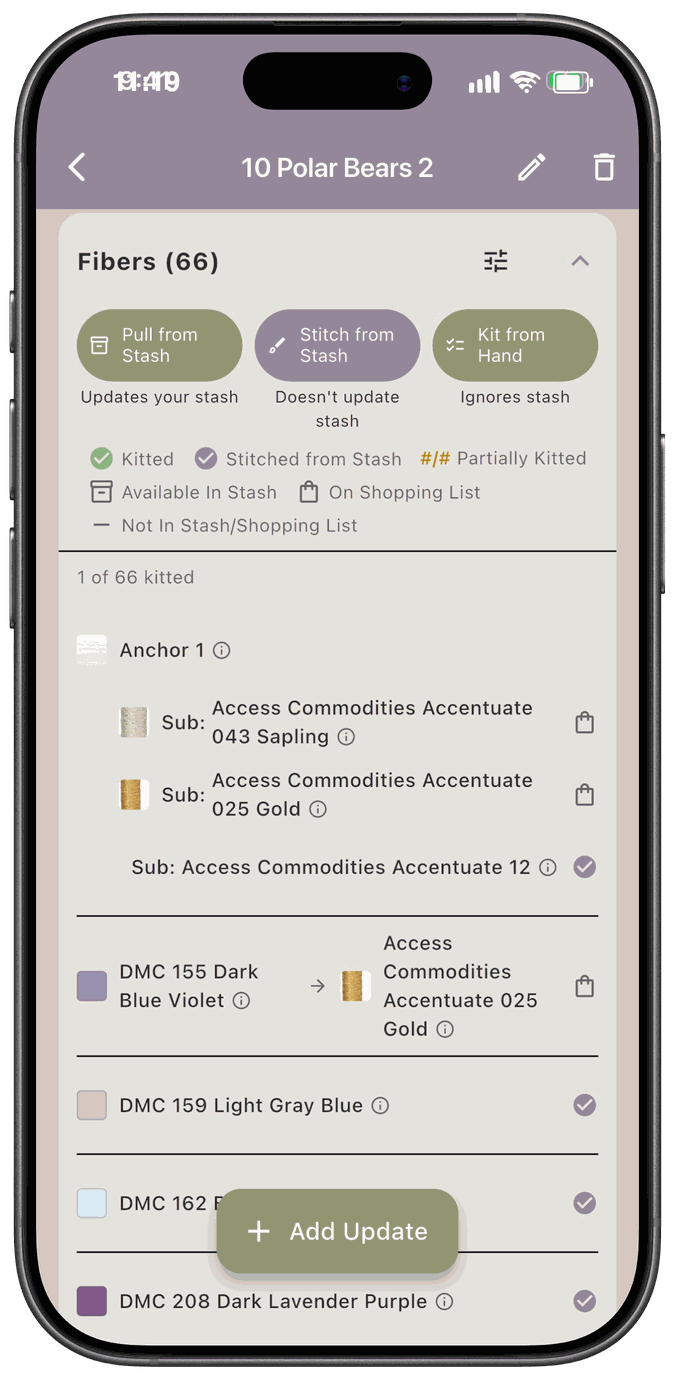
The icon at the end of each row tells you where that fiber stands:
- Kitted — assigned to the project from your stash.
- Stitched from Stash — being used without changing your stash.
- #/# Partially Kitted — part of the amount is kitted. The name shows (Partial).
- Available In Stash — you own it but it isn’t kitted yet.
- On Shopping List — you still need to buy it.
- Not In Stash/Shopping List — it’s in neither place.
The top of the card also shows how many fibers are kitted, such as 60 of 63 kitted.
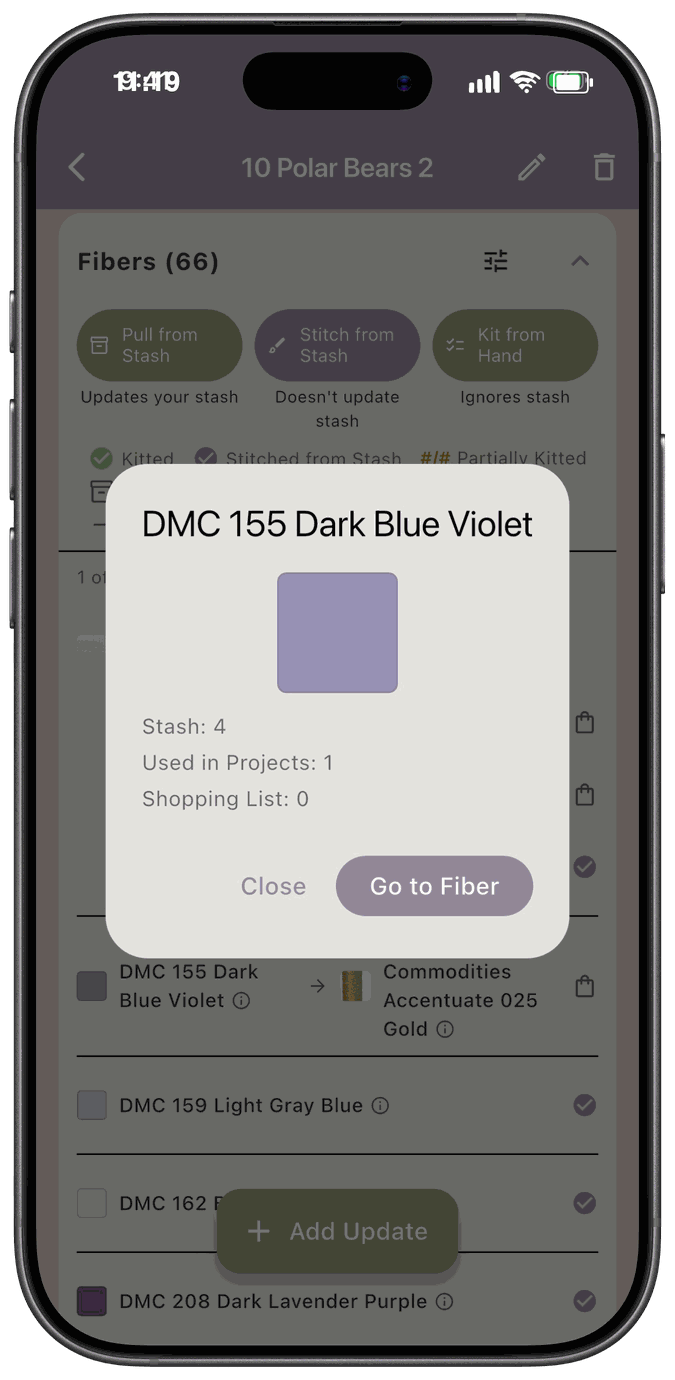
Tap a fiber’s name, or the small info icon next to it, to open a preview with its swatch, how many you have in your stash, how many projects use it, and how many are on your Shopping List. Tap Go to Fiber to open it in your stash, or Close to come back.
Undo a substitution
Section titled “Undo a substitution”Open Manage Fibers again and tap the x next to the substitute you want to take off. If it was the only substitute, the fiber goes back to Using as called for. If the fiber has several, only that one is removed. To swap one substitute for another, remove it and tap Add sub to pick a different one. Then tap Save. It goes through the same steps as any other change, so you may be asked how to source the fiber again.