Project Statuses
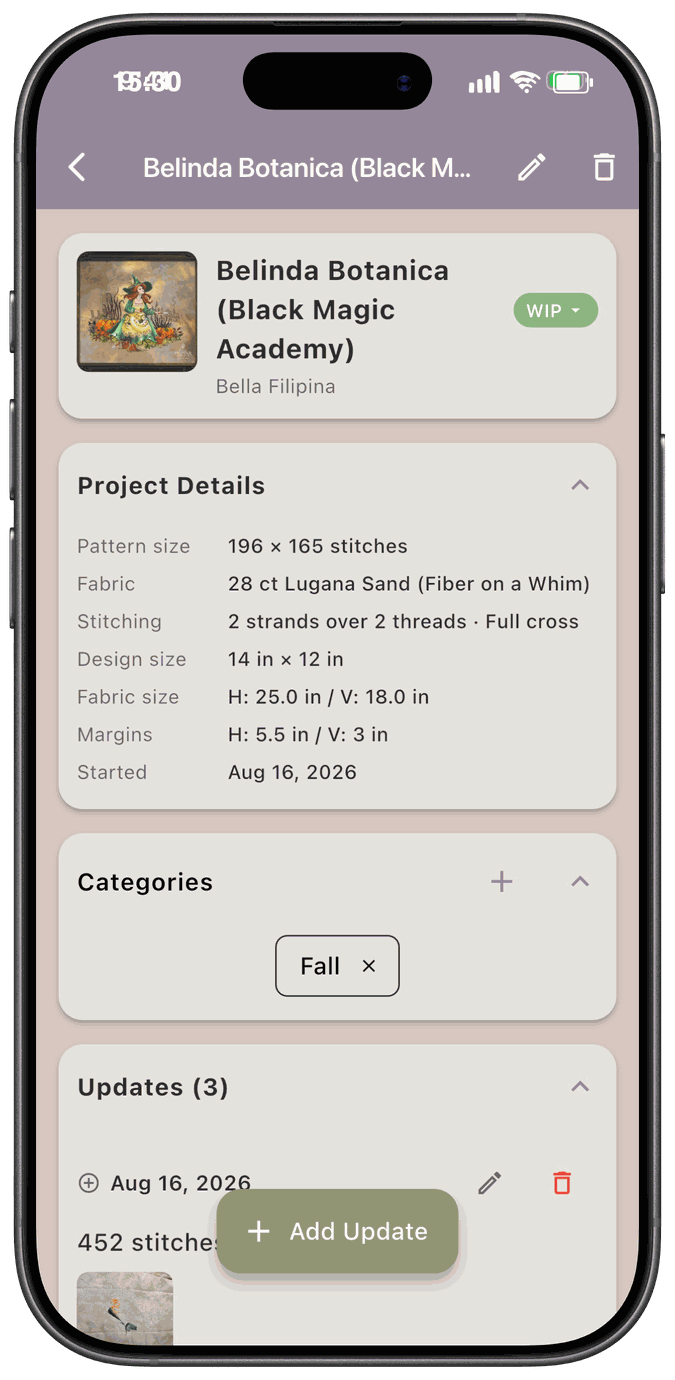
Every project has a status that shows where it is, from kitted to a finished piece. You’ll see it as a colored badge on the project and on its card in your Projects list, and you can use it to filter your list.
The eight statuses
Section titled “The eight statuses”The statuses always appear in this order.
| Status | Color | What it means |
|---|---|---|
| New | Purple | You’ve added the project, and that’s all so far. Every new project starts here. |
| Partially Kitted | Light olive | You’ve gathered some of what you need to start, but not all of it. |
| Kitted | Olive | You’ve gathered what you need to start. |
| WIP | Light green | Work in progress. You’re stitching it. |
| Finished | Green | The stitching is done. |
| FFO | Blue | Fully finished object. The stitching and the finishing are done. |
| UFO | Orange | Unfinished object. It’s on the shelf. |
| Gifted | Pink | You gave it away. |
For more abbreviations, see Key Concepts.
Changing a status
Section titled “Changing a status”Tap the status badge at the top of the project. The Project Status list opens with a check next to the current one.
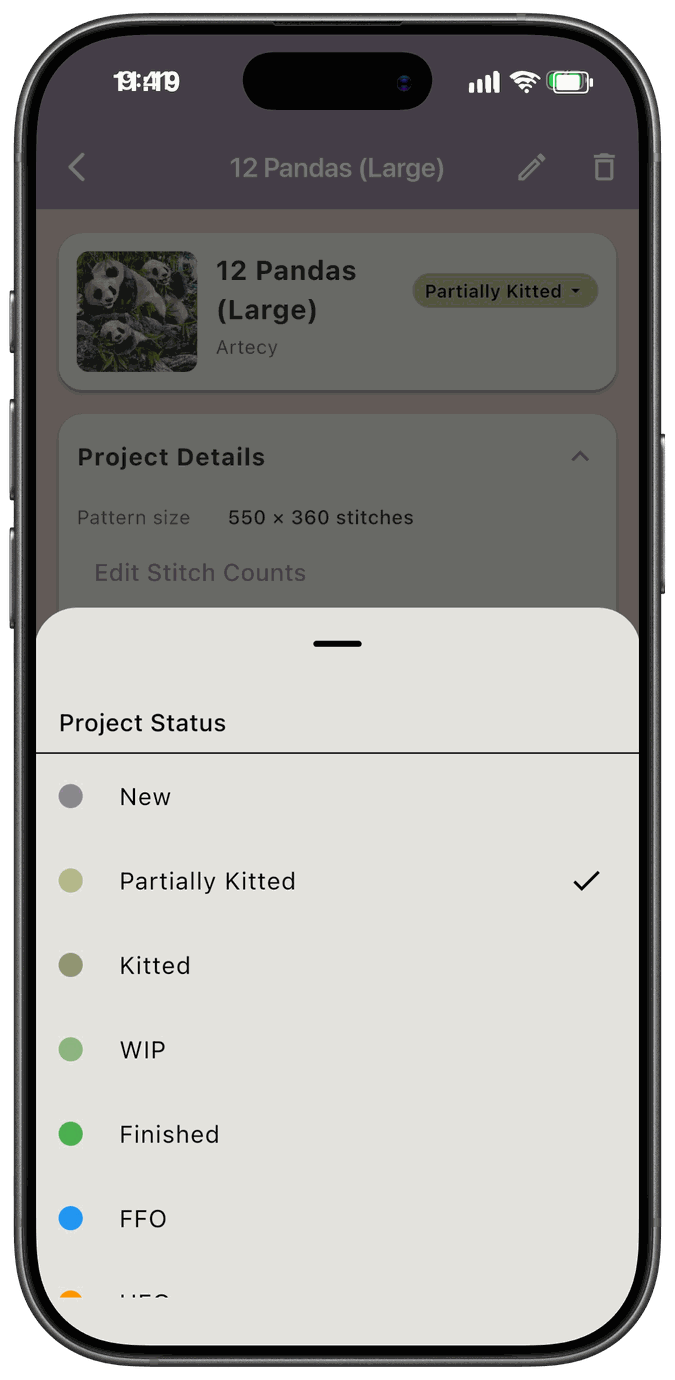
Pick a status, and the project changes. You can also change it from Edit (the pencil icon on the project).
New, Partially Kitted, Kitted, and WIP change right away.
Finished, FFO, UFO, and Gifted ask you first, since these usually mean you’re done with the project’s materials for now. The app asks Are you sure you want to mark this project as that status, and reassures you that it won’t delete the project.
If the project has any fabric, pattern, fibers, or Shopping List items, the app then asks Return Materials to Stash?
- Yes takes you to the Unkit Project screen, where you choose what goes back to your stash. Tap Return to Stash when you’re done. See Unkitting a Project.
- No leaves everything as it is.
If the project has no materials, you aren’t asked. This works the same way whether you change the status from the badge or from Edit.
Statuses that change on their own
Section titled “Statuses that change on their own”Adding a progress update can move a project to WIP or Finished. See Progress Tracking. When that happens, the app doesn’t ask about returning materials.
Dates on the Edit screen
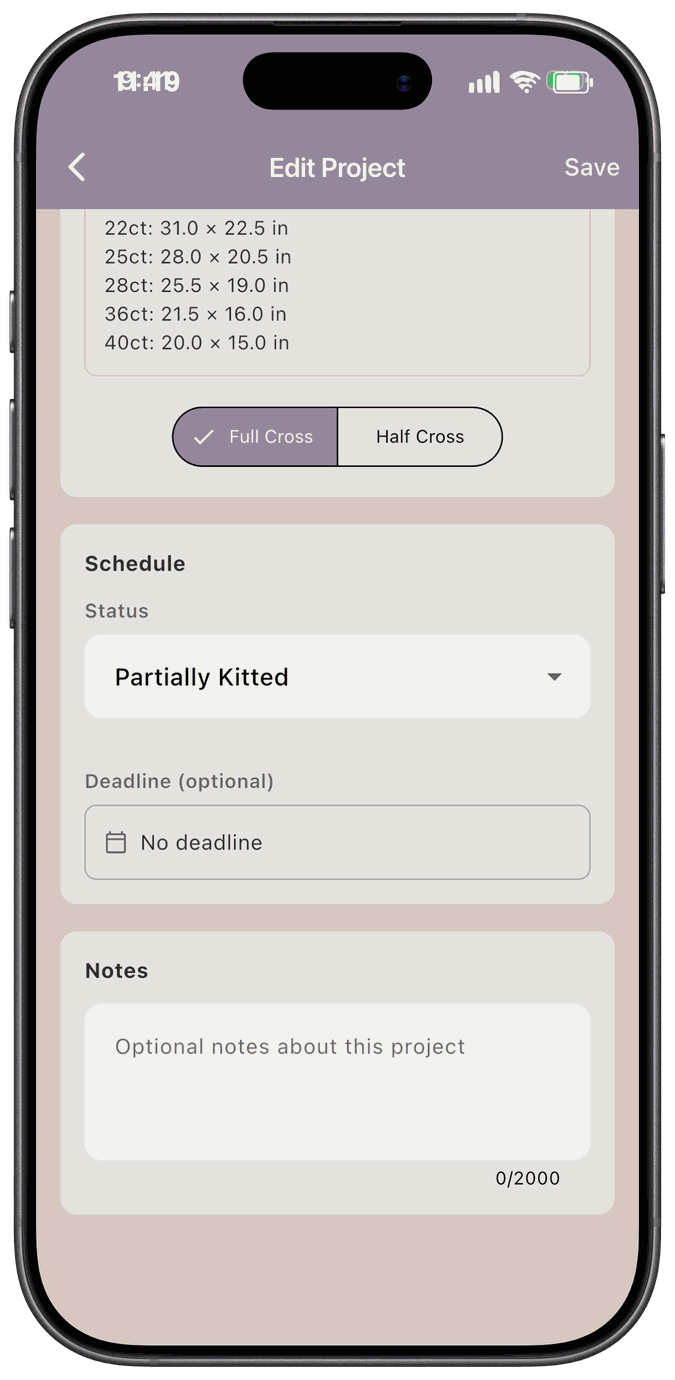
Section titled “Dates on the Edit screen”On the Edit Project screen, the Schedule card shows the Status and the dates that go with it. Start Date is hidden while the status is New, Partially Kitted, or Kitted. Deadline (optional) shows for New, Partially Kitted, Kitted, WIP, and Finished.
What shows on each project card
Section titled “What shows on each project card”The card in your Projects list shows a line that depends on the status:
- New shows Started with a date.
- Partially Kitted has no extra line.
- Kitted shows Kitted with a date.
- WIP shows your latest progress.
- Finished shows Finished with a date.
- FFO and UFO show their dates.
- Gifted shows Gifted with a date.
A date the app doesn’t have shows as —.
Filter your projects by status
Section titled “Filter your projects by status”Above your Projects list is a row of chips: All, plus one for each status. Tap the statuses you want to see. You can pick more than one, and if you deselect the last one, you go back to showing everything.
To choose which statuses your list shows each time you open the app, see Project Defaults.