
Populating Automatically From Kitting Up
Kit Up checks what a pattern needs against what’s in your stash. Anything you’re short on can land on your Shopping List automatically, so you don’t have to write it down yourself. What gets added depends on which option you pick.
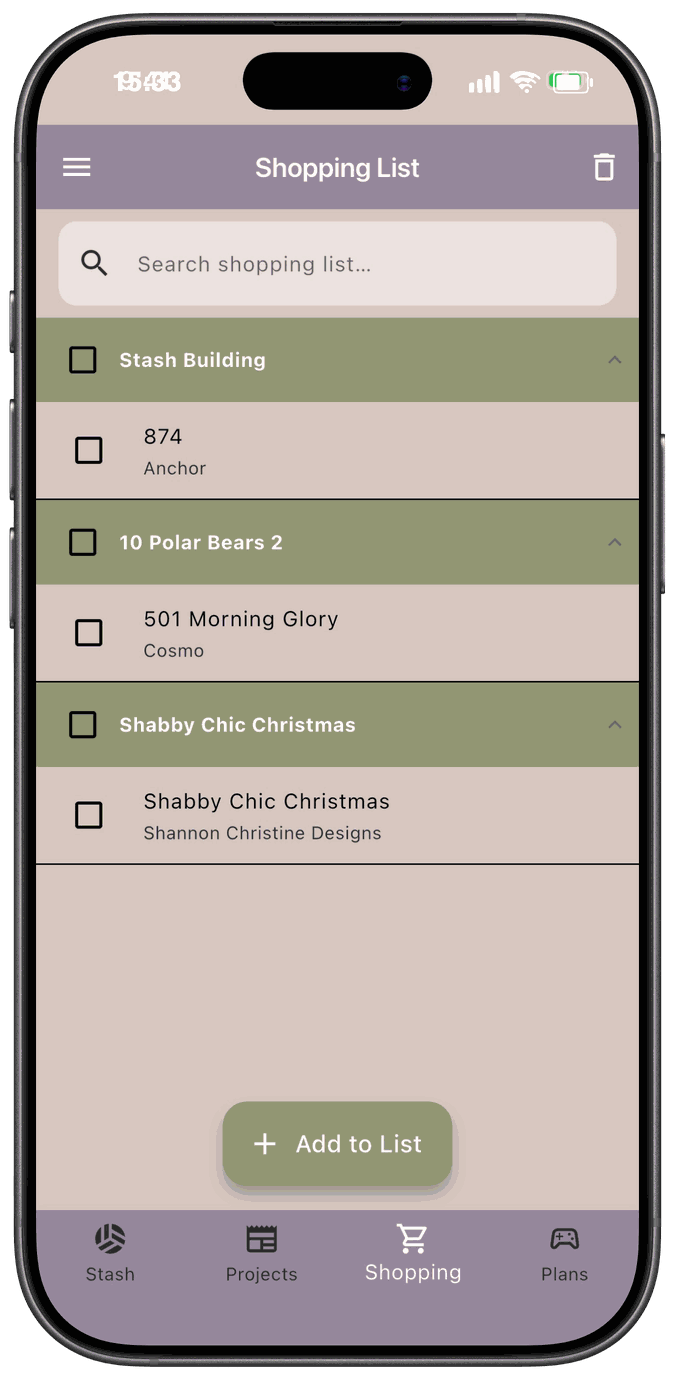
Items on the list are grouped in two ways:
- Under a project’s name — fibers Kit Up added because that project needs them.
- Under Stash Building — items that aren’t tied to a project. Items you add yourself go here, including fibers you add with Add to Shopping List from your fiber stash, and so do fibers from Stitch from Stash.
The Kit Your Fibers choices
Section titled “The Kit Your Fibers choices”When you kit up a new project whose pattern has a floss list, the app asks how you want to kit up your fibers. (If the pattern has no fibers on its floss list, the question is skipped.)
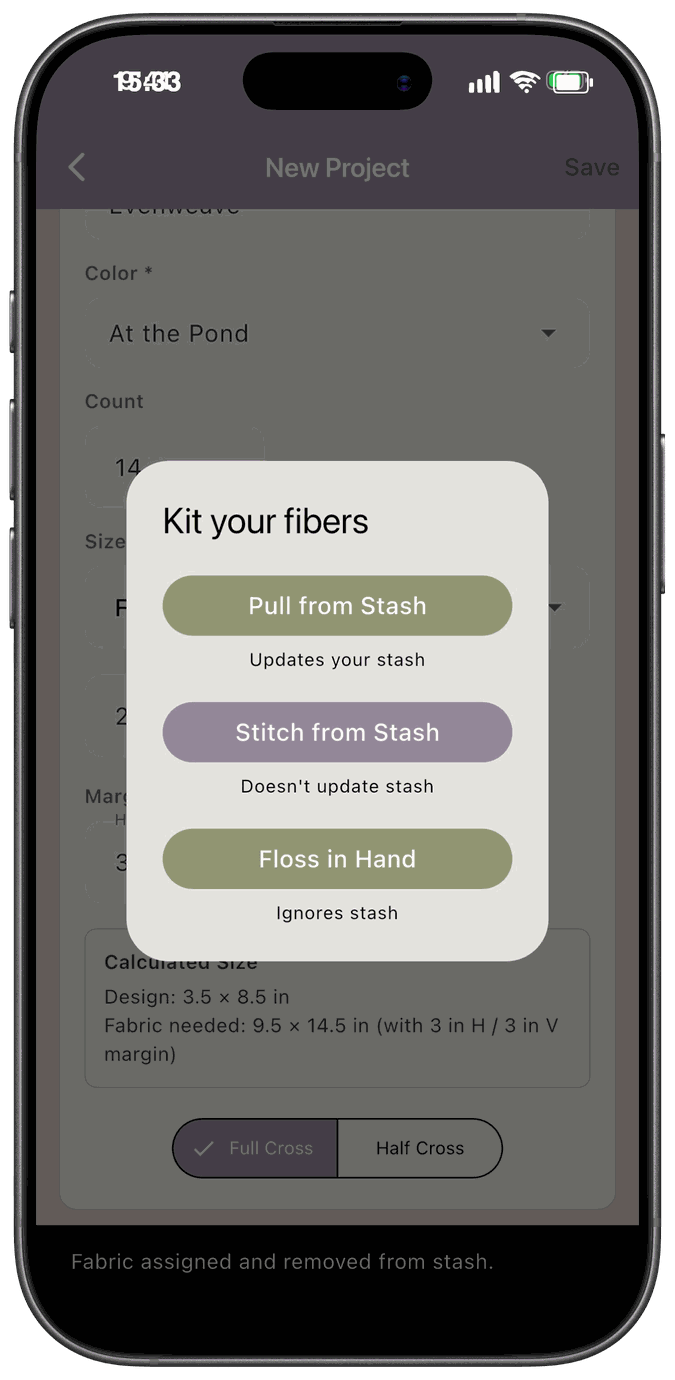
Pull from Stash
Section titled “Pull from Stash”Pull from Stash takes fibers out of your stash and assigns them to the project. If you don’t have enough, the shortage is added to your Shopping List under that project’s name.
For example, if a pattern needs 3 skeins of a color and you own 1, the project gets your 1 skein and the Shopping List gets a line for the other 2.
After you choose it, the Retrieve Fibers screen shows the matching fibers in your stash, grouped by where you keep them.
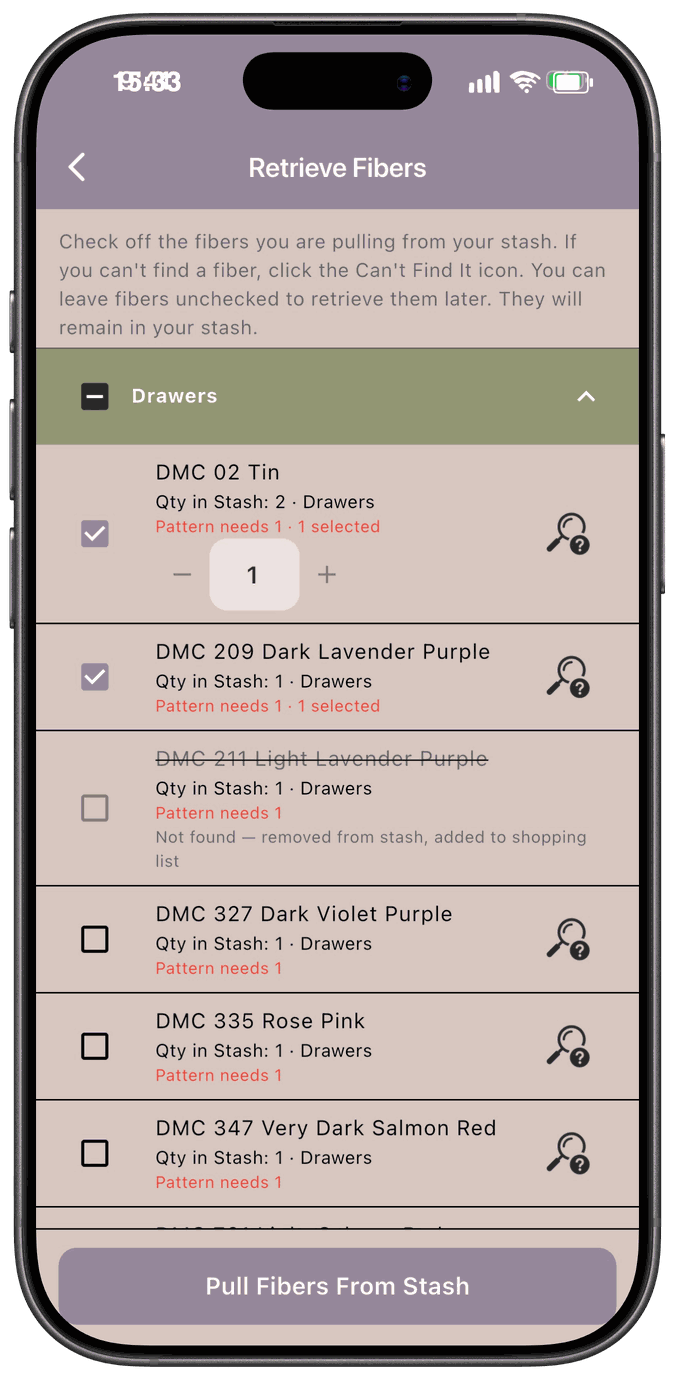
Check the fibers you’re actually pulling. If you can’t find one, tap the Can’t Find It icon next to it.
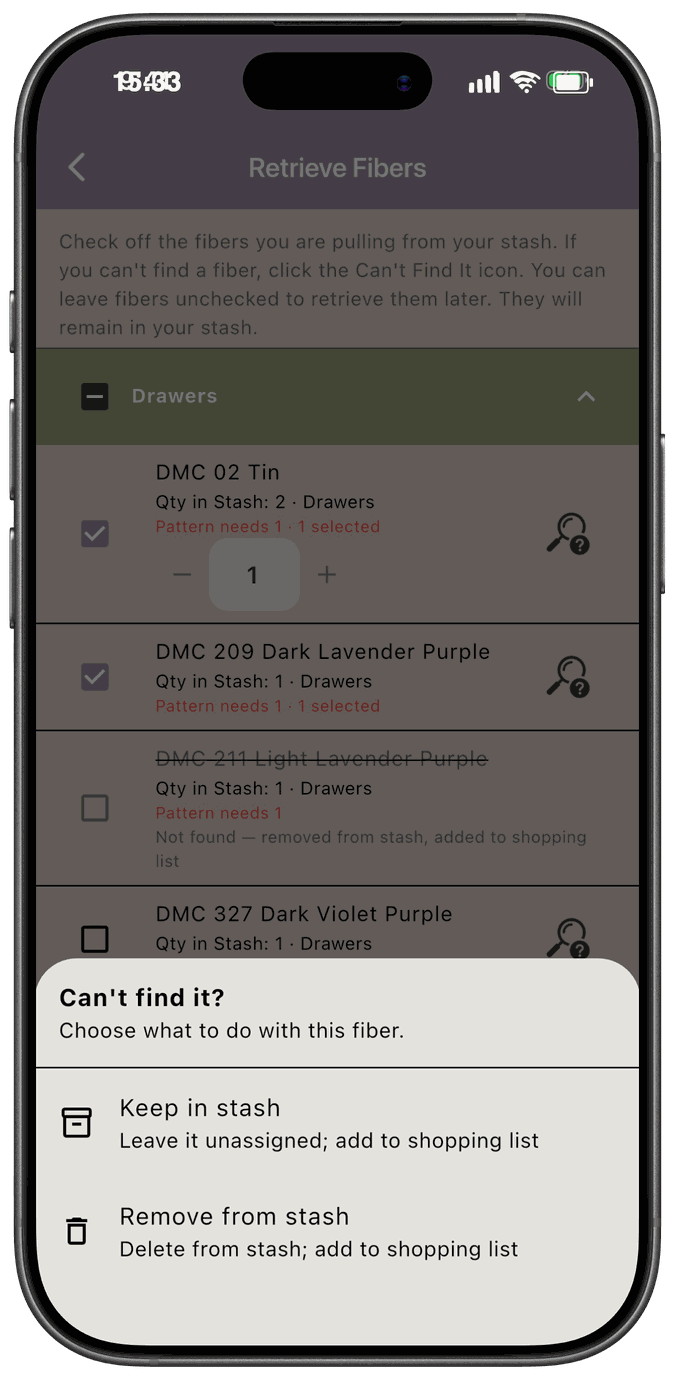
Either choice adds that fiber to your Shopping List:
- Keep in stash leaves it in your stash, unassigned.
- Remove from stash deletes it from your stash, because you’ve realized you don’t have it.
The row then shows Not found — added to shopping list, or Not found — removed from stash, added to shopping list.
Fibers you leave unchecked stay in your stash so you can retrieve them later. Tap Pull Fibers From Stash to finish. Any fiber you don’t own at all is added to your Shopping List after this screen closes.
If none of the fibers are in your stash, the app skips the Retrieve Fibers screen. It tells you none of them were in your stash and that they’ve been added to your shopping list.
Stitch from Stash
Section titled “Stitch from Stash”Stitch from Stash compares the pattern to your stash but doesn’t change your stash at all. Anything you’re short on is added to the Shopping List under Stash Building, not under the project. That’s because the shortage is about restocking your stash, not buying for one project.
Floss in Hand
Section titled “Floss in Hand”Floss in Hand ignores your stash. You get a checklist of the pattern’s fibers, and you check the ones you have in hand.
- Fibers you leave unchecked are added to your Shopping List for the full amount.
- Fibers you have in hand but with fewer than the pattern needs are added for the difference.
- If you uncheck a fiber you previously kitted, it’s taken back off the project.
Patterns and fabric
Section titled “Patterns and fabric”Patterns: If a project uses a pattern you don’t own a copy of, the pattern is added to your Shopping List automatically, with a quantity of 1. If it’s already on your list, it isn’t added again, even if it was originally added for a different project.
Fabric: Choosing fabric for a project never adds anything to the Shopping List. Only fibers and patterns do. If you need fabric, you can add it to the list yourself. See Manually Adding Items.
Good to know
Section titled “Good to know”- Running Kit Up again can add a second line. Each time you choose Pull from Stash or Stitch from Stash and you’re short, a new line is added. That’s on purpose, since each project needs its own skeins.
- Buying an item puts it back in your stash. When you check an item off and save, it’s added to your stash, and if it came from Kit Up it goes to the project it was added for. See Clearing the List.
When you unkit or delete a project
Section titled “When you unkit or delete a project”If a project has items on your Shopping List and you unkit or delete it, the app asks what to do with them.
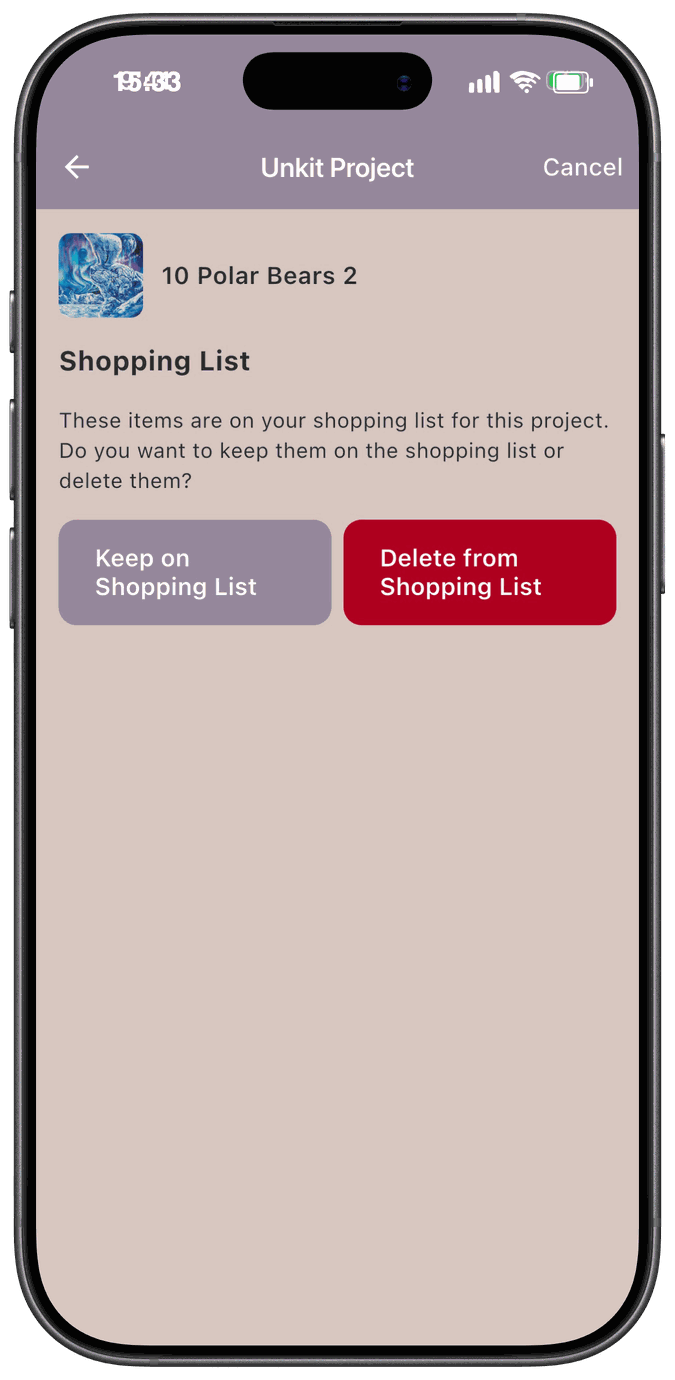
- Keep on Shopping List — the items stay on your list and move to Stash Building.
- Delete from Shopping List — the items are removed.
If the project has nothing on the Shopping List, this step doesn’t appear.