
Progress Tracking
Every time you sit down to stitch, you can log an update. The app keeps a history of your updates for each project, and uses your latest one to show how far along you are.
Add an update
Section titled “Add an update”- Open a project and tap Add Update. You can also tap the Add Update icon on a project’s card in your Projects list.
- Choose the date. It starts on today, and you can’t pick a date in the future.
- Choose how you want to enter your progress:
- Session — how many stitches you did this time. The field reads Stitches this session.
- Total — how many stitches you’ve done in all. The field reads Total stitches done.
- Percent — how far along you are, from 0 to 100. The field reads Percentage complete (0–100).
- Type your number. Stitch counts need to be whole numbers.
- Tap Add Photos if you want to attach some. You can Take a photo or Choose from library, and pick more than one from your library.
- Tap Save.
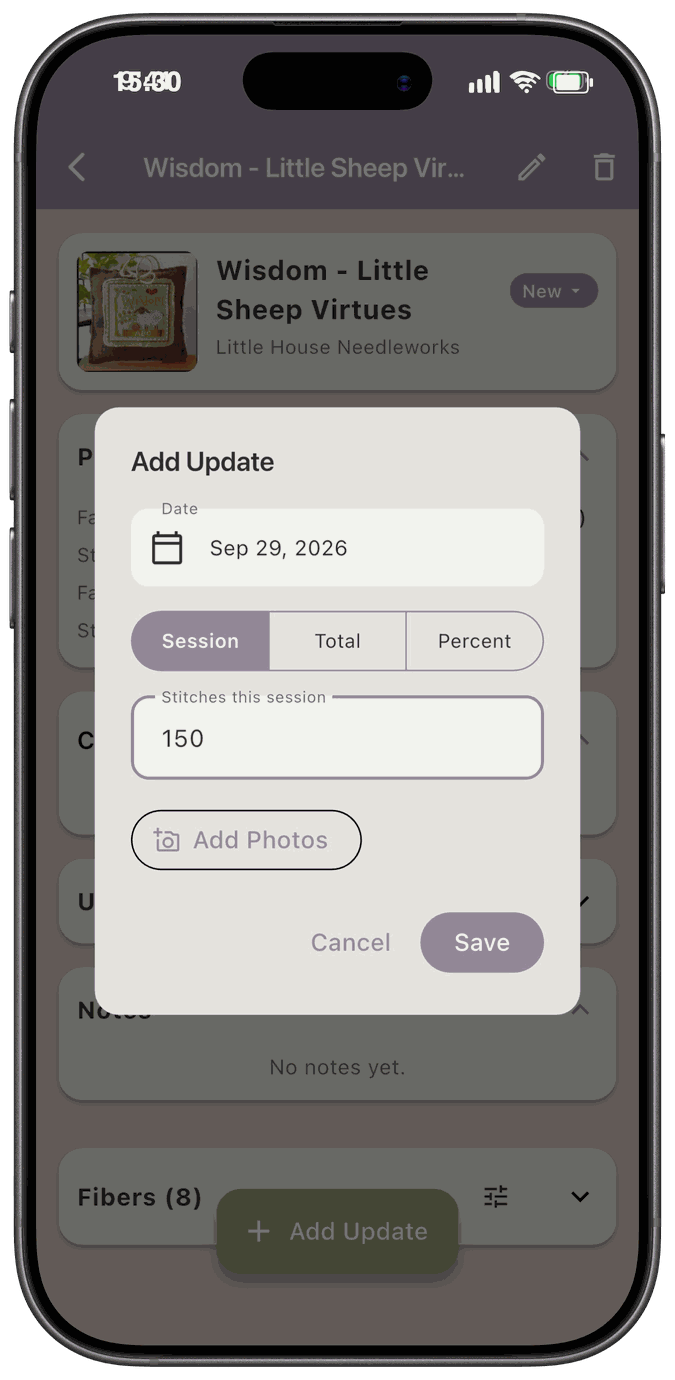
Each update takes one number. You can’t enter both a stitch count and a percentage at once, and updates don’t have a notes field. Use the project’s Notes card for anything you want to write down.
See your history
Section titled “See your history”The Updates card on the project lists every update, newest first, with the date, what you entered, and any photos.
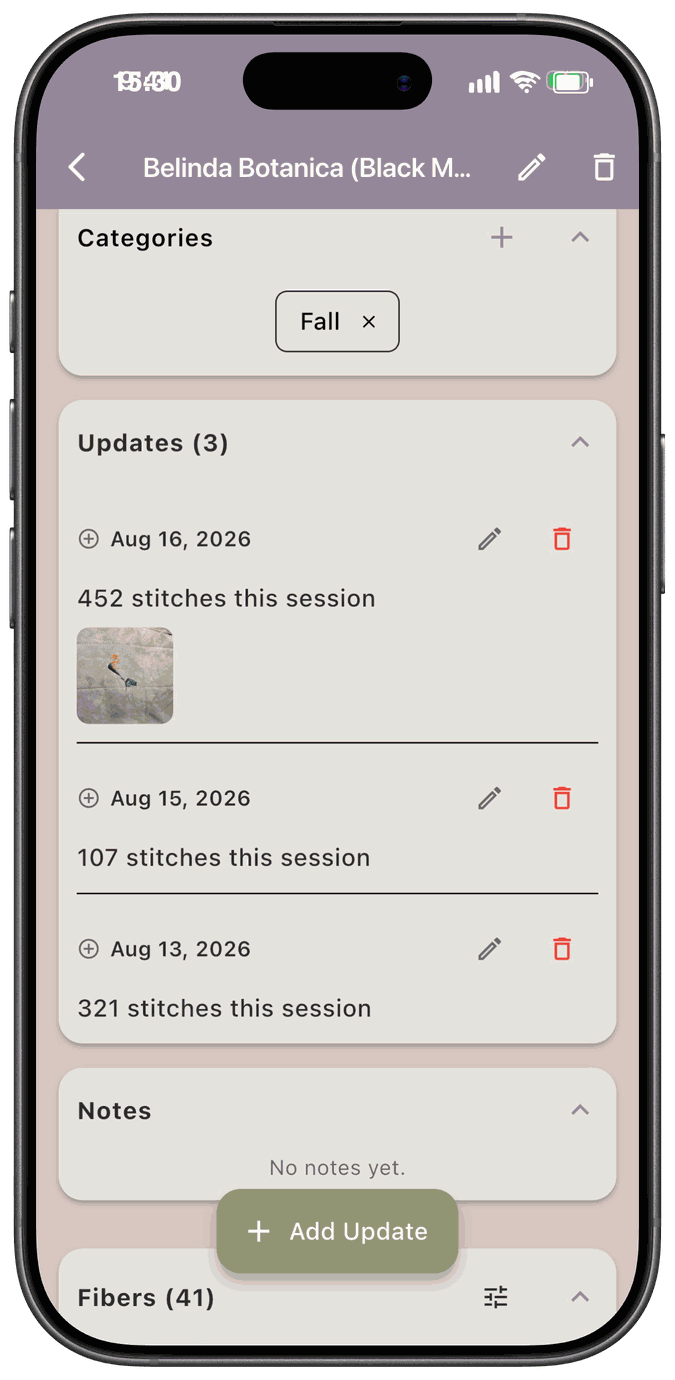
Each entry reads like 452 stitches this session, 1,200 total stitches done, or 42% done, depending on how you entered it. Tap a photo to see it full size.
- Tap the pencil to edit an update. It reopens the same dialog with everything filled in.
- Tap the trash can to delete one. The app asks you to confirm, because a deleted update, including its photos, can’t be brought back.
Where you’ll see your progress
Section titled “Where you’ll see your progress”Your Projects list shows a progress line on each project that’s a WIP. It shows your latest update:
- A percentage, like 42%, if you entered a percent.
- A stitch count, like 250 stitches, if you entered a session or a total.
- Your count and the pattern’s total when the app knows both, like 250 / 8,000 (3%).
To get the percentage from a stitch count, the pattern needs to have a stitch count filled in. See Pattern Stash to add one.
Projects with any other status don’t show a progress line. See Project Statuses.
Updates can change a project’s status
Section titled “Updates can change a project’s status”Adding an update can also change the project’s status for you:
- If the project isn’t a WIP yet, saving an update makes it one. If it was New, its start date is set to the update’s date.
- If your update reaches 100%, or your Total matches the pattern’s stitch count, the project becomes Finished and its finish date is set to the update’s date.