
Unkitting a Project
When you change a project’s status or delete a project, the app may ask whether you’d like to return your materials — fabric, pattern, and fibers — back to your stash. This process is called unkitting.
Step 1: Fabric
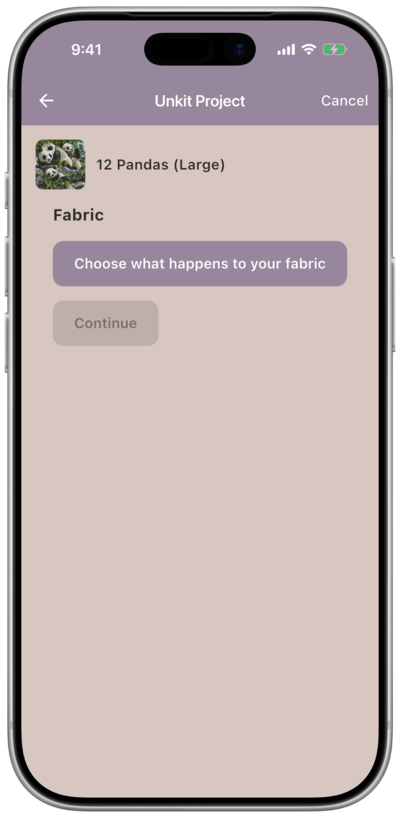
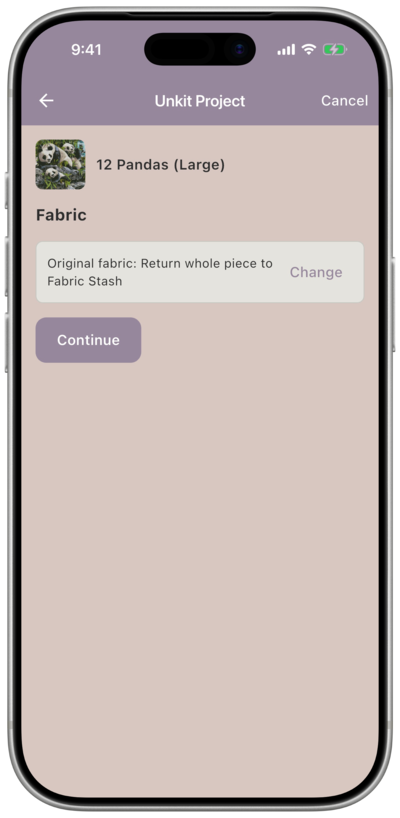
Section titled “Step 1: Fabric”The fabric screen asks what you’d like to do with the fabric assigned to this project. Tap Choose what happens to your fabric to see your options. Continue stays grayed out until you’ve made a choice.
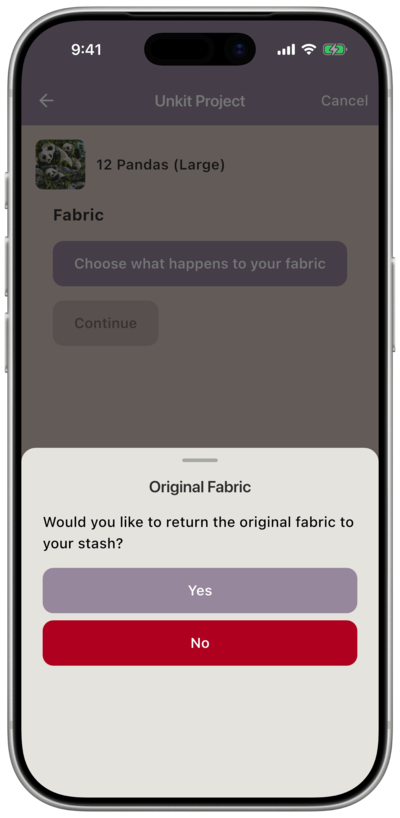
Would you like to return the original fabric to your stash?
- No — the fabric stays where it is; move on to the next step
- Yes — continue to choose how to return it
If you choose Yes, the app asks: Whole piece or cut?
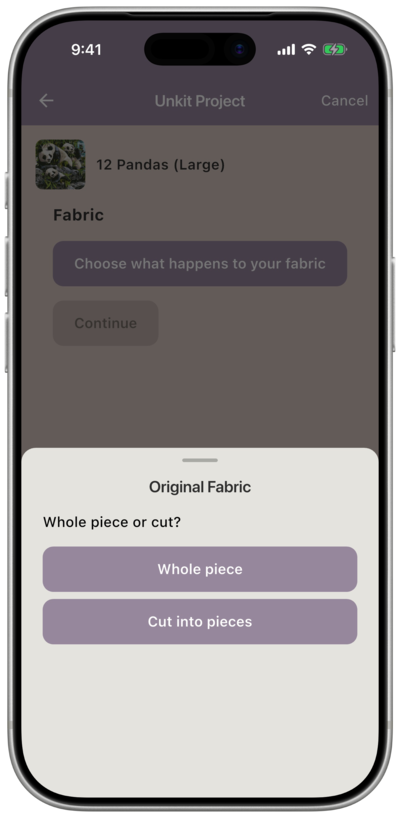
Whole piece
Section titled “Whole piece”A list of your saved locations appears. Tap the one where this fabric lives, or tap Add new location to create a new one.
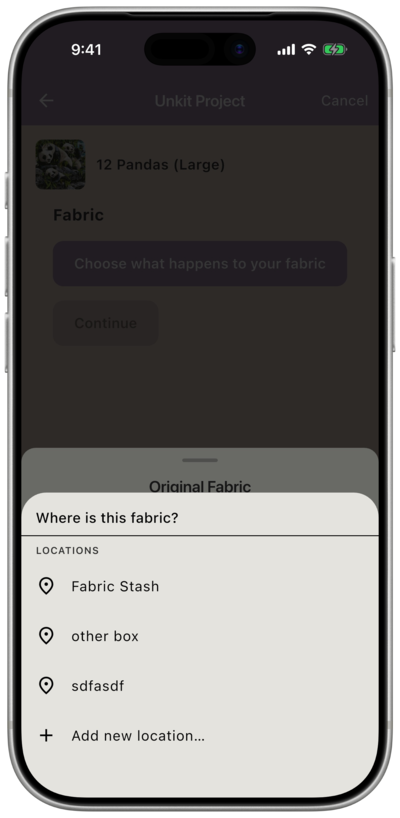
Once chosen, the fabric screen shows a summary of what you’ve decided with a Change button if you want to go back and revise it.
Cut into pieces
Section titled “Cut into pieces”Use this option when you’re returning only the unstitched portions of your fabric — for example, if you cut a piece for this project and have leftover fabric you’d like back in your stash, but the stitched piece itself isn’t being returned.
For each piece you’re returning, enter its dimensions and choose where it’s going. Tap + Add another piece to add more. The dimensions don’t need to add up to anything — just enter the pieces you actually want to return.
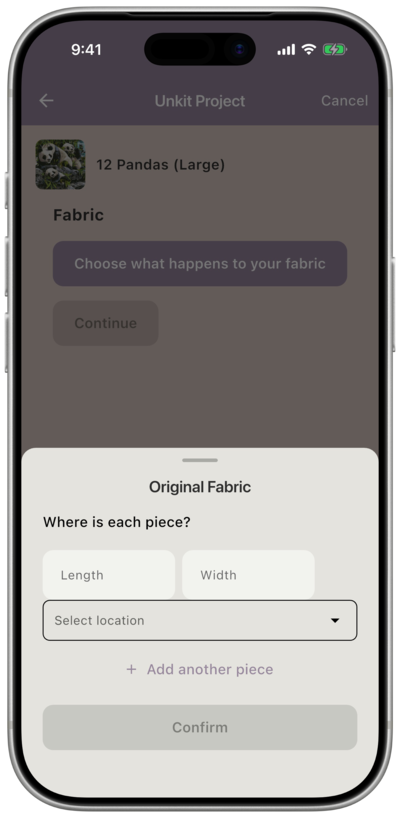
Tap Confirm when all pieces are entered.
Once you’re happy with your fabric choice, tap Continue.
Step 2: Pattern
Section titled “Step 2: Pattern”The pattern screen works the same way as the fabric screen. Tap Choose what happens to your pattern to see your options. Continue stays grayed out until you’ve made a choice.
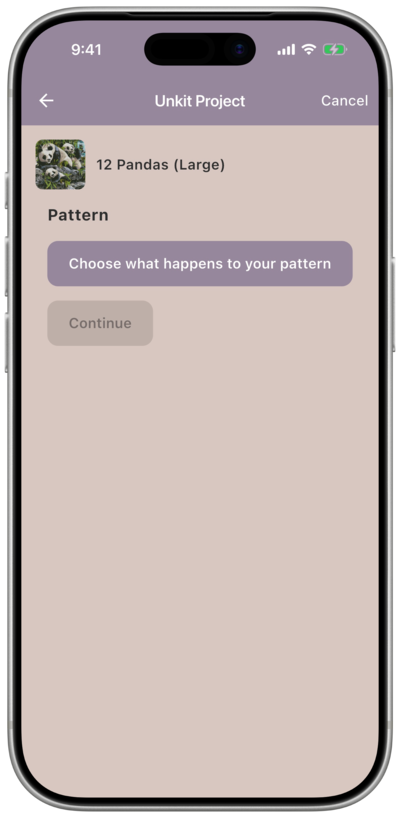
Would you like to return the pattern to your stash?
- No — the pattern stays where it is
- Yes — a list of your saved locations appears; tap the one where your pattern lives
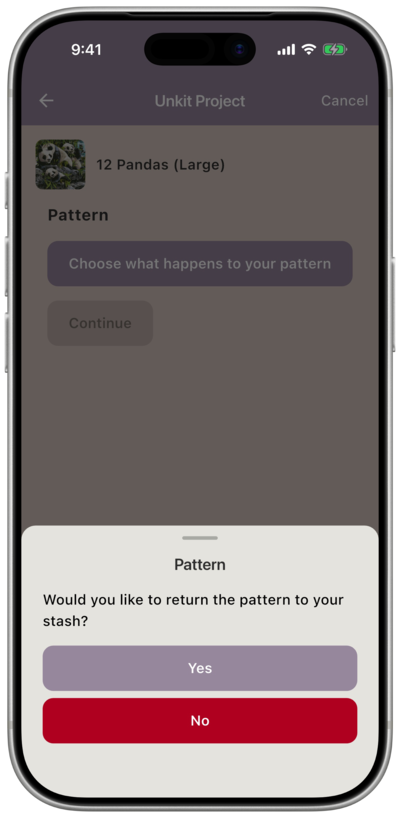
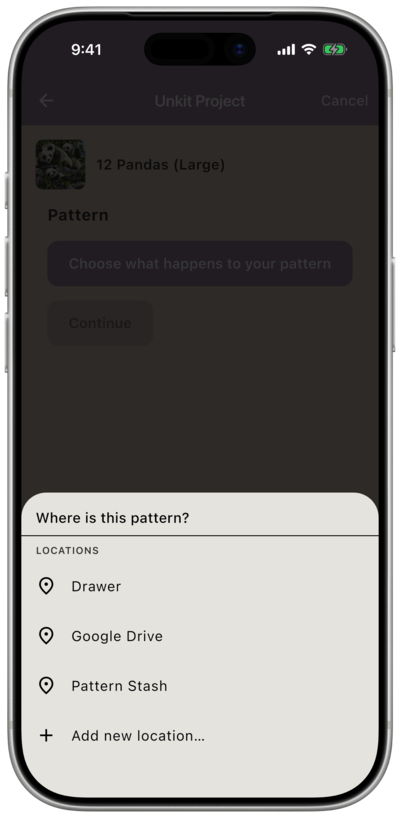
Tap Continue when done.
Step 3: Return Fibers to Original Location
Section titled “Step 3: Return Fibers to Original Location”This screen lists all fibers that have a known original location, grouped by that location. All fibers are checked by default, meaning they’ll be returned to where they came from.
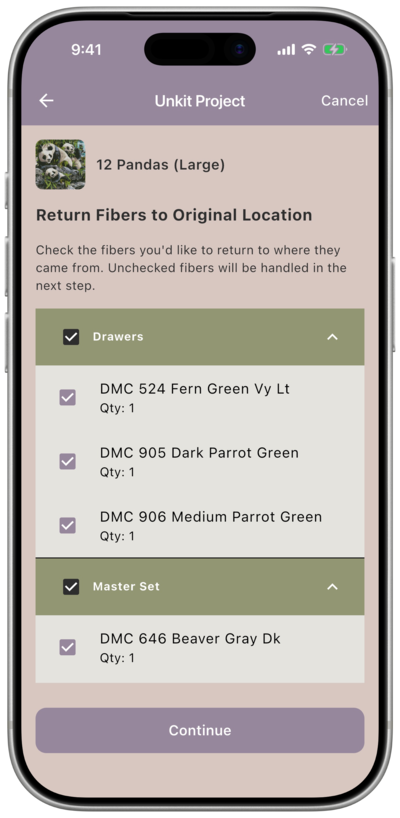
Uncheck any fibers you don’t want to send back to their original location. Those fibers will appear in the next step for you to handle individually. Tap Continue when done.
Step 4: Fibers Without a Known Location
Section titled “Step 4: Fibers Without a Known Location”This screen shows all fibers that either didn’t have an original location saved, or that you chose not to return to their original location in the previous step. Every fiber in this list needs to be dealt with before you can move on — Continue stays grayed out until they’re all decided.
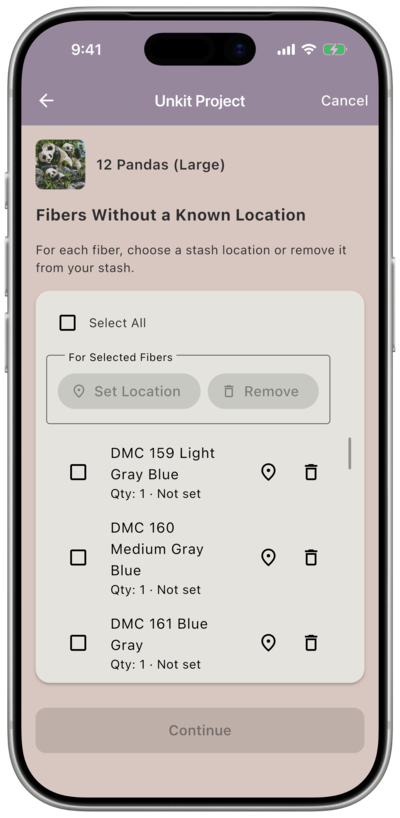
For each fiber you have two options:
- Pin icon — choose a location from your saved locations to send the fiber back to your stash
- Trash icon — remove the fiber from your stash entirely
You can handle fibers one at a time using the icons on each row, or use the checkboxes and the For Selected Fibers buttons to assign a location or remove several fibers at once.
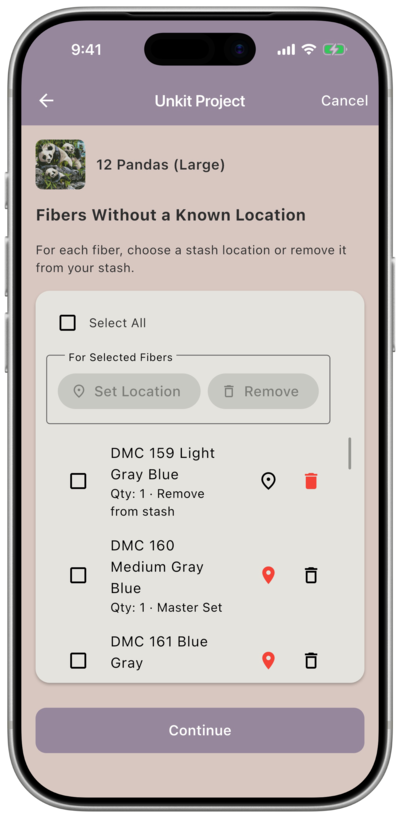
When a fiber has a decision made for it, either the trash can or locaion pin will turn red to indicate the decision.
Once every fiber has been decided, Continue becomes active.
Step 5: Shopping List
Section titled “Step 5: Shopping List”If your project has any items on your shopping list, this screen asks what to do with them. Unlike fabric, pattern, and fibers, shopping list items aren’t returned to stash — they’re either kept or removed.
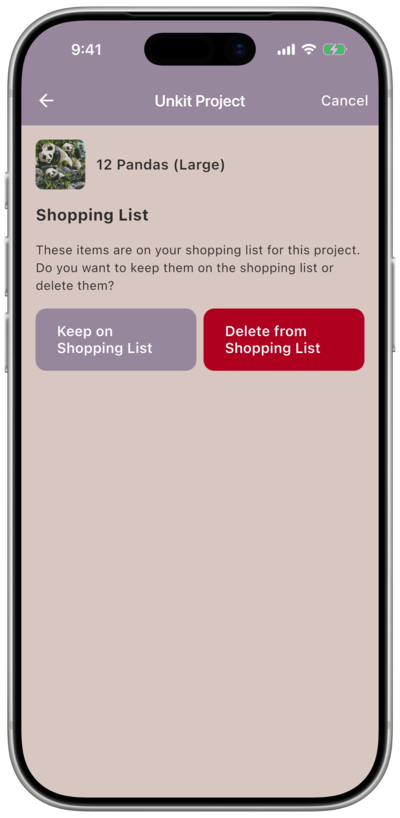
- Keep on Shopping List — the items stay on your shopping list after unkitting
- Delete from Shopping List — the items are removed
Step 6: Review
Section titled “Step 6: Review”The final screen shows a complete summary of everything that’s about to happen — where each material is going, how many fibers are being moved and where, and whether the shopping list will be cleared.
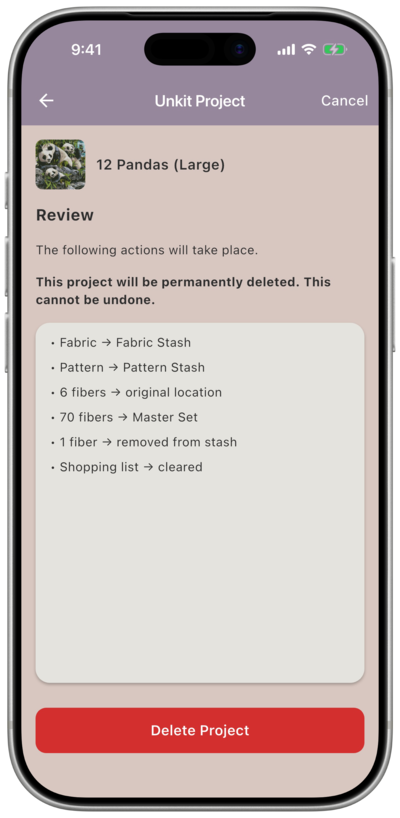
Take a moment to check everything over, then tap the confirm button to apply your choices. All moves happen at this point and not before. There is no undo.