
Plans
Plans is where you turn your WIPs into a game. Instead of deciding what to stitch on, you let the game decide, then log your progress as you go. Plans has two games so far, with more on the way.
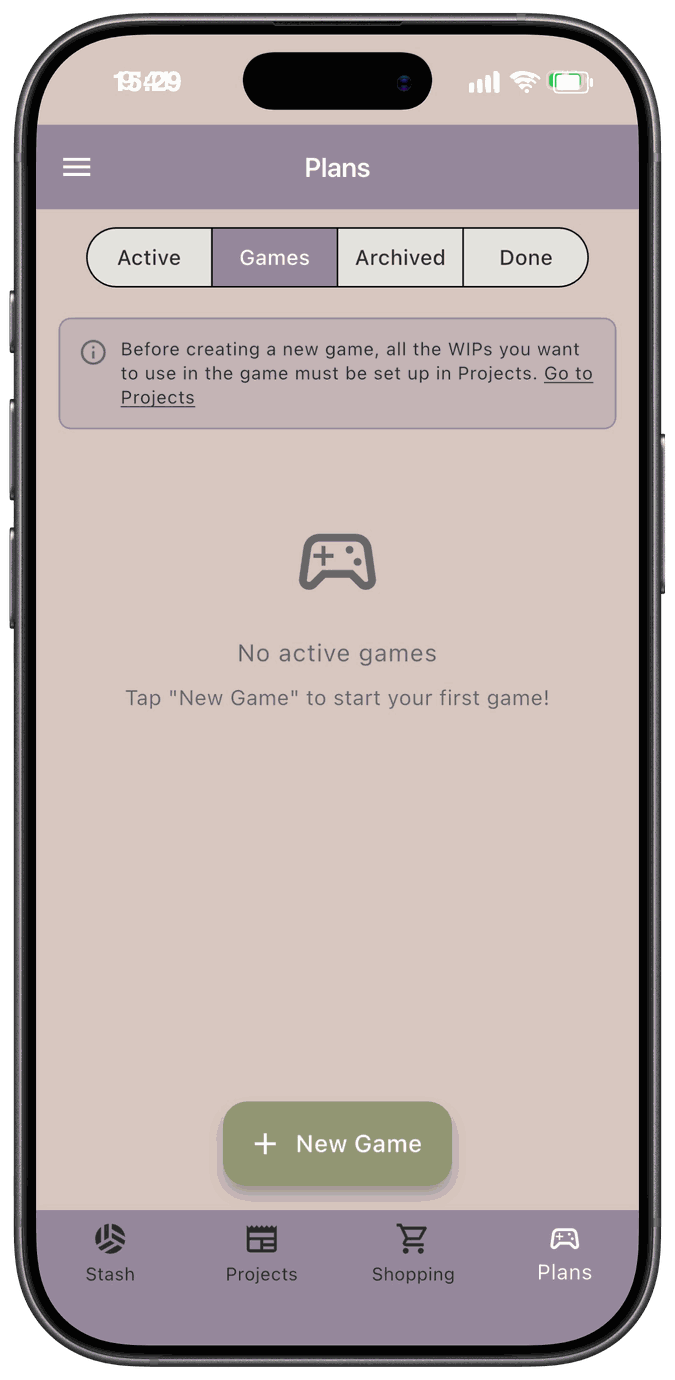
Before you start
Section titled “Before you start”A game picks from the projects you already have, so set up the WIPs you want to use in Projects first. The Games tab reminds you with a link to Go to Projects.
Start a game
Section titled “Start a game”- Open the Plans tab and go to the Games tab.
- Tap New Game.
- Choose a game type.
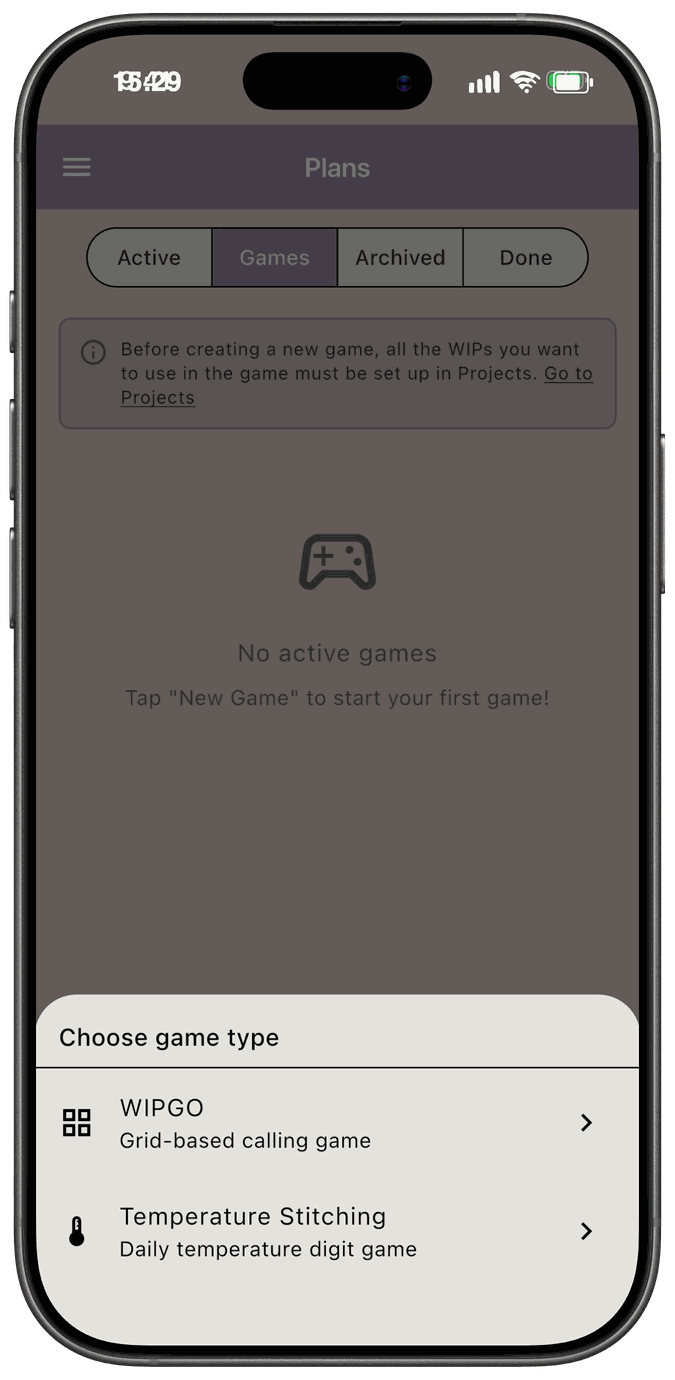
You can play more than one game at once, including more than one of the same kind.
The Plans tabs
Section titled “The Plans tabs”At the top of the Plans screen are four tabs:
- Active — the current goals in your games, each with your progress toward its goal, like 0 / 100 stitches.
- Games — your games. Start a new one here.
- Archived — games and goals you’ve set aside.
- Done — games and goals you’ve completed.
In both games, each square or day is tied to a project (or to a category) and has a goal. Choose the goal type when you set the game up:
- Stitches — a number of stitches.
- Minutes — time spent stitching.
- Days — days you stitched on it.
- Floss Lengths — lengths of floss used.
You can set a default goal for the whole game and change it for any single square or digit. To add progress, you log it the same way as a regular project update, with the Session, Total, and Percent options. See Progress Tracking. Progress you log in a game also shows up as an update on that project.
In this section
Section titled “In this section”- WIPGO — a bingo-style board where each square is a project
- Temperature Stitching — let the day’s temperature decide which project you stitch on