
Fabric Calculator
The fabric calculator takes your pattern’s stitch dimensions, your fabric count, and your margin preference, and then tells you exactly how much fabric you need — no math required. If you’re cutting from a larger piece you already own, it goes one step further: it shows you a visual diagram of the most efficient cut, and tells you what you’ll have left over.
The fabric calculator is part of the New Project flow. You can’t access it separately — it runs as part of setting up a project or changing fabric on a project.
Using the calculator
Section titled “Using the calculator”Step 1: Start a new project
Section titled “Step 1: Start a new project”There are two ways to get into the New Project flow:
- From a pattern — open the pattern you want to stitch and tap Kit Up Project at the bottom of the pattern detail screen. The pattern is linked automatically.
- From the Projects page — tap New Start and select a pattern from the list.
Either way, a pattern must be selected before the fabric calculator can run — it needs the stitch dimensions to do its math.
Step 2: Set up your stitching setup
Section titled “Step 2: Set up your stitching setup”In the Stitching Setup section, you’ll see:
- Fabric — choose From Stash to use a piece you’ve already logged, or Add New Fabric to enter a new piece
- Strands over / threads — set how many strands you’re stitching with and how many threads you’re stitching over (Note sure what this means? This article has a good explanation and diagrams.)
- Margin (in) — your horizontal and vertical margins in inches or cm (see Settings). 3 inches is a common starting point, but adjust to whatever you prefer
- Full Cross / Half Cross — toggle based on how you’re stitching
When you choose From Stash, you can turn on Only show fabrics large enough for this project. The fabric list then shows only the pieces in your stash that are big enough for the project. The app measures in the unit you chose in General settings, and a piece counts if the project fits with the fabric turned either way. The switch is available once the app knows your pattern’s size.
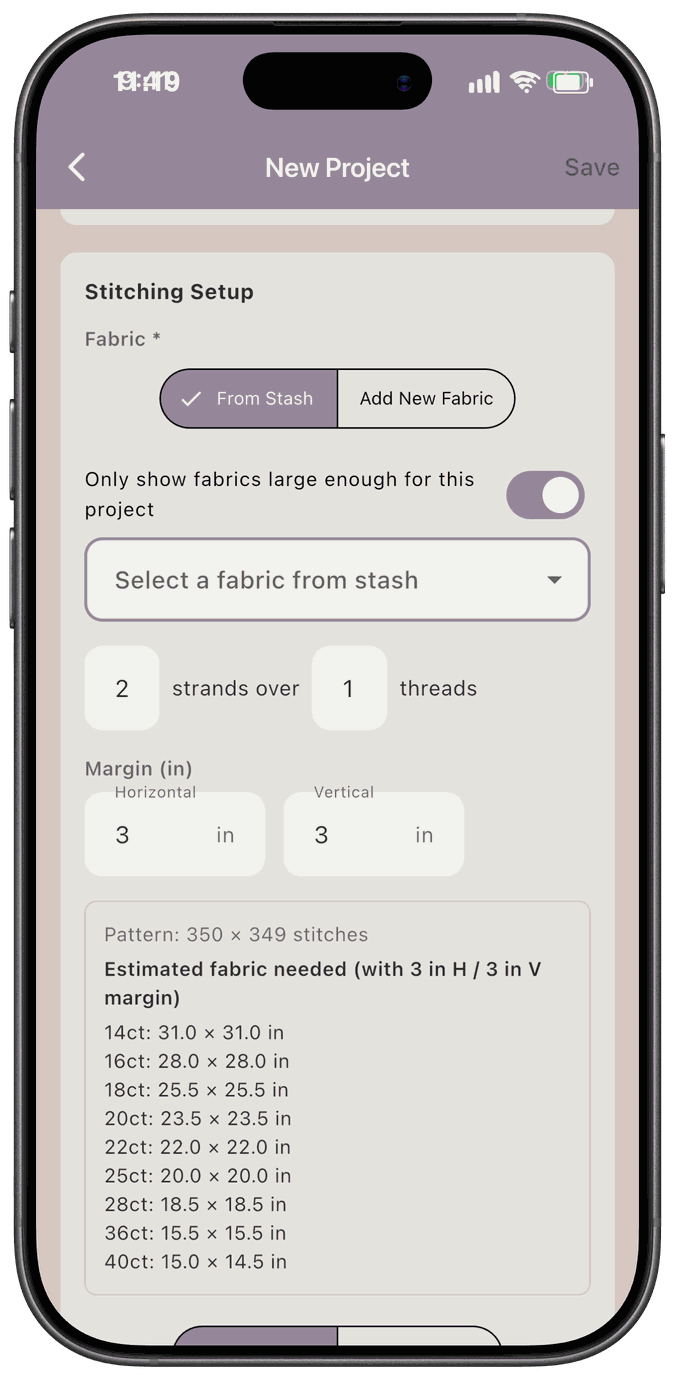
If nothing in your stash is big enough, the app says No fabrics in your stash are large enough for this project. Turn off the filter to see all fabrics. Turn the switch off to see every fabric.
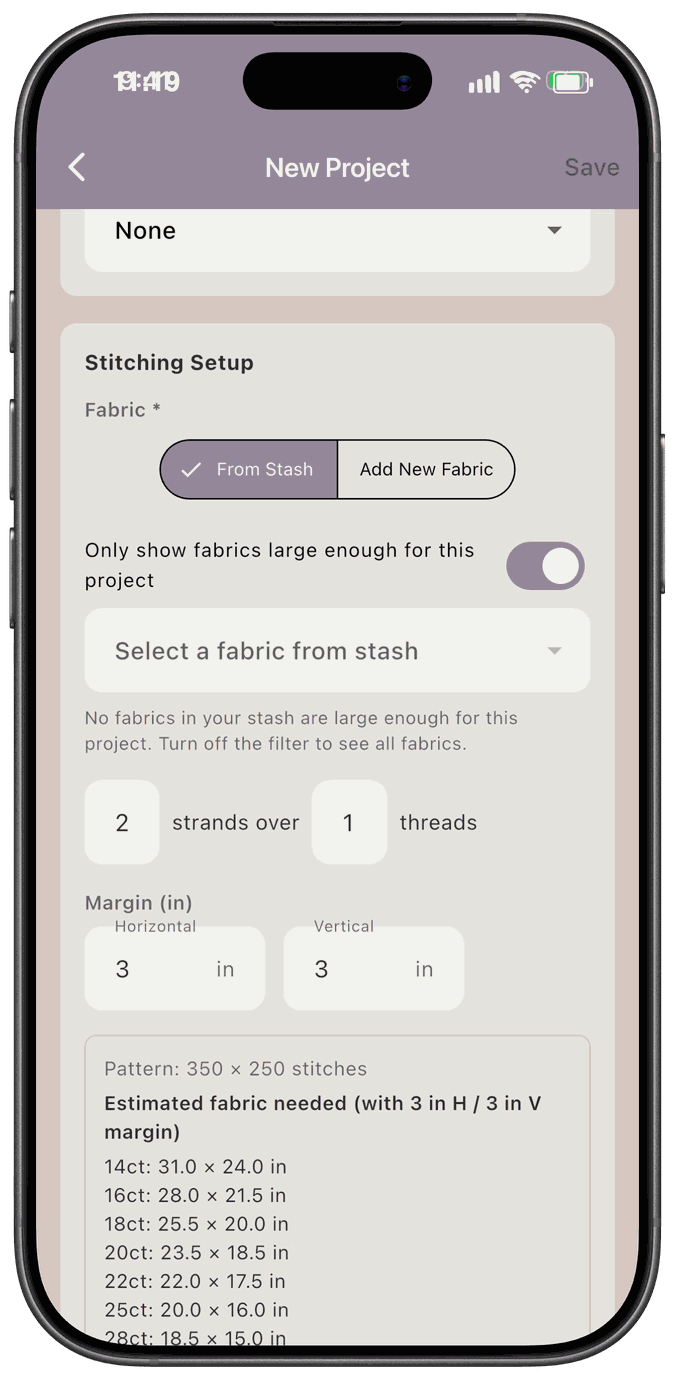
As you fill in these fields, the results update in real time.
Step 3: Read your results
Section titled “Step 3: Read your results”If you haven’t selected a specific fabric yet, the calculator shows estimated fabric sizes across all common counts — 14ct, 16ct, 18ct, 20ct, 25ct, 28ct, 36ct, and 40ct — so you can compare options at a glance before committing to a piece.
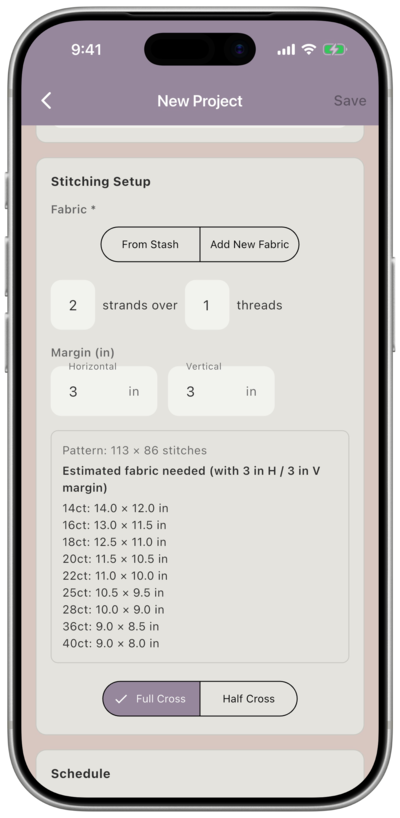
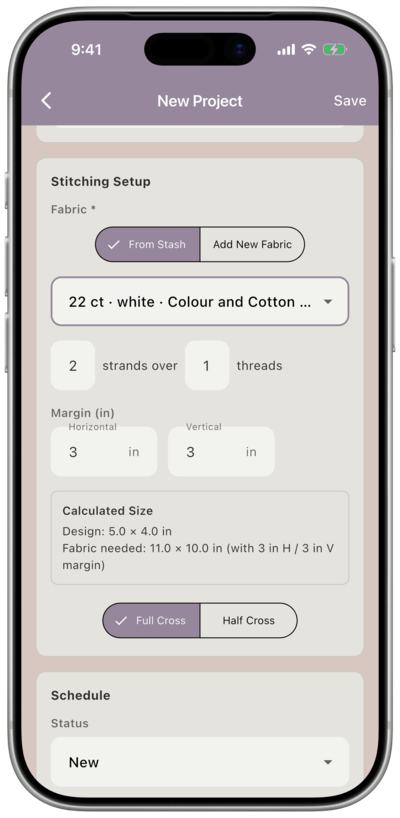
Once selected a specific fabric, the result box shows:
- Design size — how large the finished stitching will be in inches
- Fabric needed — the minimum piece size required, including your margins
Step 4: Assign your fabric
Section titled “Step 4: Assign your fabric”If the fabric piece you selected is larger than the project needs, the app will ask: “Are you using the whole piece or cutting from it?”
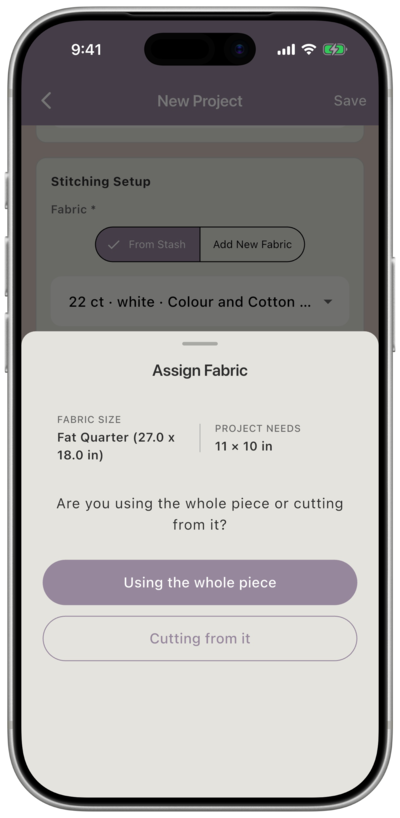
- Using the whole piece — assigns the full piece to the project and moves on
- Cutting from it — takes you into the cutting flow
The cutting flow
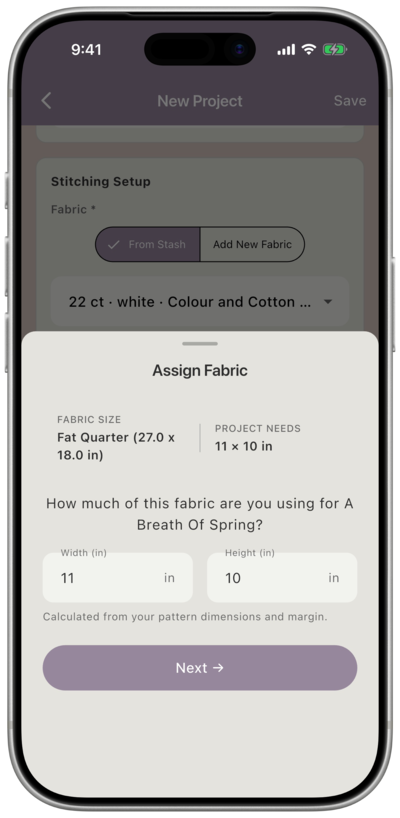
Section titled “The cutting flow”When you choose “Cutting from it,” the app shows you the dimensions of your fabric piece alongside what the project needs. The cut size is pre-filled from the calculation, but you can adjust it if you want to use a different amount. Tap Next.
The app then shows a visual cutting diagram — a scaled layout of your fabric with the project piece marked out and the leftover sections labeled. Below the diagram you’ll see a summary:
- Fabric name, brand, type, and count
- Current size
- Project piece size
- Remaining piece(s) after the cut, listed by dimensions
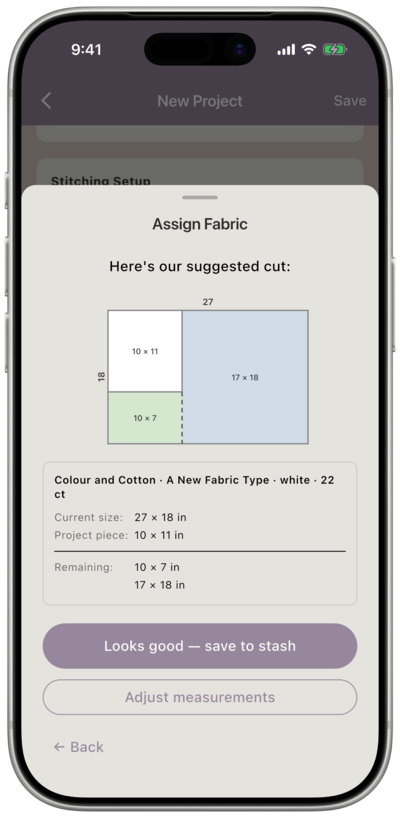
When the cut looks right, tap Looks good — save to stash. This does three things at once:
- Updates your original fabric entry to reflect the smaller remaining size
- Creates a new stash entry for any additional leftover piece
- Links the project piece to your new project
If something’s off, tap Adjust measurements to go back and change the dimensions.
If a fabric change doesn’t go through
Section titled “If a fabric change doesn’t go through”When you change the fabric on an existing project, the app may show one of these messages:
- Your project’s fabric was changed, but your stash couldn’t be updated. Please adjust that fabric in Stash. The project has its new fabric, but your fabric stash didn’t update to match. Open Fabric Stash and fix that piece yourself. The message stays on screen for 10 seconds.
- Couldn’t change your project’s fabric. Your other changes were saved — please try changing the fabric again. Your other edits to the project were saved, but the fabric didn’t change. Choose the fabric again.