
Fabric Stash
Stash → Fabrics is your inventory of aida, evenweave, linen, and any other fabric you own. Every entry records what the fabric is, how big it is, and where it’s stored, so you know what’s available before you start a new project.
Add fabric to your stash
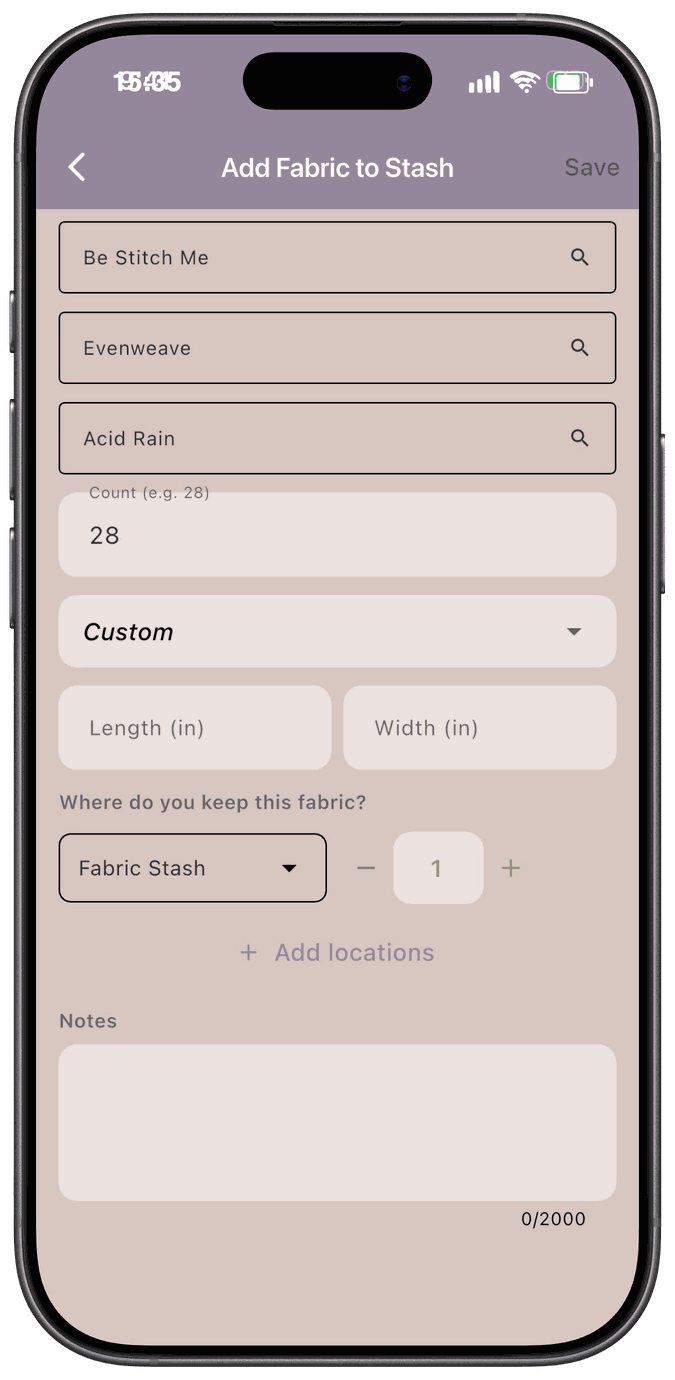
Section titled “Add fabric to your stash”Tap Add to Stash on the Fabrics tab to open Add Fabric to Stash.
-
Brand, Type, and Color — search for each and pick it from the list. If it isn’t there, choose the Add New option in that field and type a name. Color unlocks once you’ve picked a brand.
-
Count — the thread count, such as 14, 18, 28, or 32.
-
Size — pick a standard size, Custom, or Unknown.
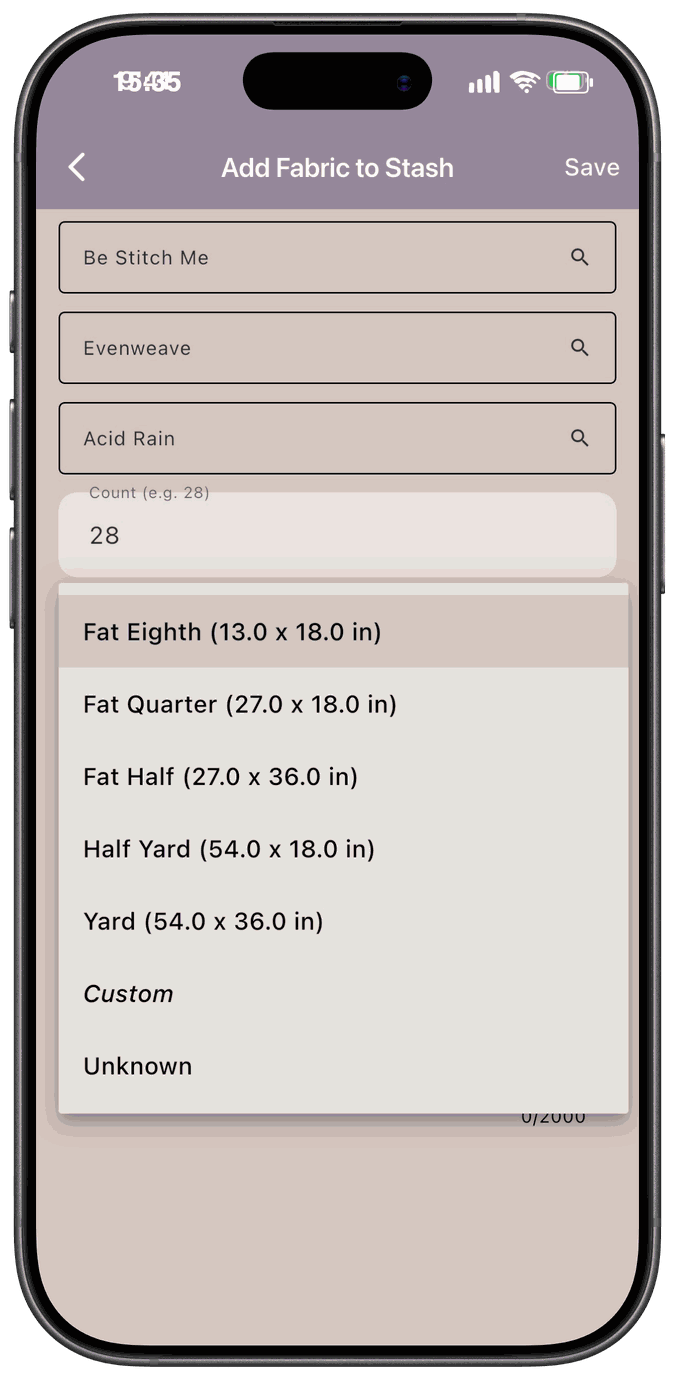
If you choose Custom, enter the Length and Width. They’re shown in the unit you picked in General settings.
-
Where do you keep this fabric? — choose a location and how many pieces you have there. Tap Add locations if you keep the same fabric in more than one place.
-
Notes — optional. Add anything you want to remember, up to 2,000 characters.
-
Tap Save. It stays grayed out until all the required fields are filled in.
See and change what you own
Section titled “See and change what you own”Tap a fabric card to open its detail screen.
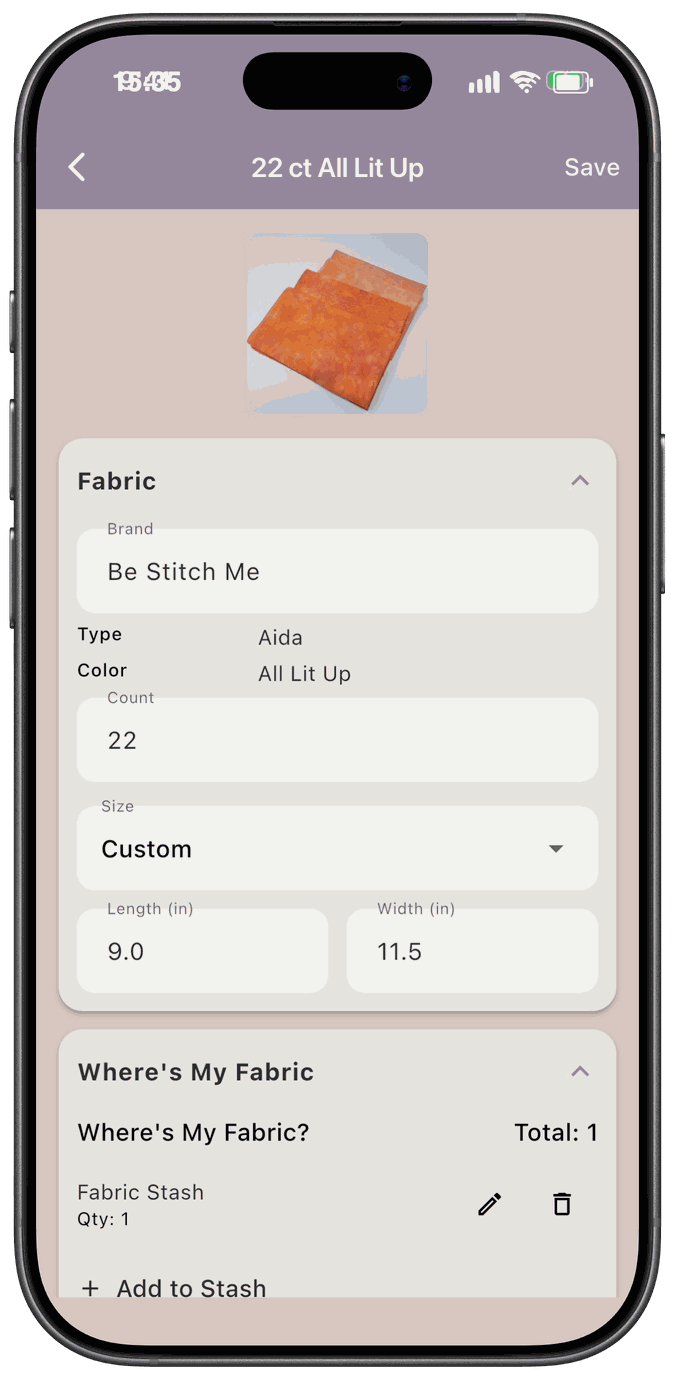
The Fabric section shows the image, brand, type, color, count, and size. Use it to correct the image, count, change the size, or enter exact dimensions for a Custom piece.
The Where’s My Fabric section lists each location with its quantity. Tap the pencil to change a row, the trash can to remove it, or Add to Stash to add more. Tap Save to keep your changes.
If you remove the last location row for a fabric, it disappears from your stash list.
Search, sort, and filter
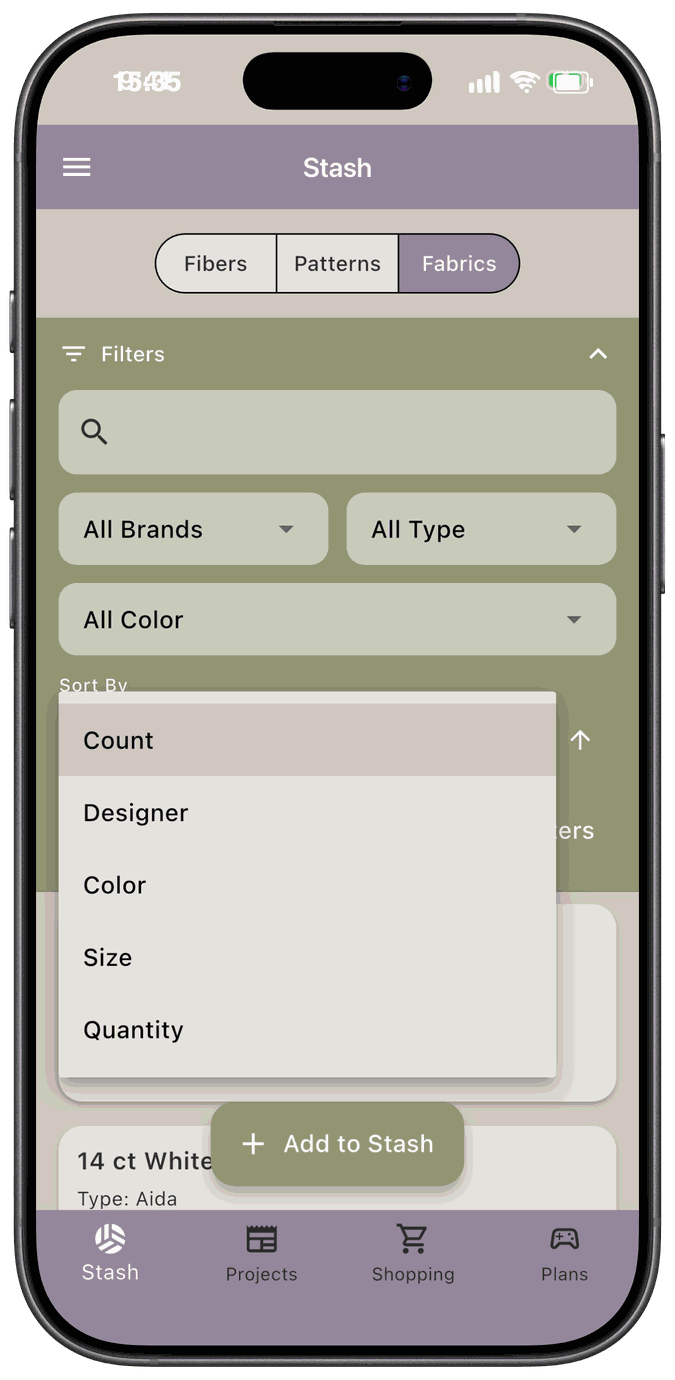
Section titled “Search, sort, and filter”Tap Filters at the top of the Fabrics tab to search and narrow the list.
-
Search the list by text for brand name, fabric type, color, or count
-
All Brands, All Type, and All Color narrow the list. Color only shows colors from the brand you picked.
-
All Locations narrows the list to the fabric kept in one location.
-
Sort By offers Count, Designer, Color, Size, and Quantity. Tap the arrow next to it to switch between ascending and descending.
-
Clear filters resets everything.
When you sort by size, named sizes come first, then custom sizes ordered by their dimensions, and Unknown last.
The filter bar stays at the top of the screen while you scroll the list, and changing a filter, the search text, or the sort takes you back to the top.
The app remembers your filters as you move around. To pin the brands, types, and colors you use most to the top of every dropdown, see Fabric Favorites. To choose how the list is sorted when you open the app, see Fabric Defaults.
When you use fabric in a project
Section titled “When you use fabric in a project”When you assign stash fabric to a project, the app asks whether you’re using the whole piece or cutting from it.
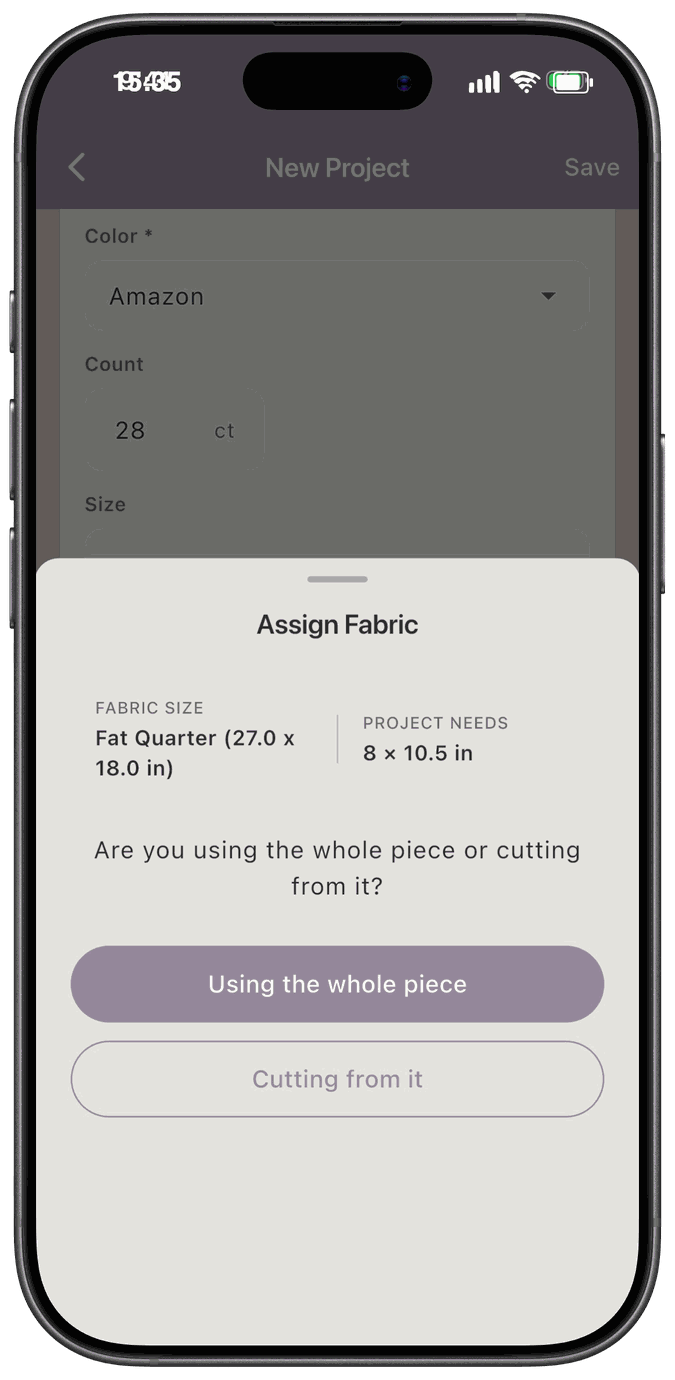
- Using the whole piece — it’s removed from your stash.
- Cutting from it — the app suggests a cut and shows what’s left over.
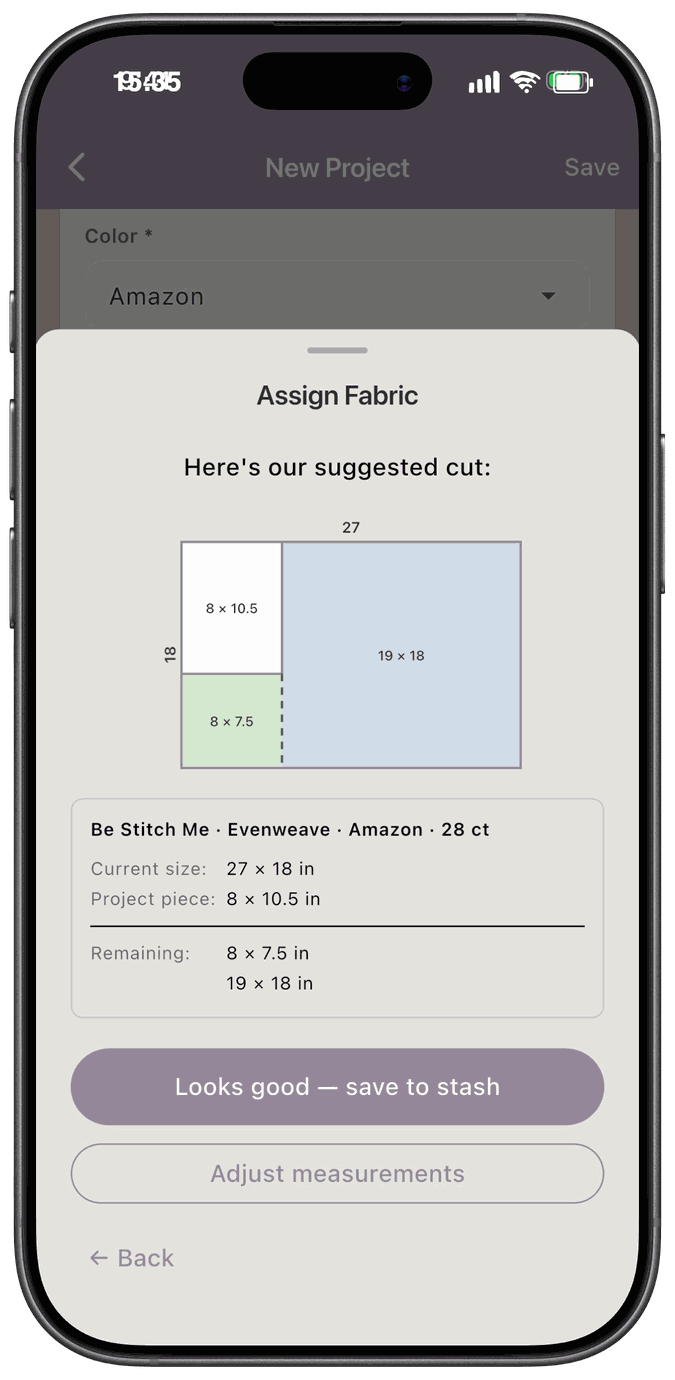
Tap Looks good — save to stash to accept the cut, or Adjust measurements to change it. When you save, the leftover pieces are saved to your stash with Custom size entries.